Loading...

Back to Library
Software
Saab WIS (Workshop Information System)
Multi-language workshop manual for Saab models from 1998 to 2012.
Description
Technical Procedure
WIS Guide
The Workshop Information System (WIS) is the technical reference for Saab owners. It includes wiring diagrams, diagnostic procedures, and factory-recommended torque specifications. This guide details the full installation, custom profile setup, and advanced search by fault code.
1
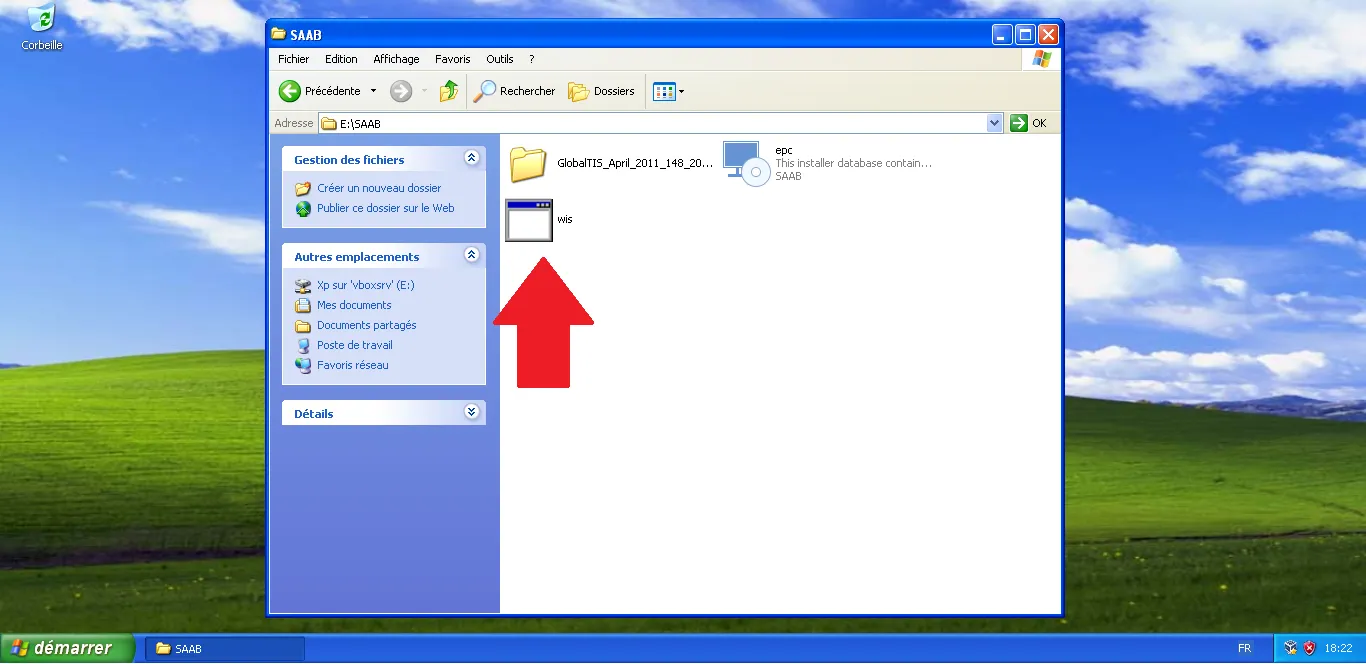
Starting the installation
Open the SAAB directory on your virtual drive and locate the executable named 'wis'. Double-click it to launch the installation wizard.
Step Visual Reference
2
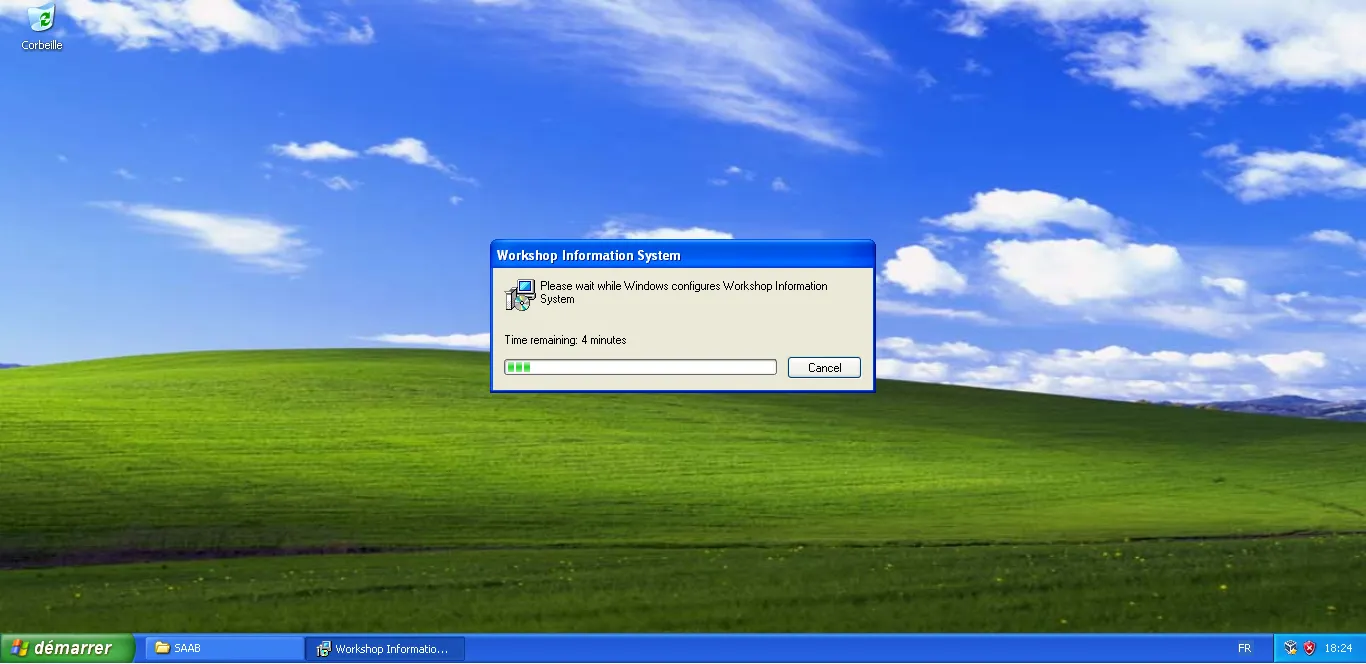
System configuration
Let Windows configure the Workshop Information System. A progress bar shows the file writing progress on the virtual disk.
Step Visual Reference
3
Shortcut creation
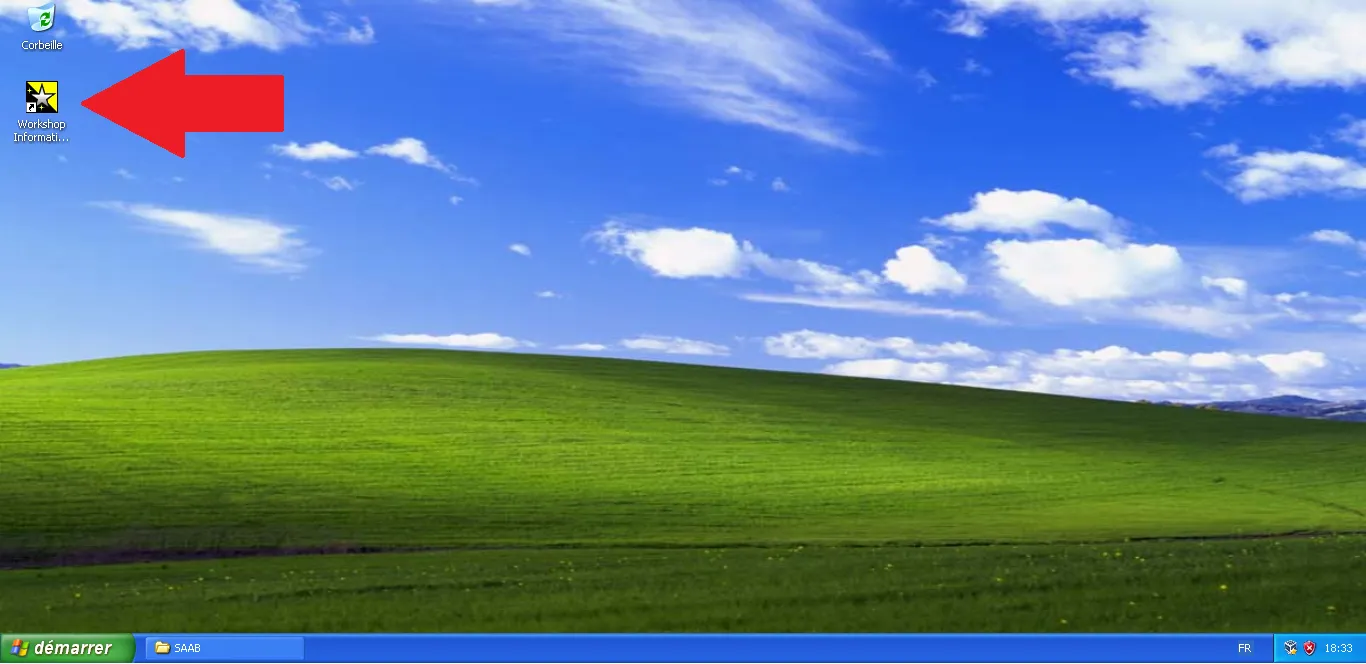
Once installation is complete, locate the new WIS shortcut created on your desktop and open it to initialize the software.
Step Visual Reference
4
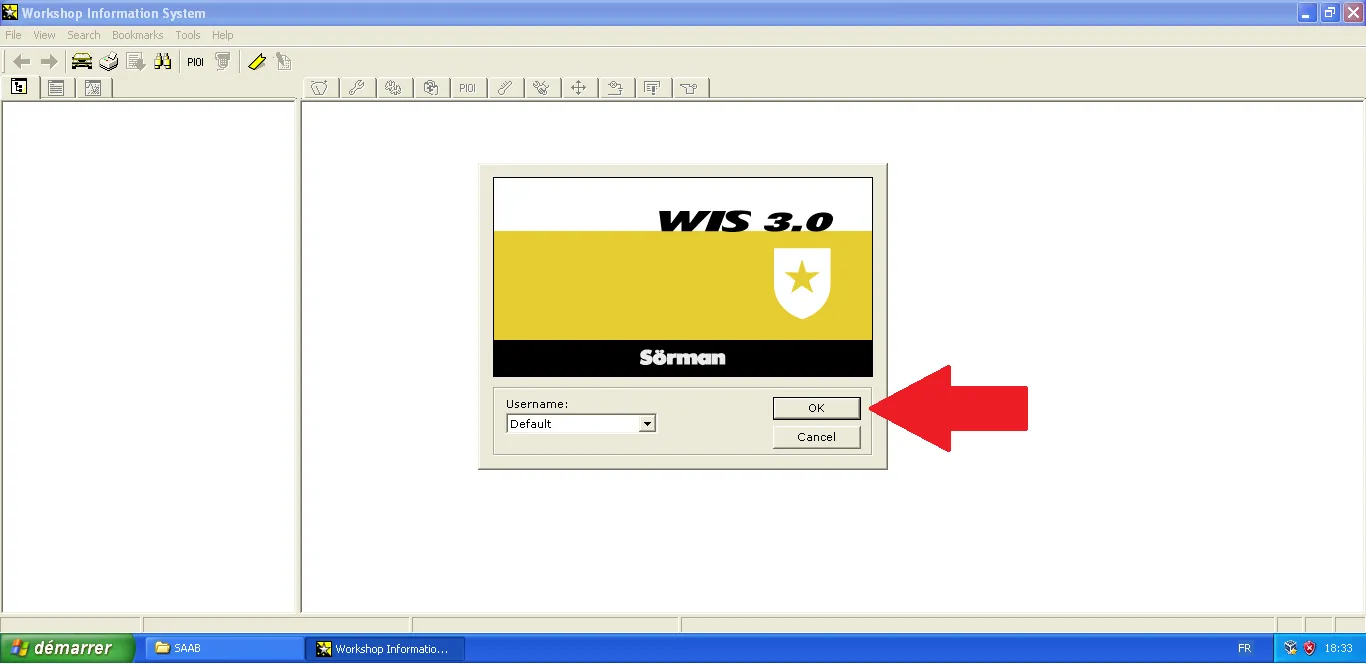
First login
At the login prompt, confirm the 'Default' profile by clicking OK. This will grant you access to the management interface.
Step Visual Reference
5
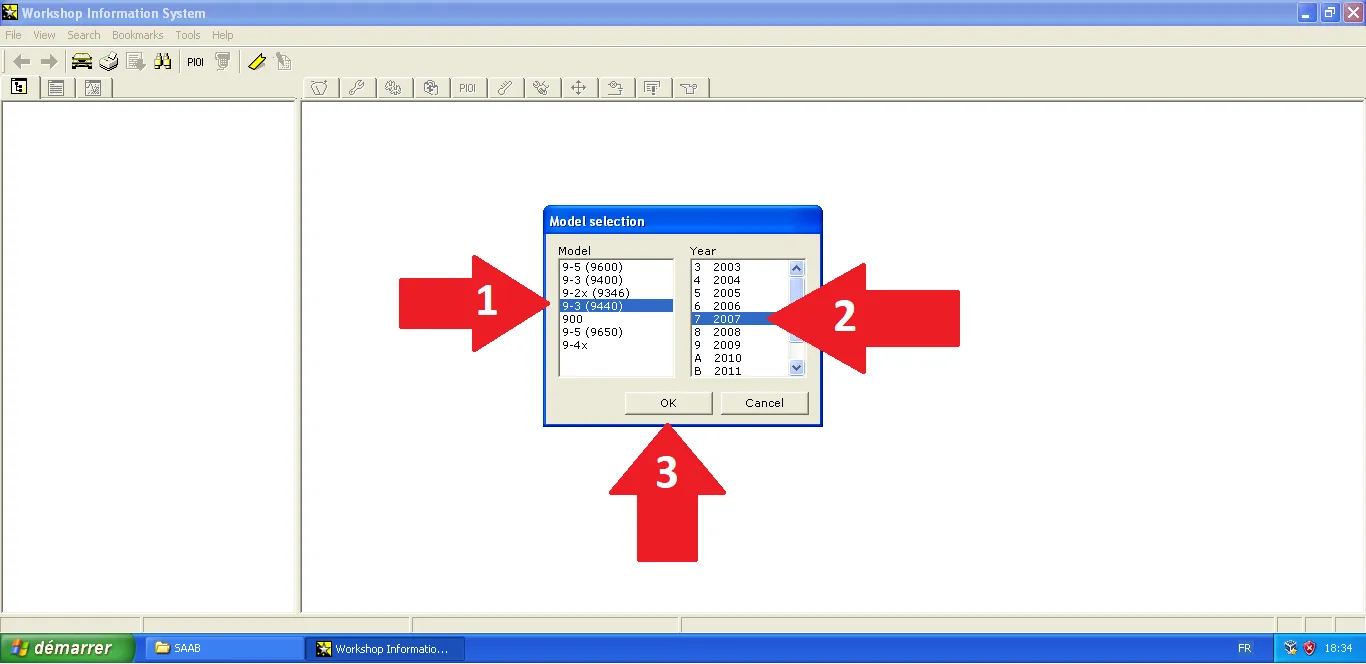
Vehicle identification
Select your model (e.g., 9-3 9440) and its production year to load the corresponding technical database.
Step Visual Reference
6
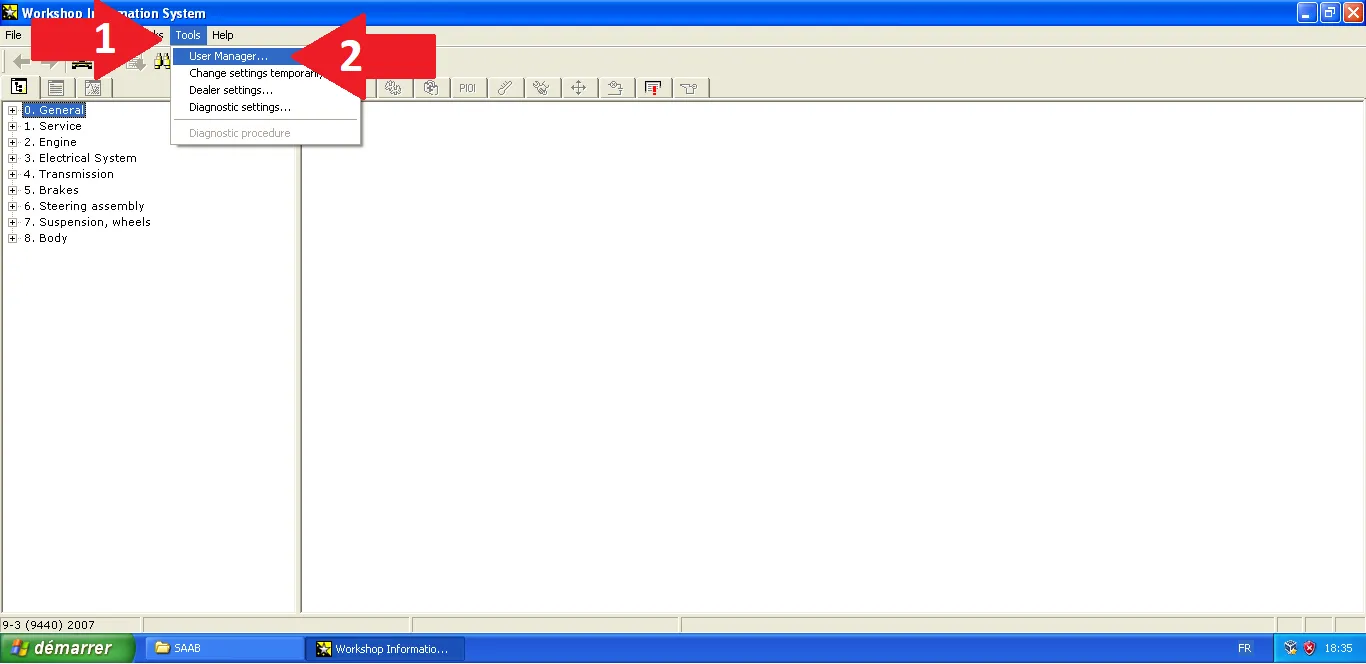
Accessing tools
To customize your environment, expand the 'Tools' menu. This is where regional preferences and users are managed.
Step Visual Reference
7
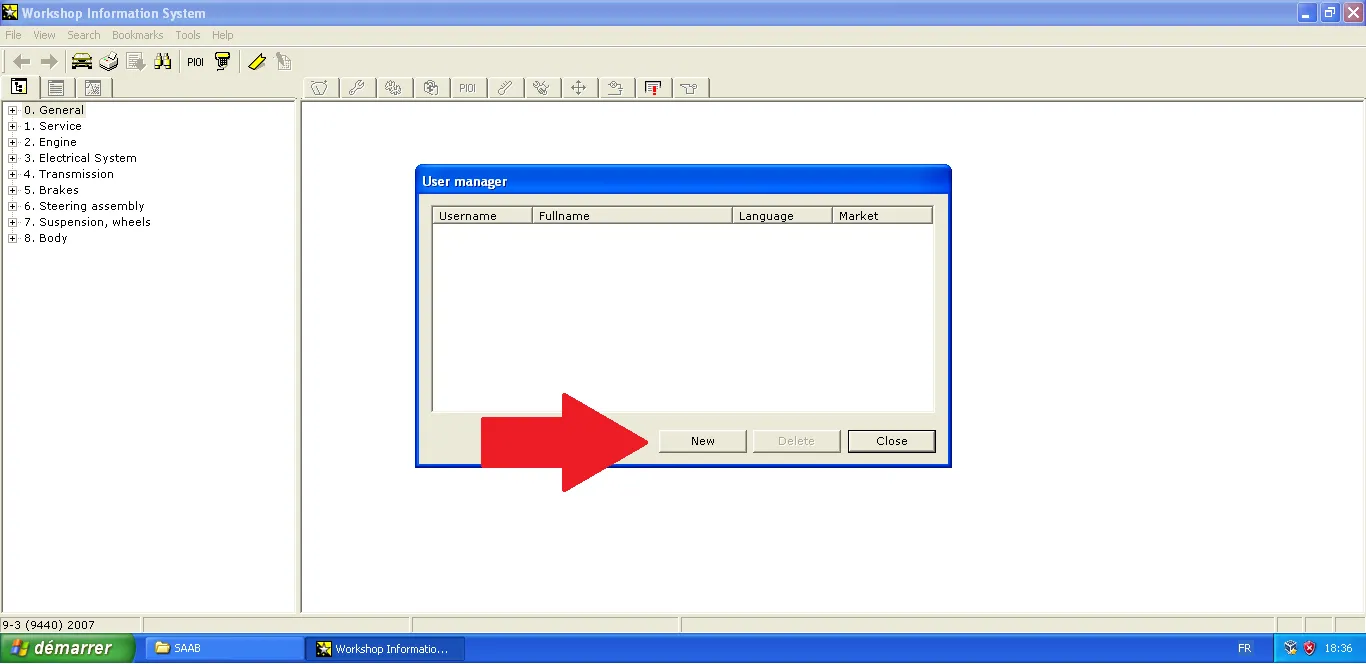
User management
In the 'User manager' window, click the 'New' button to initiate the creation of a custom user profile.
Step Visual Reference
8
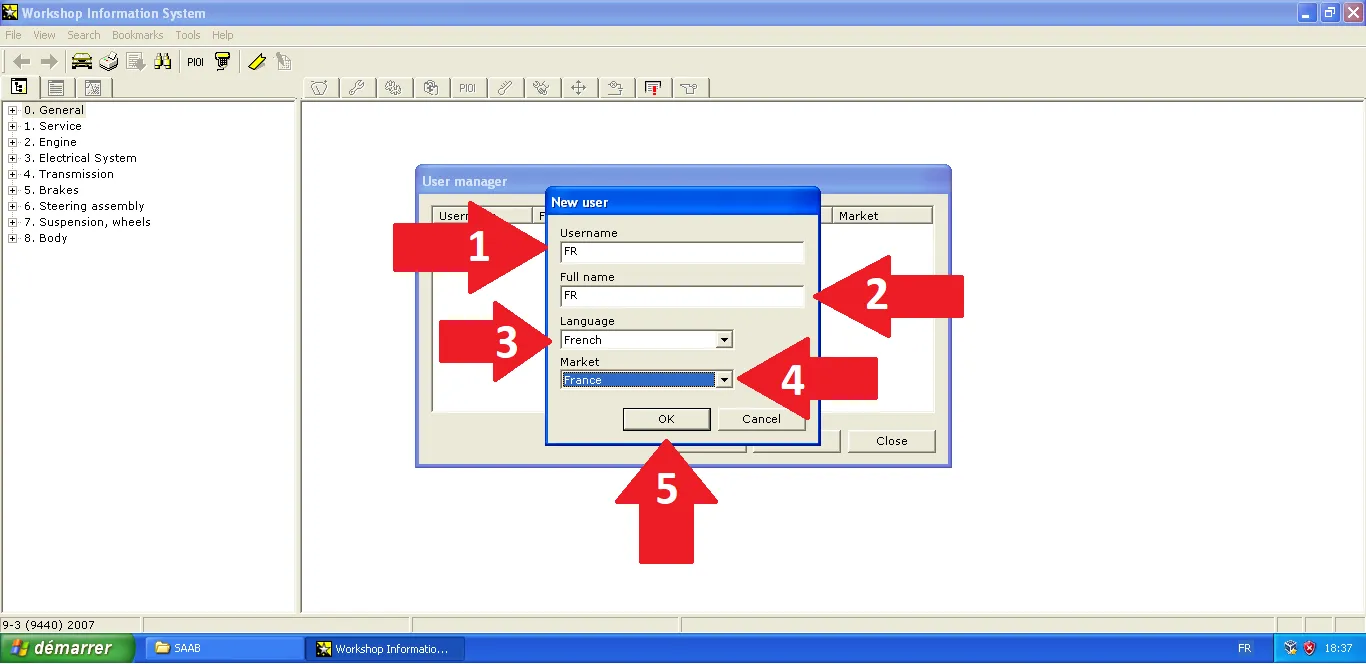
French language profile
Set up your profile by entering 'FR' as the username, then select 'French' for the language and 'France' for the market.
Step Visual Reference
9
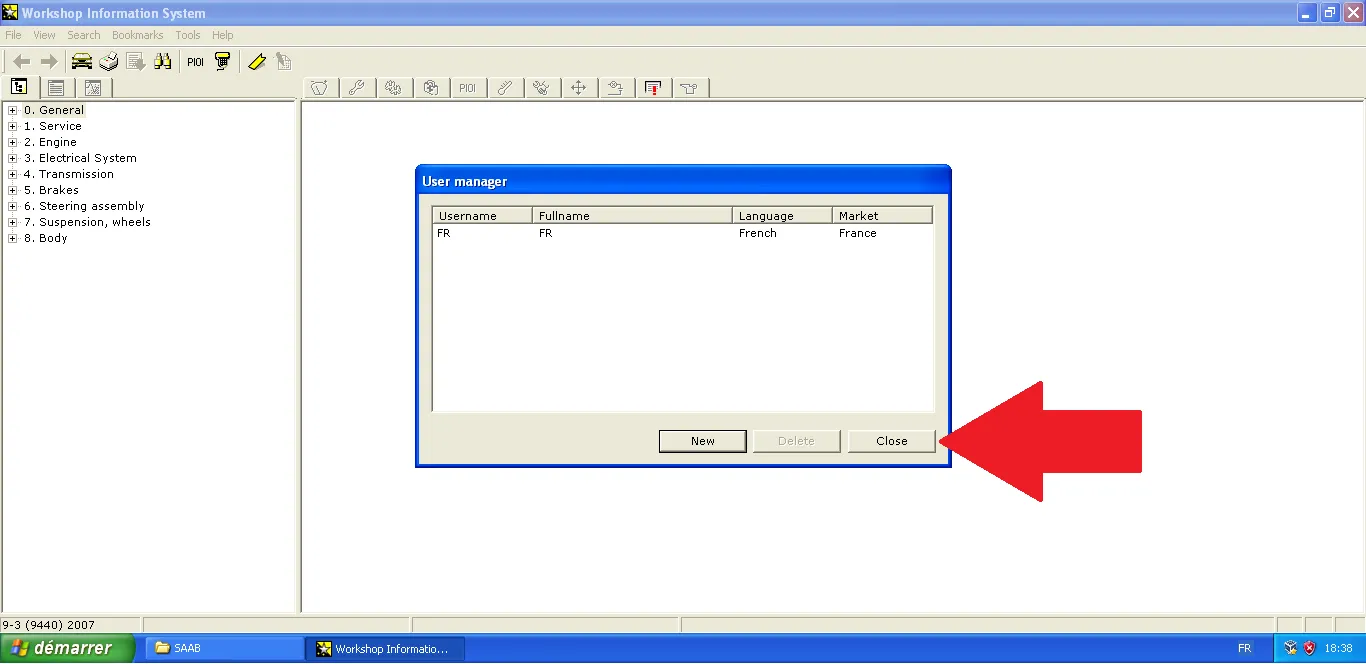
Profile validation
Ensure the 'FR' user appears correctly in the list, then click 'Close' to save your preferences.
Step Visual Reference
10
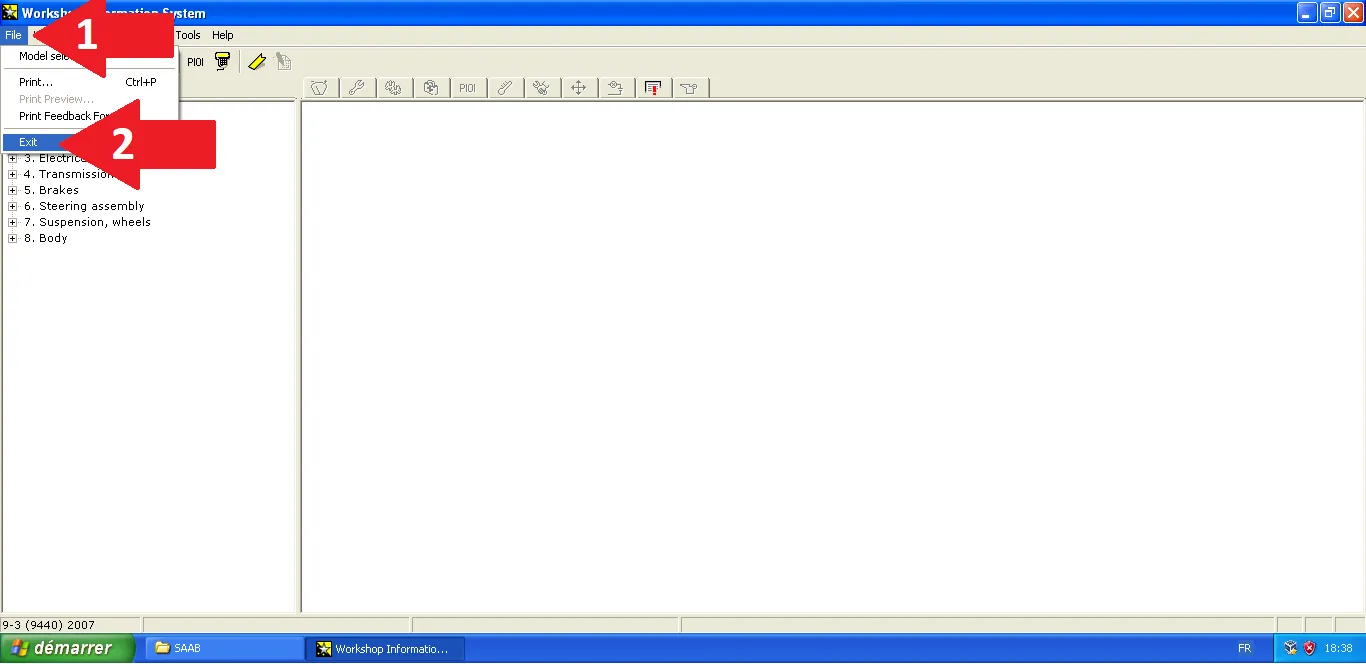
Closing session
Exit the application via the File > Exit menu. This step is necessary for the software to load your new profile upon restart.
Step Visual Reference
11
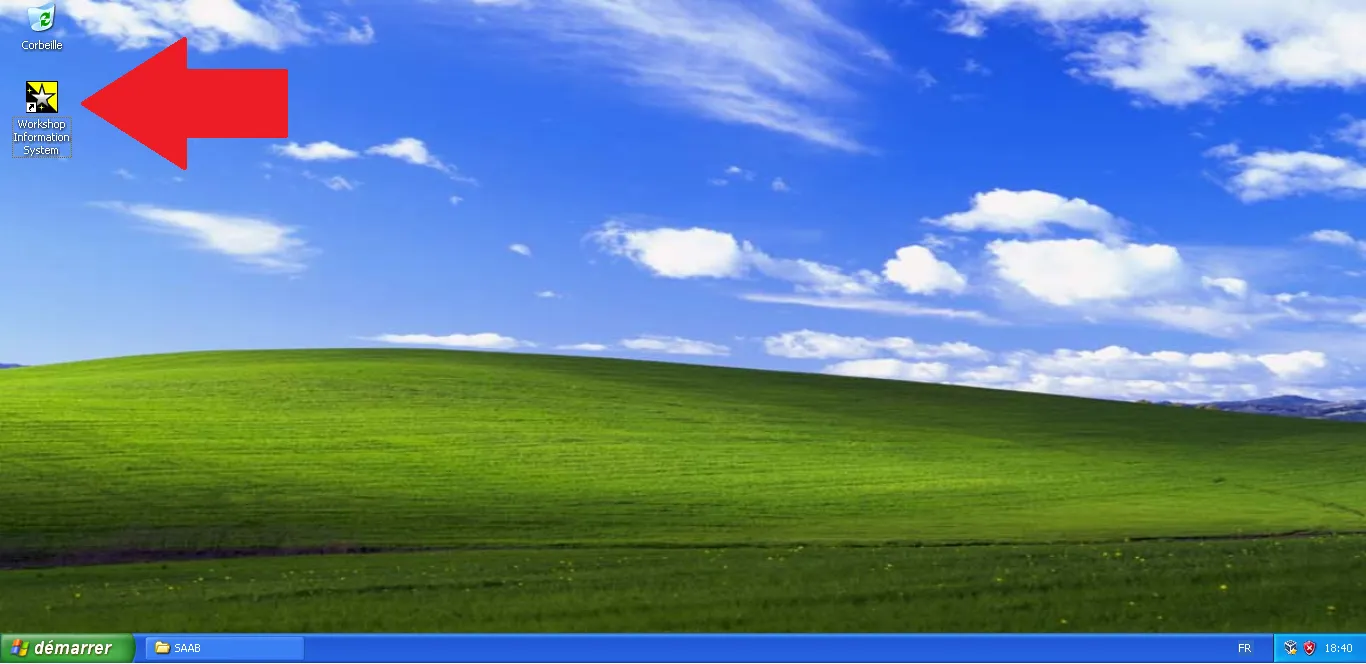
Restarting WIS
Open the Workshop Information System again from your desktop. The red arrow points to the official launch icon.
Step Visual Reference
12
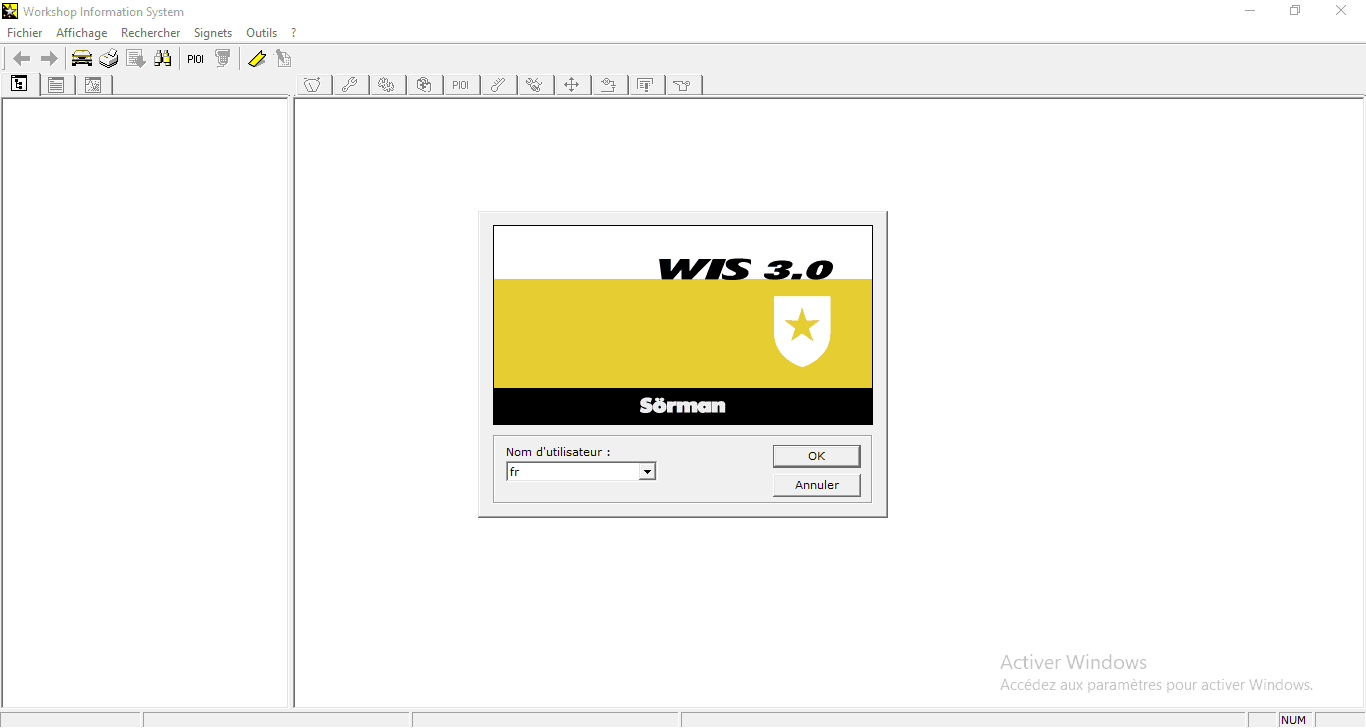
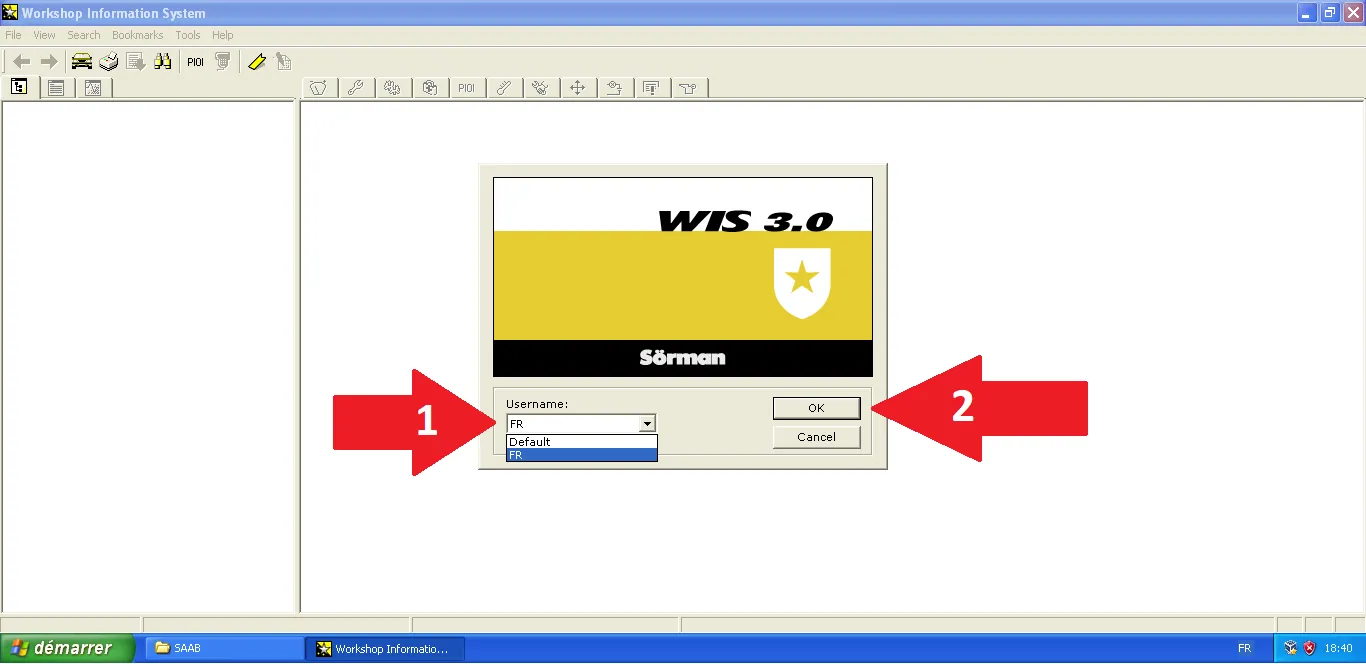
Connecting to FR profile
Use the 'Username' dropdown menu to select your 'FR' profile and click OK to switch the interface to French.
Step Visual Reference
13
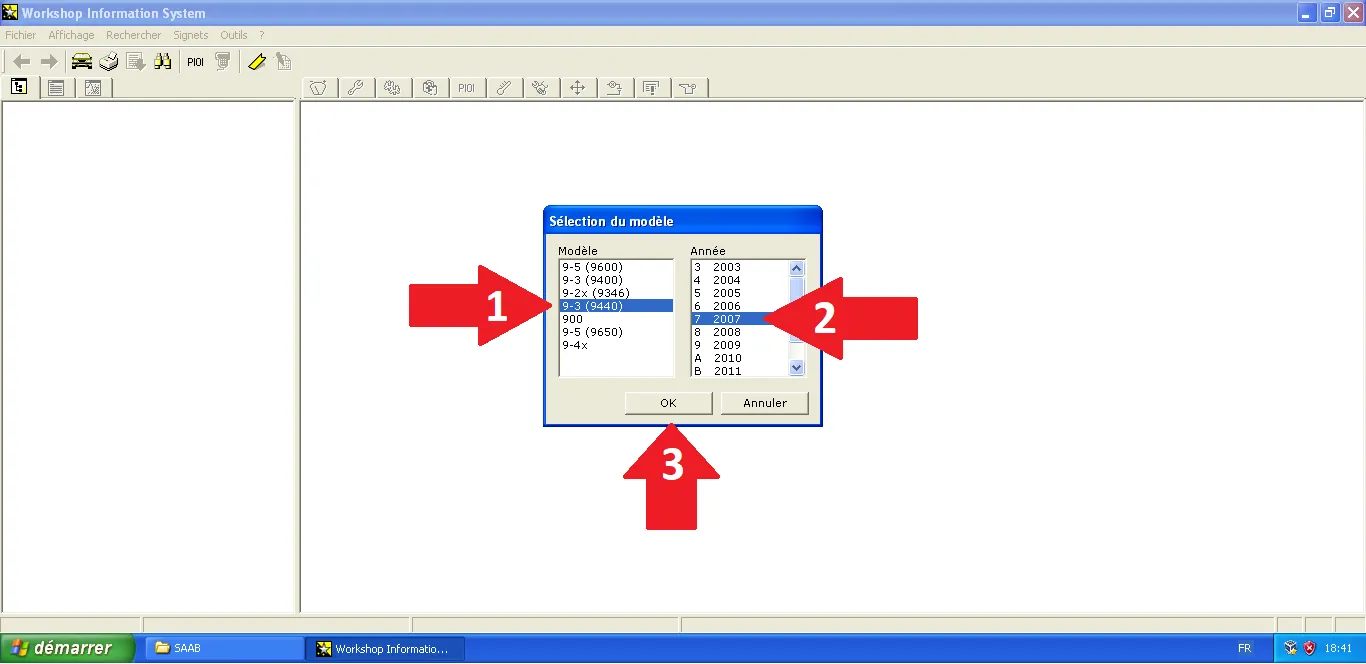
Confirming model
Confirm your Saab's model and year one last time to access the translated technical documents.
Step Visual Reference
14
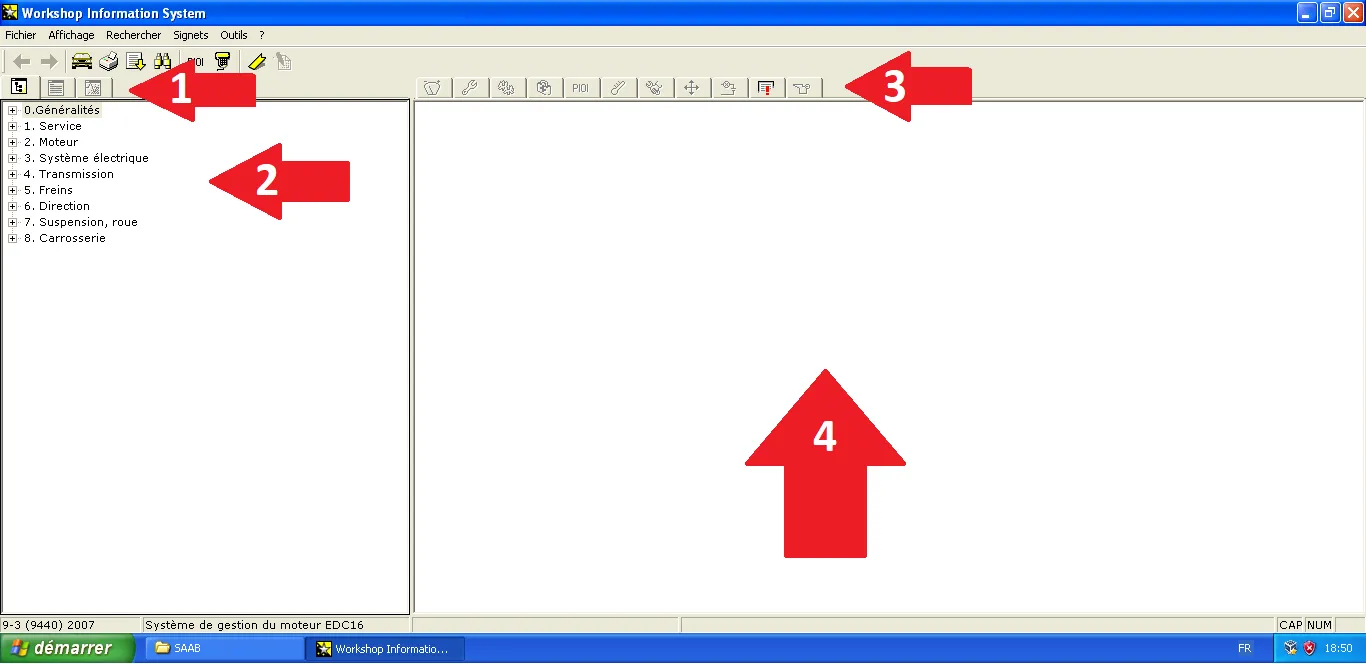
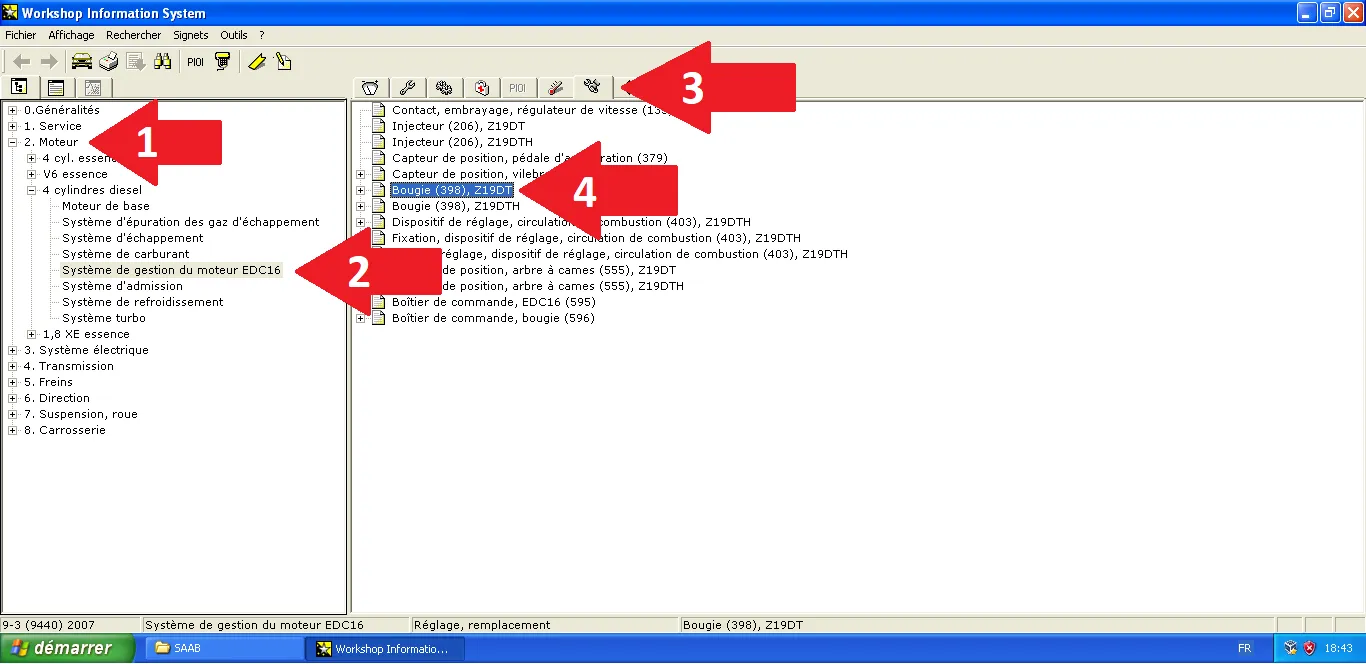
Browsing technical tree
Navigate through the left menu (e.g., Diesel Engine > EDC16) to locate a specific component such as the 'Glow Plug' replacement procedure.
Step Visual Reference
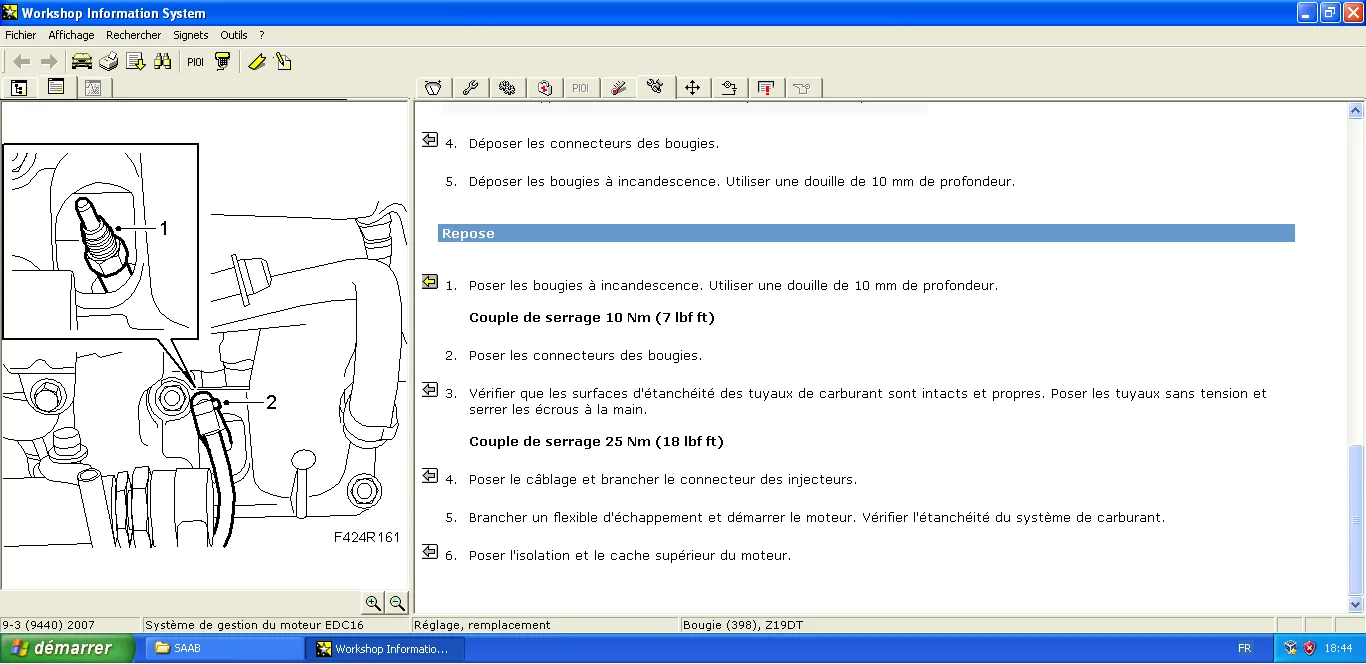
15
Reading procedures
Consult the removal/installation sheet. Identify, for example, the torque specifications (10 Nm) listed in the assembly instructions.
Step Visual Reference
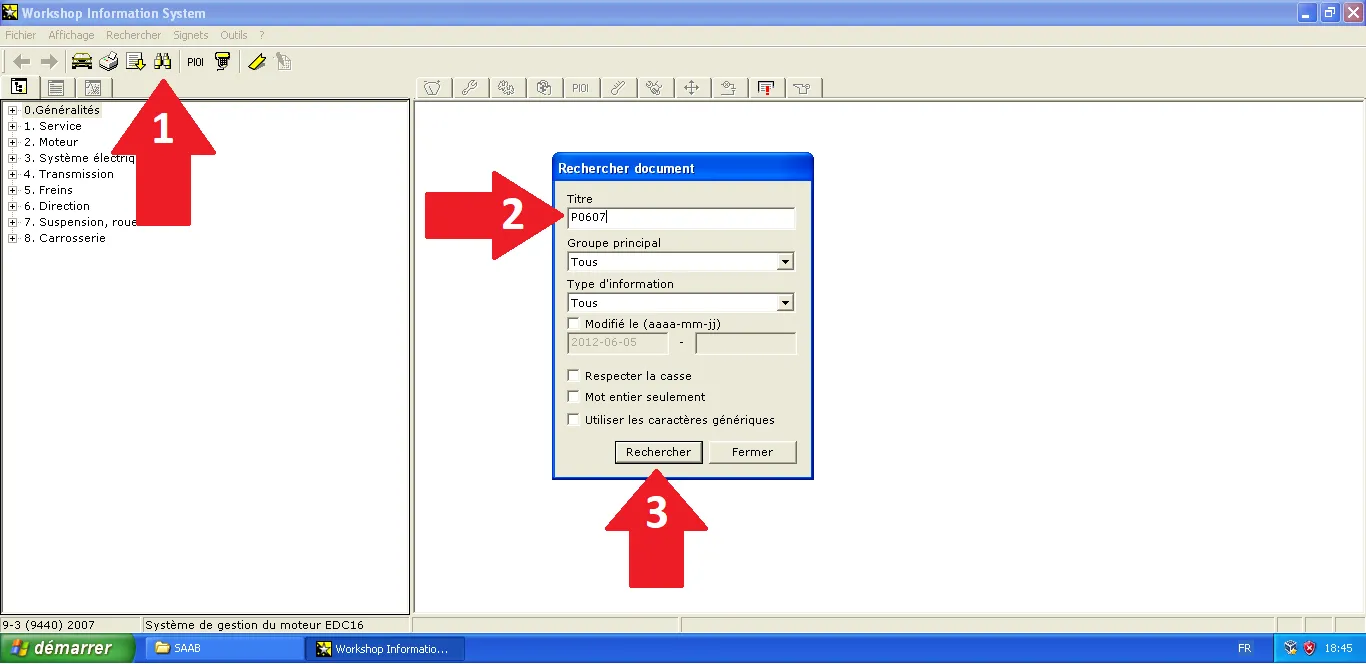
16
Fault code search
Use the search tool (magnifying glass) to enter a DTC code (e.g., P0607) to obtain the associated diagnostic help.
Step Visual Reference
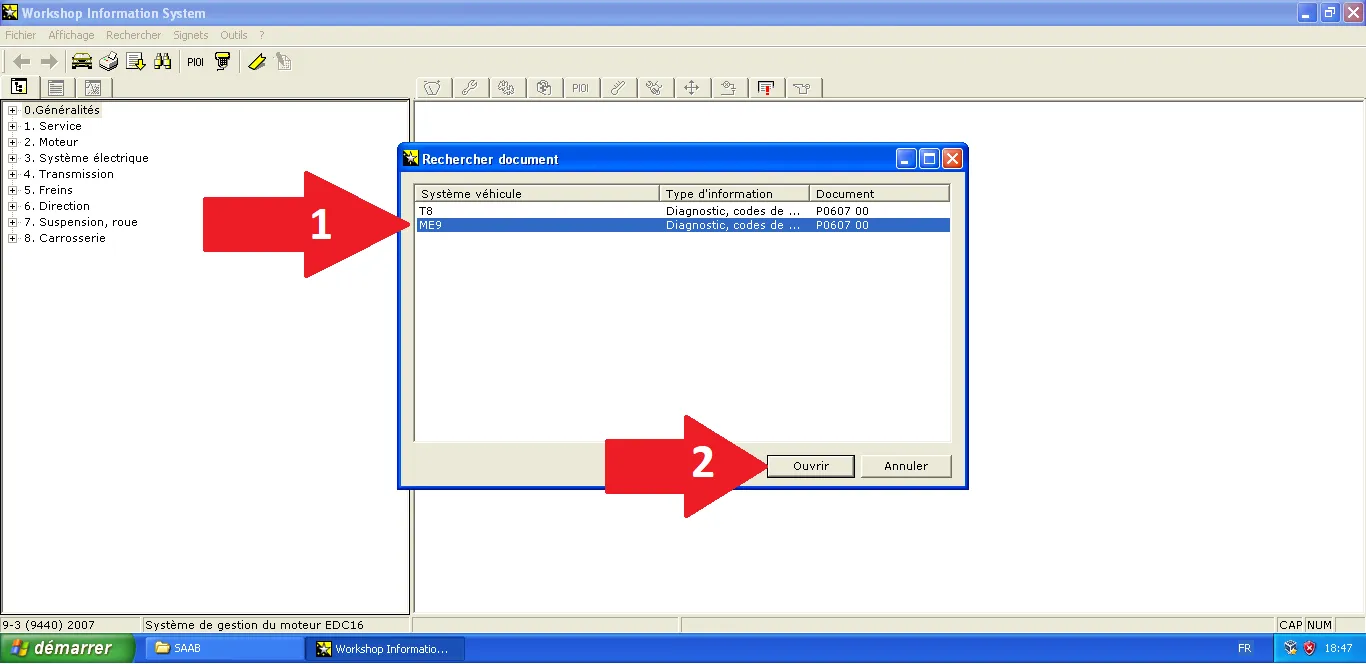
17
Search results selection
From the results list, choose the system matching your engine to open the full diagnostic document.
Step Visual Reference
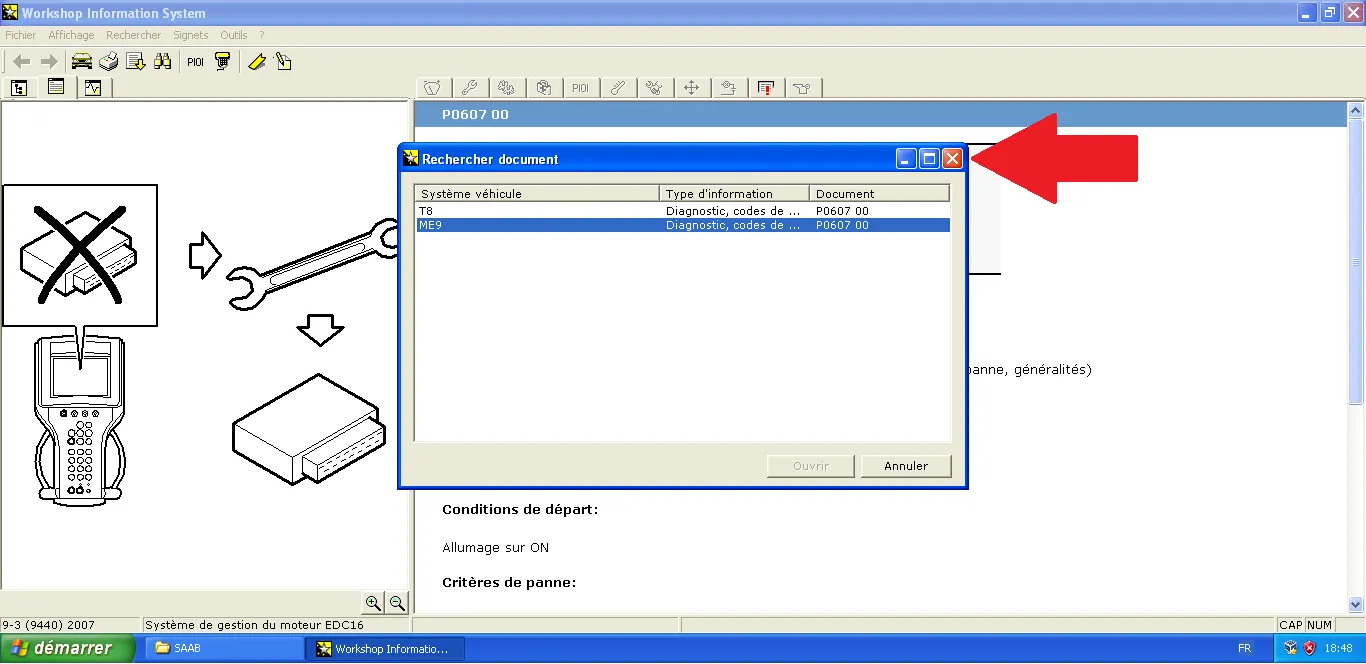
18
Window management
Close the search dialog box once your document is open to enjoy a maximum reading area.
Step Visual Reference
19
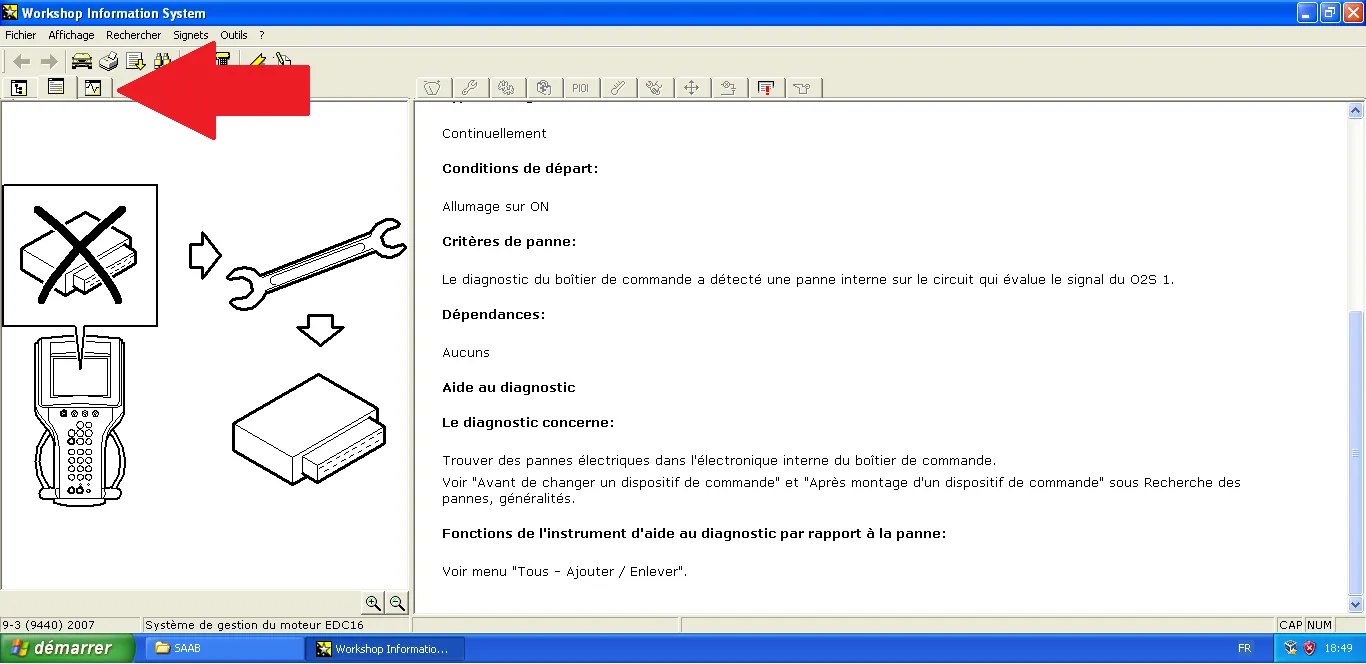
Diagnostic analysis
Study the fault criteria and use the 'Bookmarks' menu to navigate quickly between diagrams and troubleshooting help.
Step Visual Reference
20
Replacement procedure
WIS details the physical steps for replacing a component (such as a control unit here), with visuals for each phase.
Step Visual Reference
21
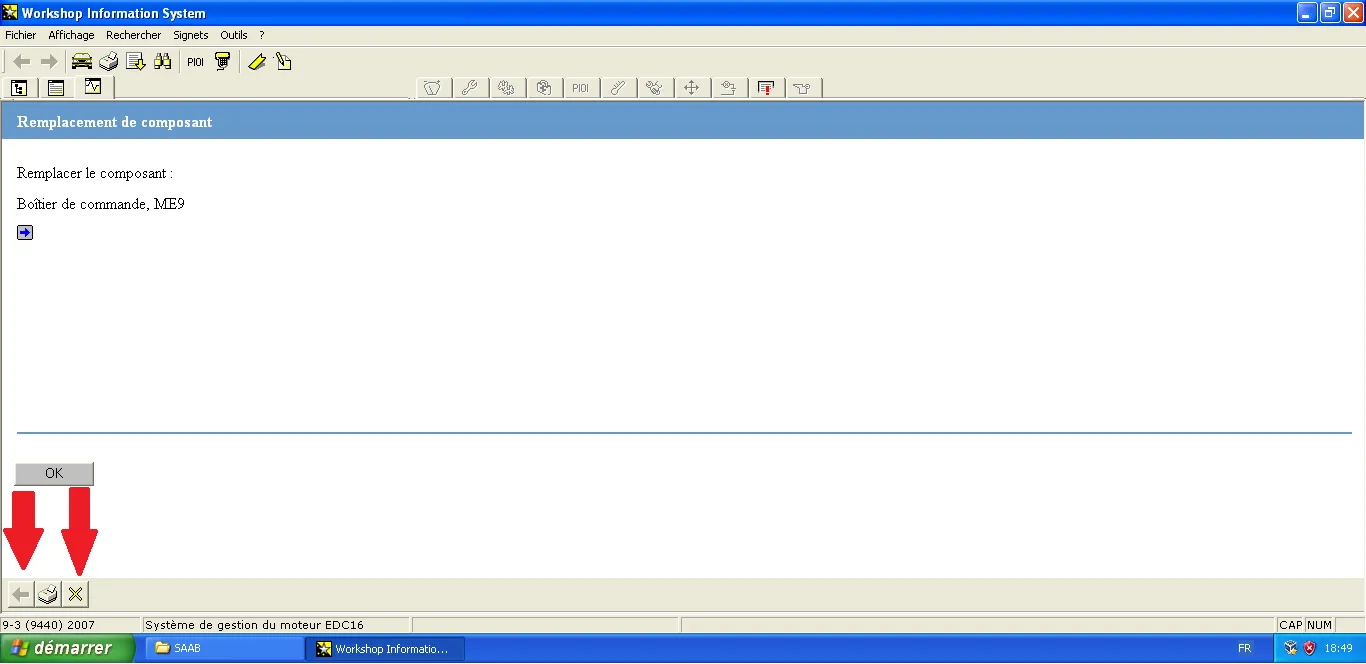
Troubleshooting procedure
WIS offers a structured troubleshooting procedure that is easy to navigate to isolate the actual cause of a fault.
Step Visual Reference