Logo saabiste.net
FEED

Access your Saabiste workshop.

ArticlesMy GarageDiagnosticsWISEPCSupport
Join us
    Saabiste Logo
    Saabiste
    AboutEPC Manual
    Join us
    Saabiste Logo
    Saabiste

    Technical resources for your Saab. Maintenance notes, EPC parts catalog and electronic solutions to support you in maintaining your vehicle.

    Socials

    Quick Links

    • Contact
    • WIS Manual
    • EPC Manual
    • About

    Legal

    • Legal Notice
    • Privacy Policy
    • Terms of Sale
    • Cookie Policy

    © 2026 — saabiste.net

    Powered byNextJs&Antigravity
    0
    💼 RESOURCES
    •u/saabiste•January 1, 2025

    Tech2win Saab

    Technical Procedure

    Tech2Win Guide

    Tech2Win is the emulator that transforms your PC into a full Tech2 diagnostic tool. When used with a compatible VCI interface (such as MDI or adapters supporting the ISO22900 standard), it provides Saab module diagnostic capabilities without the bulk of the original hardware.

    This guide focuses on installing the I-bus fix, essential for Saab 9-3 NG (2003+) and 9-5 (2006+) equipped with the green wire on pin 1 of the OBD2 port (GMLAN A). On earlier architectures using the KWP protocol, functionality is not guaranteed without hardware modifications to the interface.

    Warning & Experience

    GM for Tech2Win has, to my knowledge, never offered an official version for Saab. Communication with vehicle networks here relies on modified binaries (modded bins), which requires using a specific version of the emulator. These operations involve low-level system layers and are performed under your sole responsibility.

    In practice, usage is reliable for reading full DTC codes (e.g., P0607 00, where the last two digits are vital for WIS lookups). However, when it comes to programming, nothing is guaranteed: Tech2Win remains a finicky piece of software subject to random crashes that often require frequent restarts.

    Procedure Summary

    01 Extract archive 02 Open directory 03 Run setup 04 Install wizard 05 Continue setup 06 License agreement 07 Default directory 08 Confirm install 09 Setup complete 10 Emulator patch 11 Transfer virtual PCMCIA 12 Tech2Win configurator 13 Start SAAB NAO 14 VCI selection 15 Tech2 menu validation 16 License Expired Fix
    1

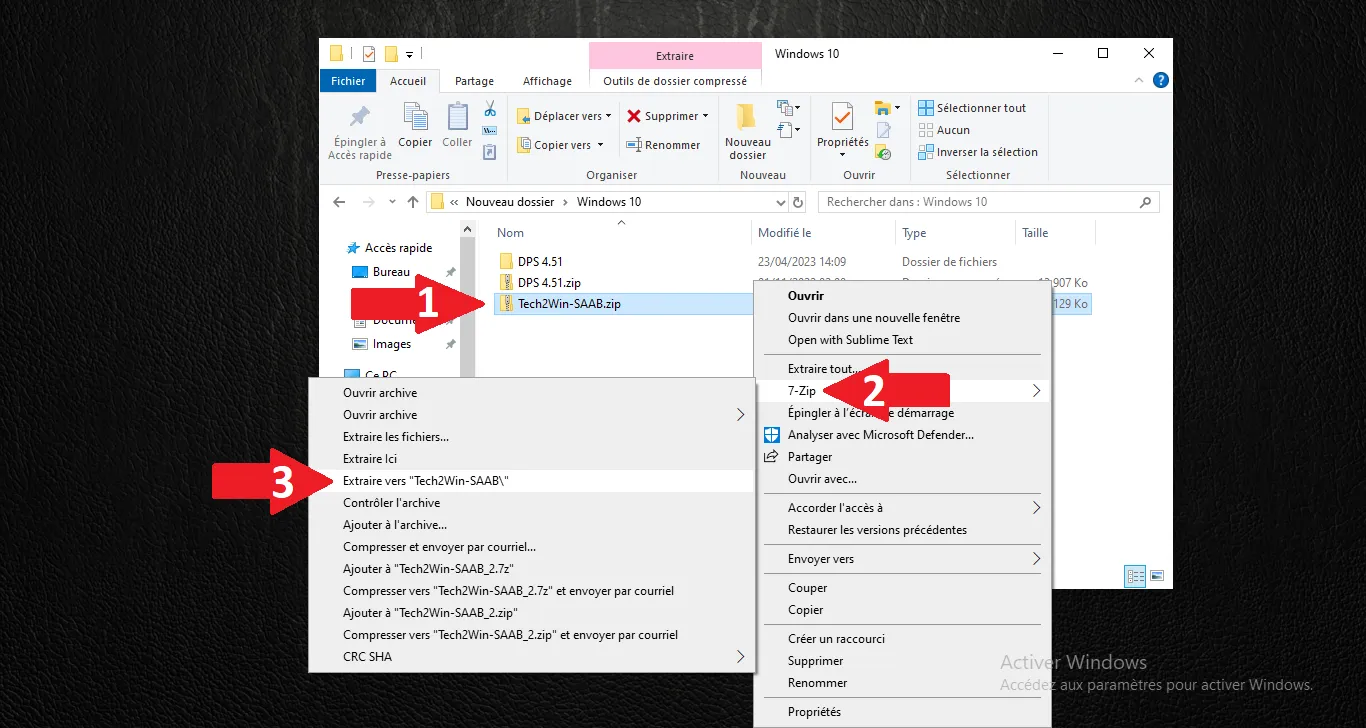
    Extract archive

    Extract the Tech2Win installation folder content.
    Step Visual Reference
    Extract archive
    2

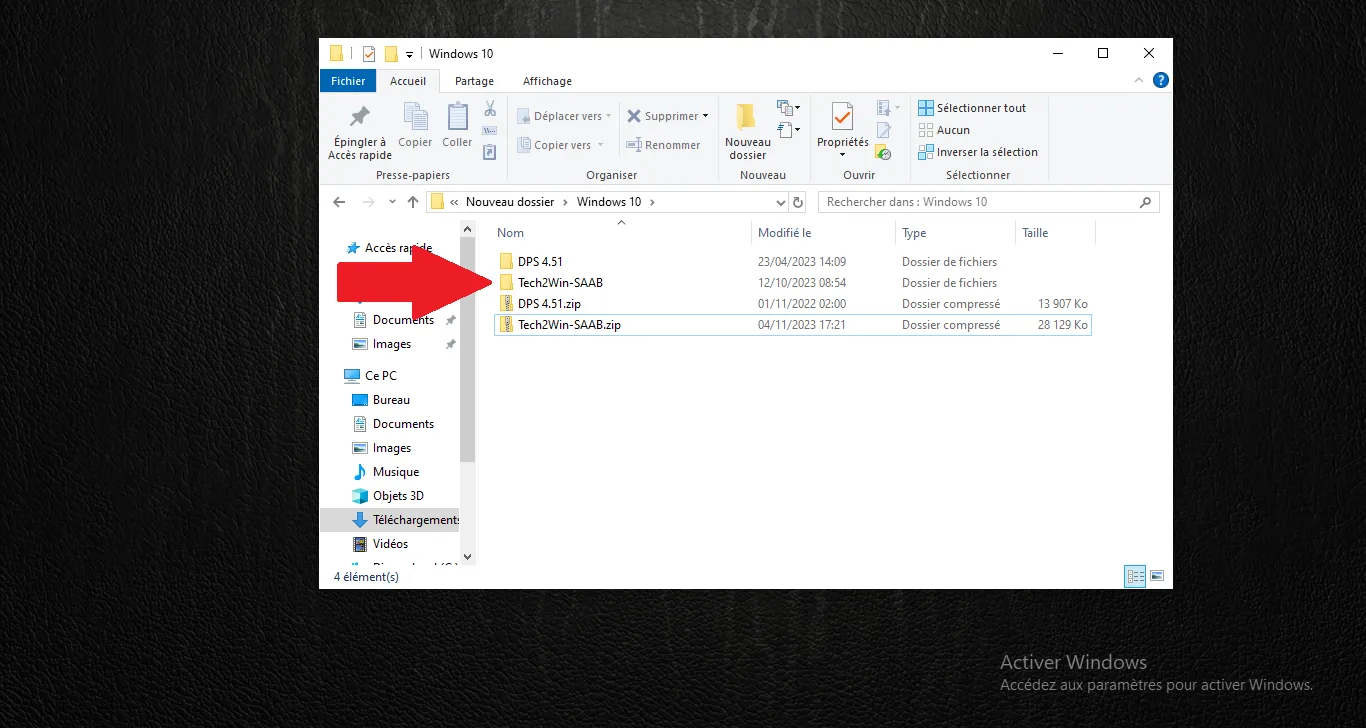
    Open directory

    Open the folder containing installation files.
    Step Visual Reference
    Open directory
    3

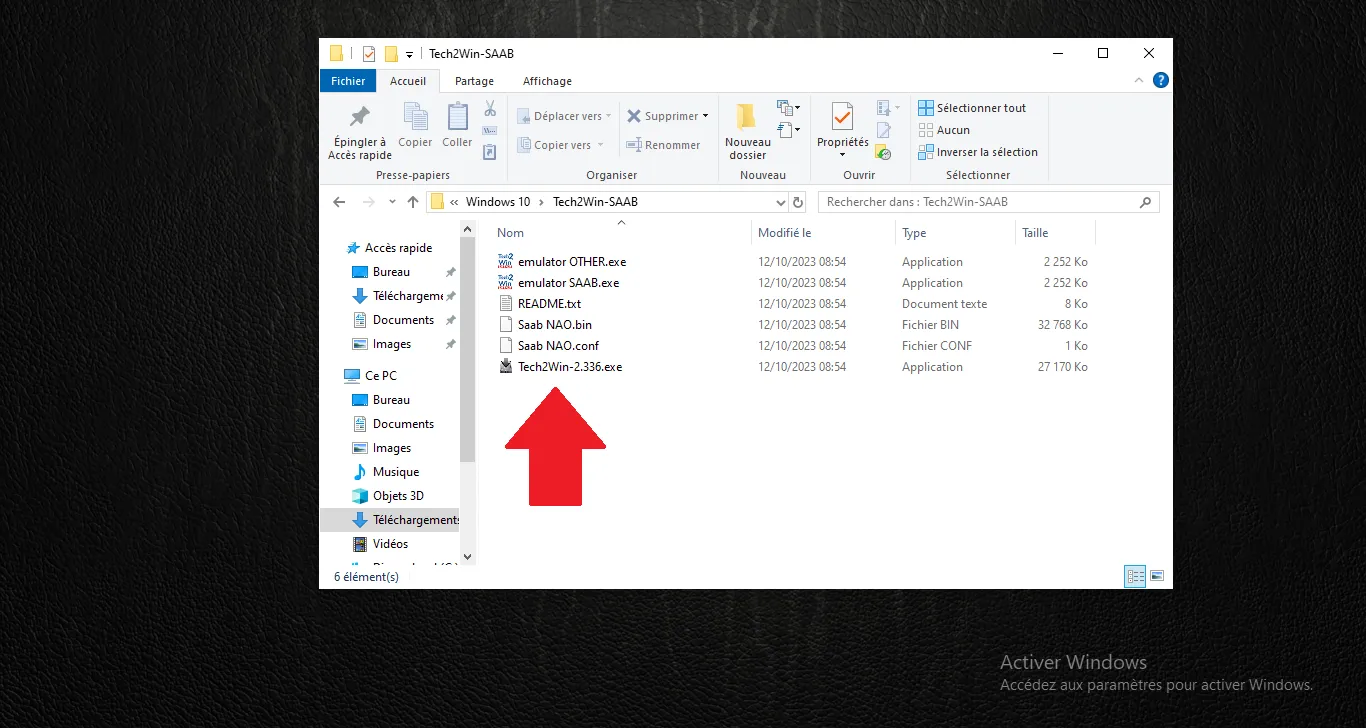
    Run setup

    Run the main Tech2Win setup file.
    Step Visual Reference
    Run setup
    4

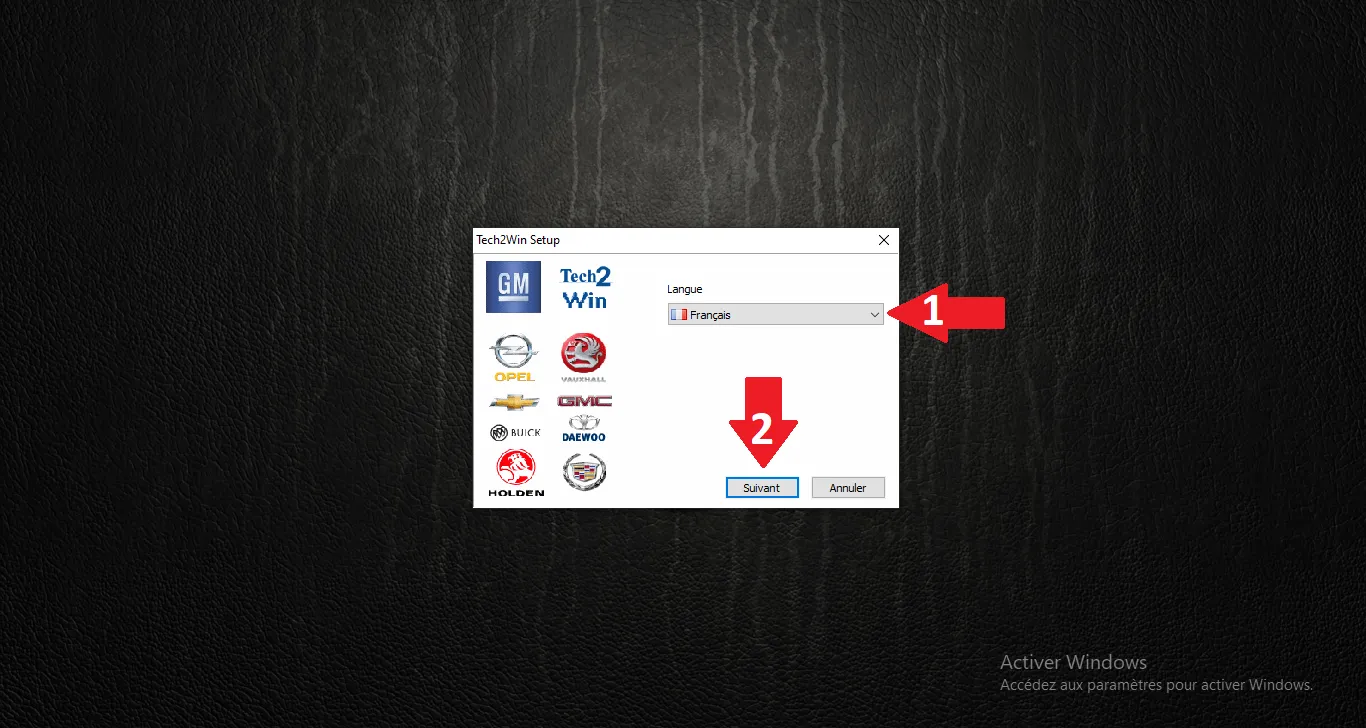
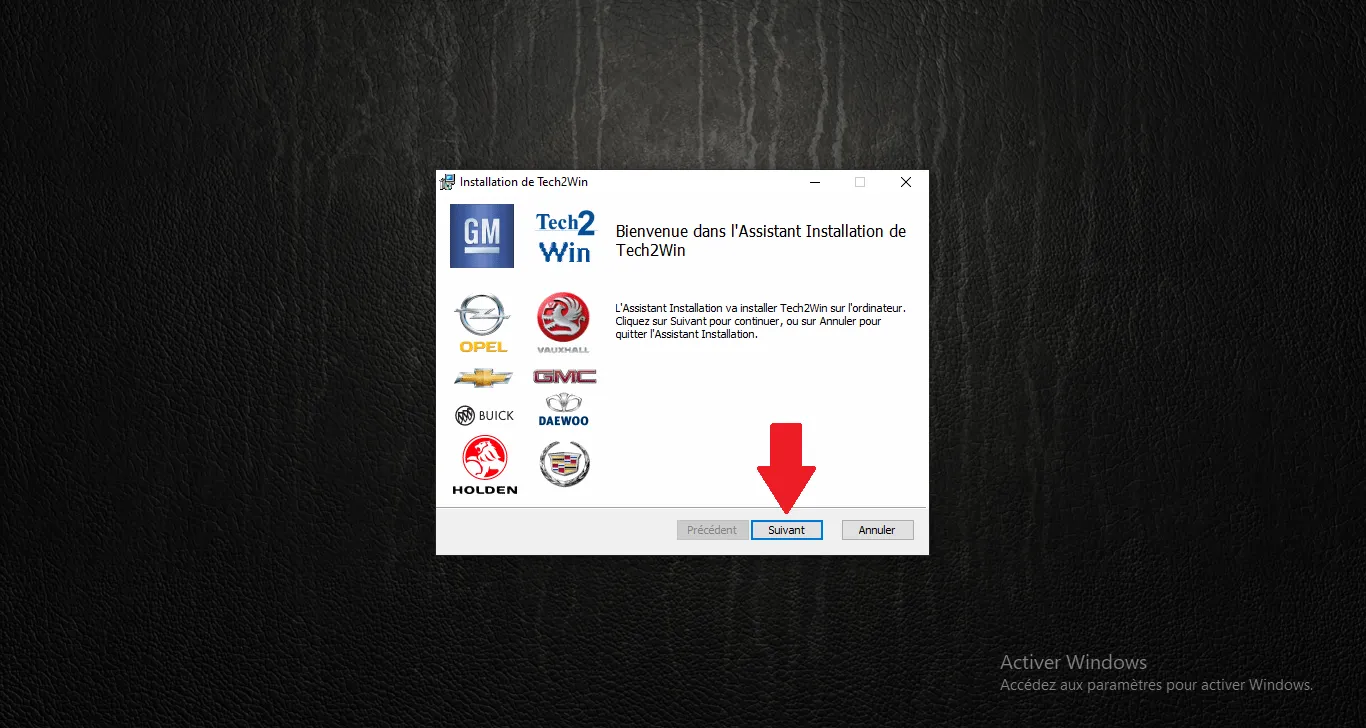
    Install wizard

    First Tech2Win installation wizard welcome screen.
    Step Visual Reference
    Install wizard
    5

    Continue setup

    Click Next to start software configuration.
    Step Visual Reference
    Continue setup
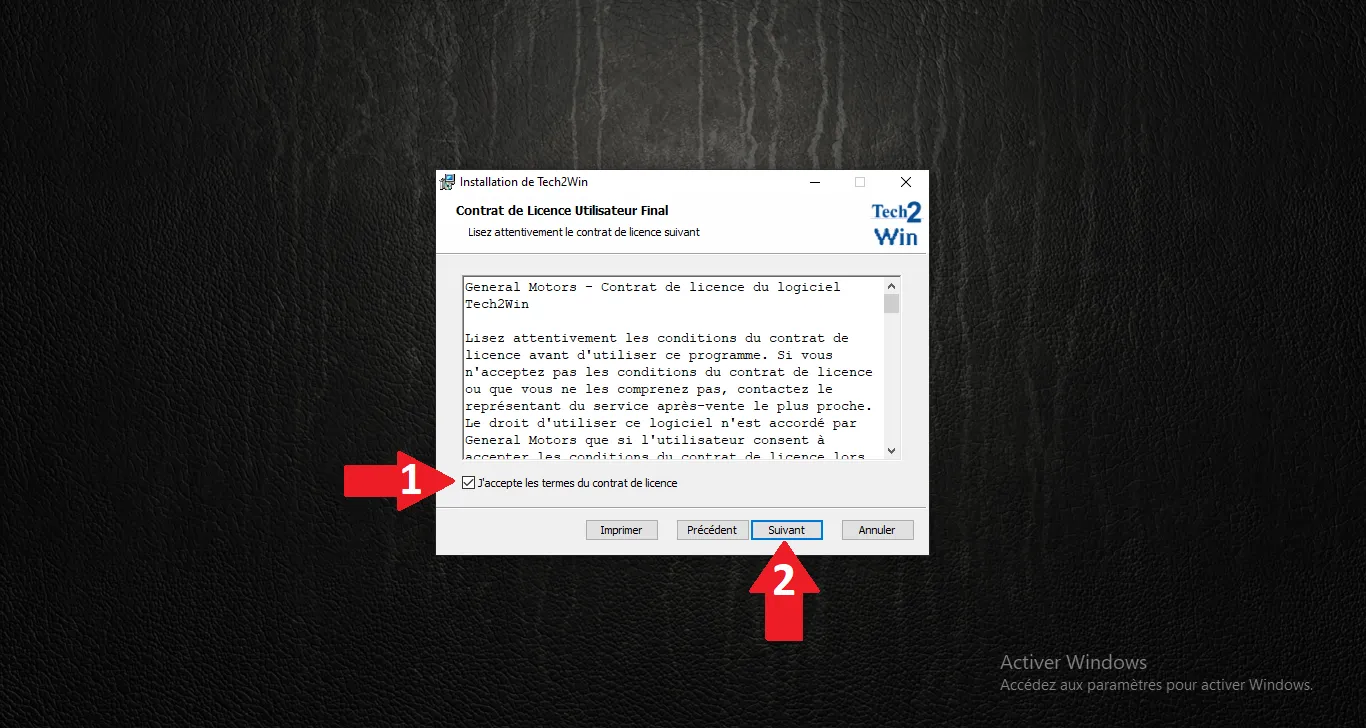
    6

    License agreement

    Accept the terms of the software license agreement.
    Step Visual Reference
    License agreement
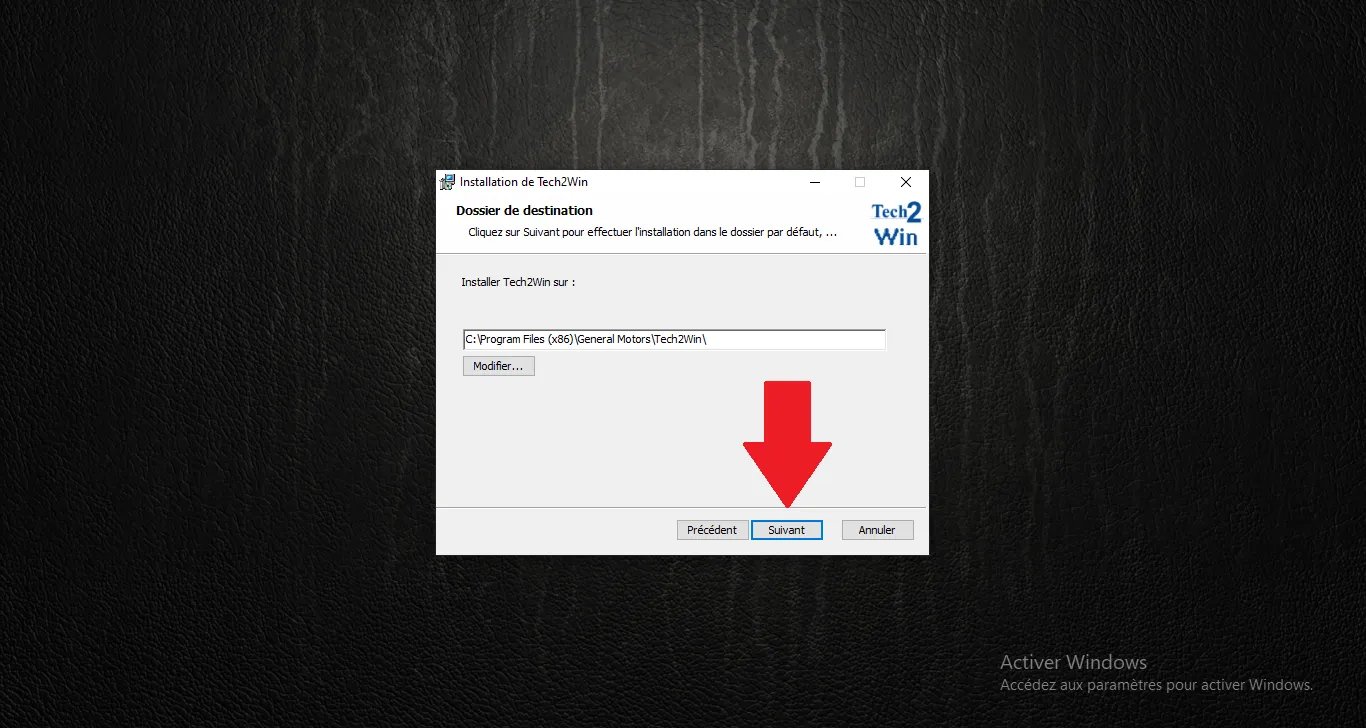
    7

    Default directory

    Leave the default installation path.
    Step Visual Reference
    Default directory
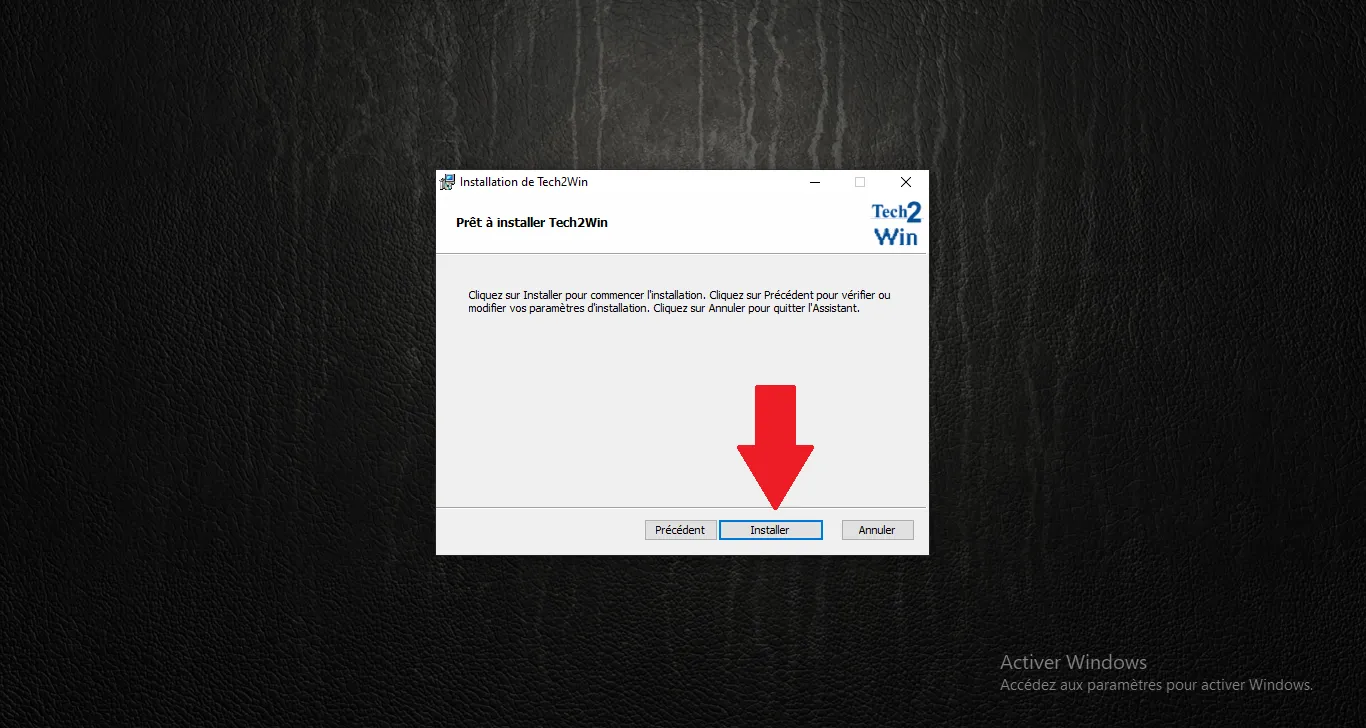
    8

    Confirm install

    Click Install to start file copying.
    Step Visual Reference
    Confirm install
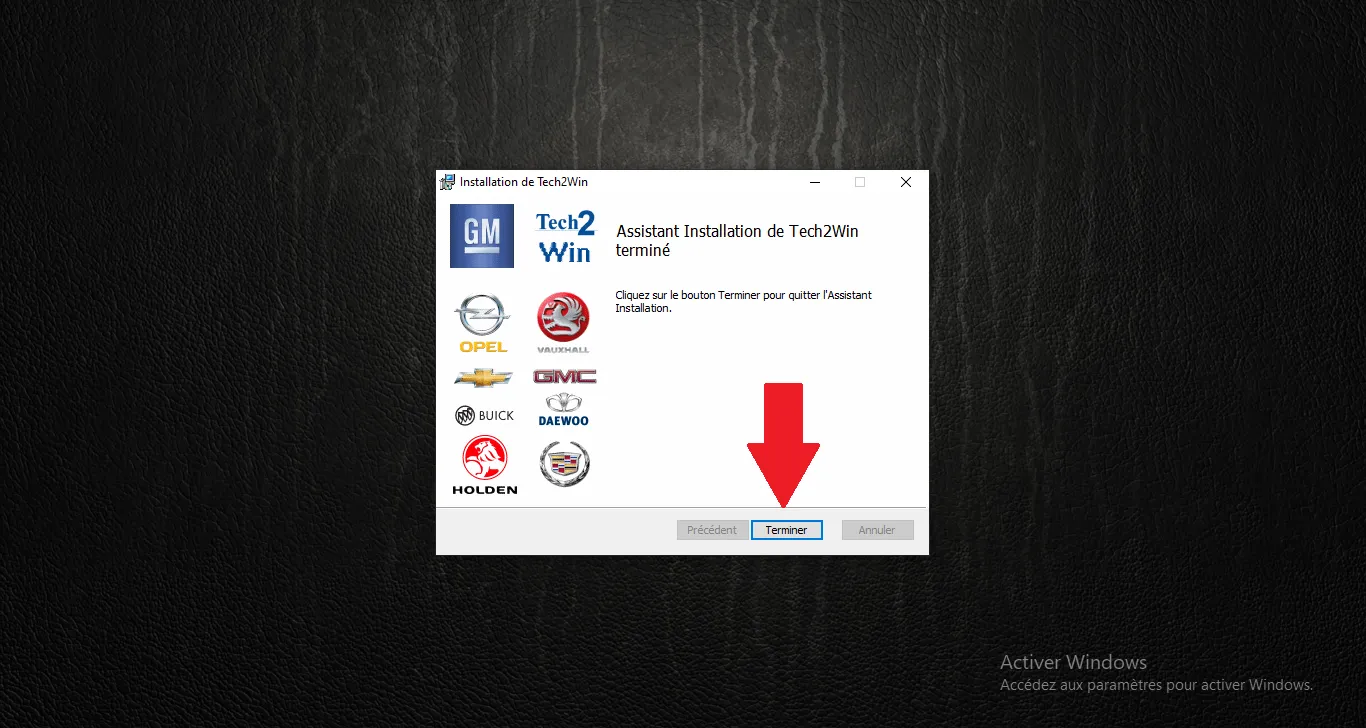
    9

    Setup complete

    Installation finished, click Finish.
    Step Visual Reference
    Setup complete
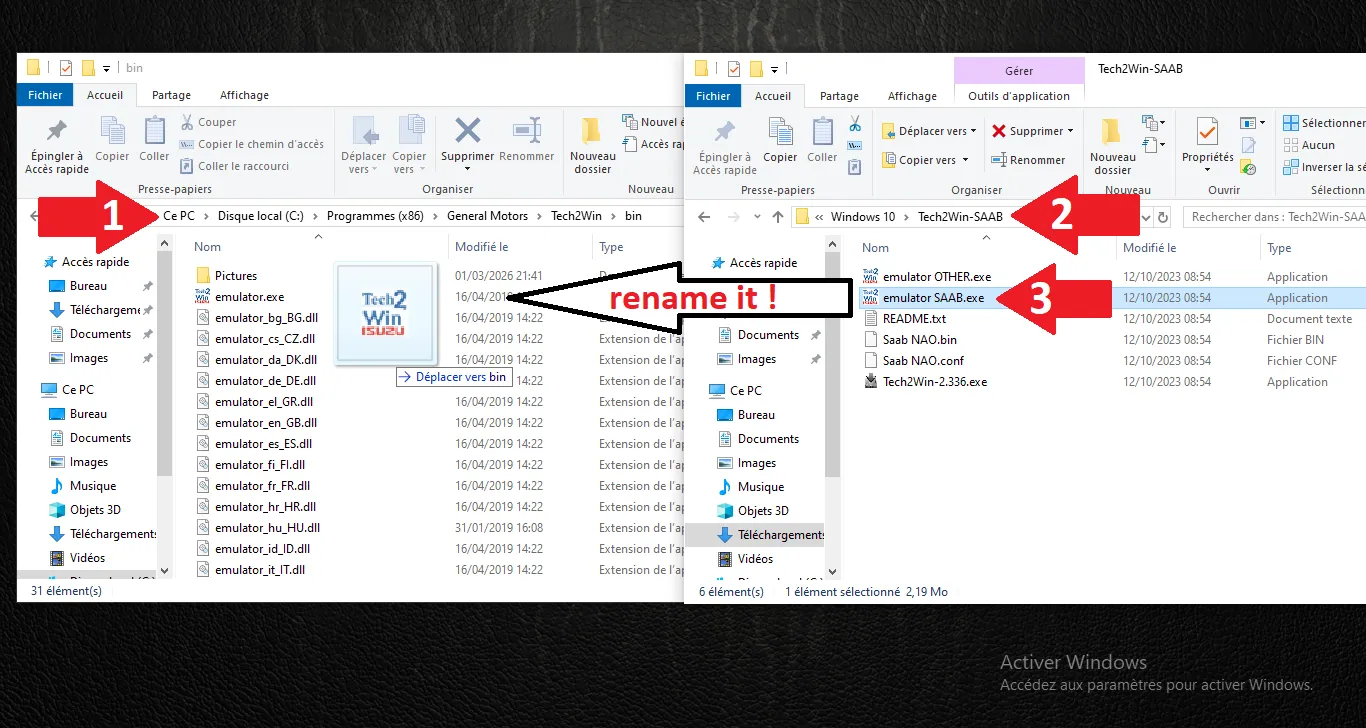
    10

    Emulator patch

    Replace emulator.exe with the provided Saab version (rename if needed).
    Step Visual Reference
    Emulator patch
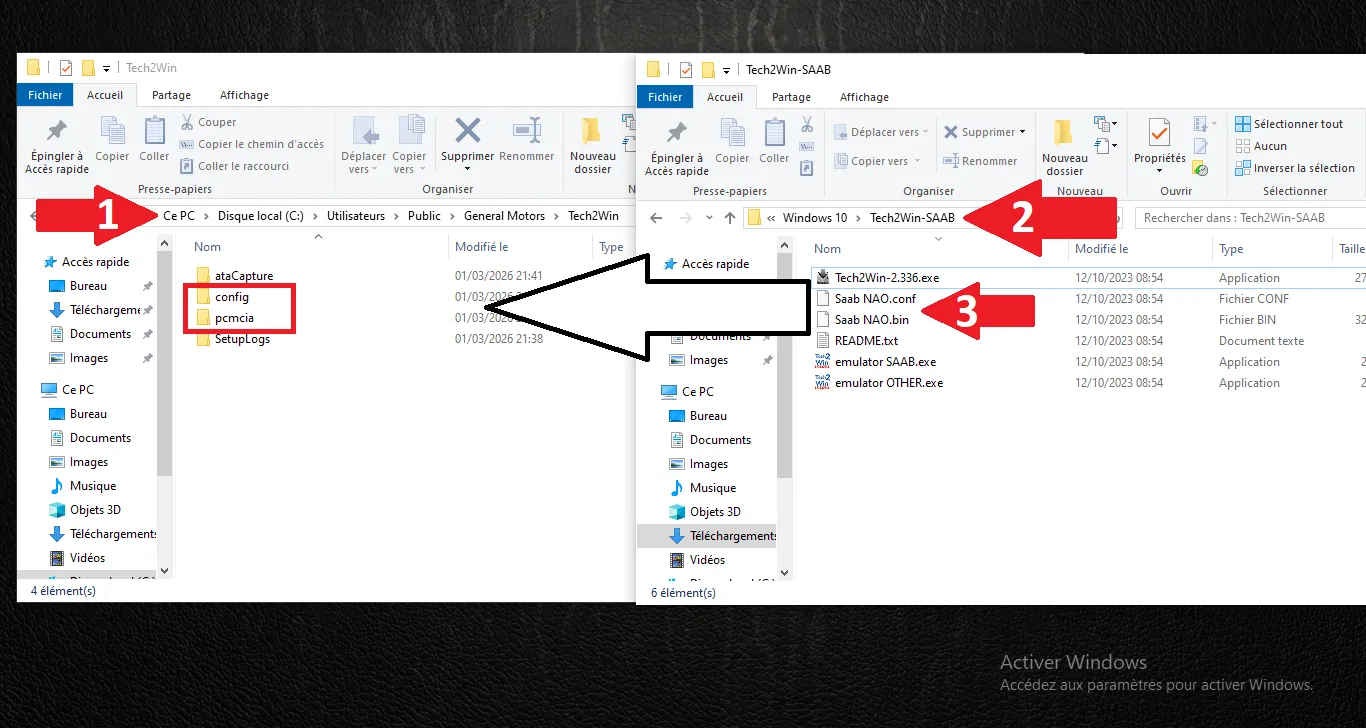
    11

    Transfer virtual PCMCIA

    Place Saab v148.000 .bin and .conf files in their respective folders.
    Step Visual Reference
    Transfer virtual PCMCIA
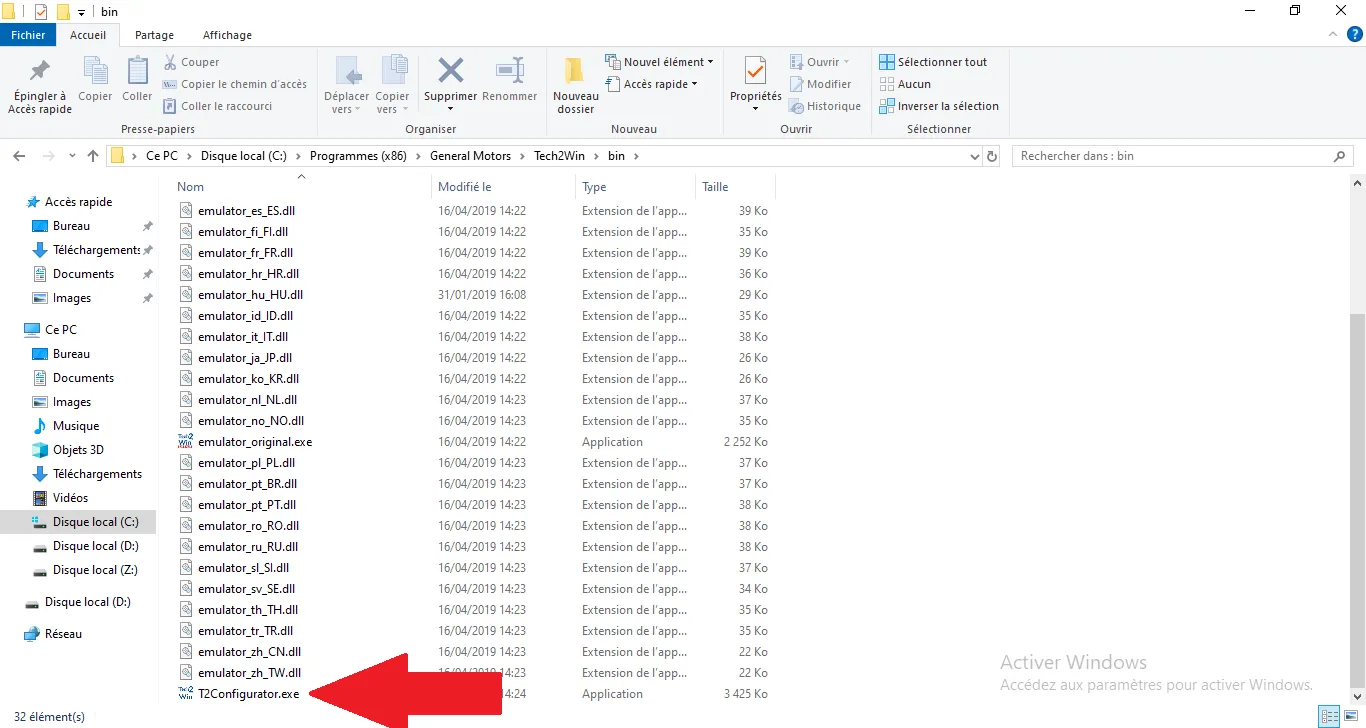
    12

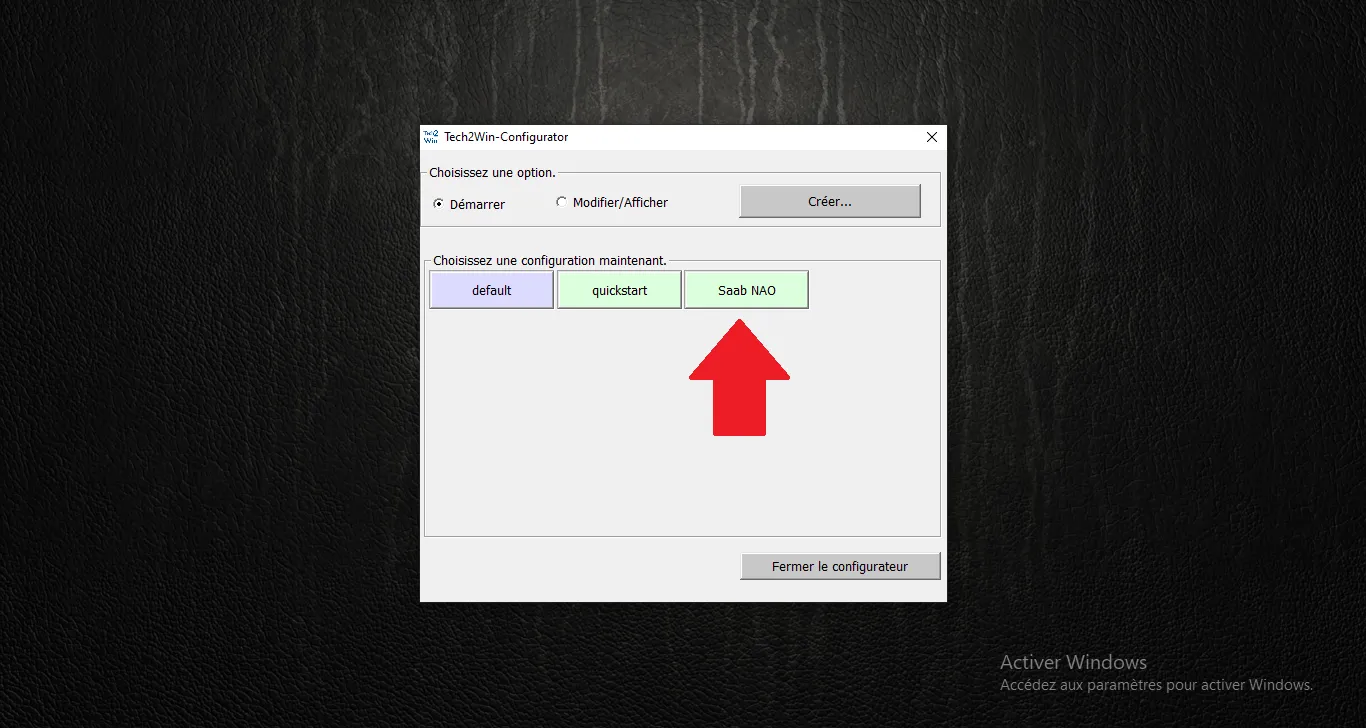
    Tech2Win configurator

    Open the Tech2Win configuration tool.
    Step Visual Reference
    Tech2Win configurator
    13

    Start SAAB NAO

    Launch the previously configured SAAB NAO profile.
    Step Visual Reference
    Start SAAB NAO
    14

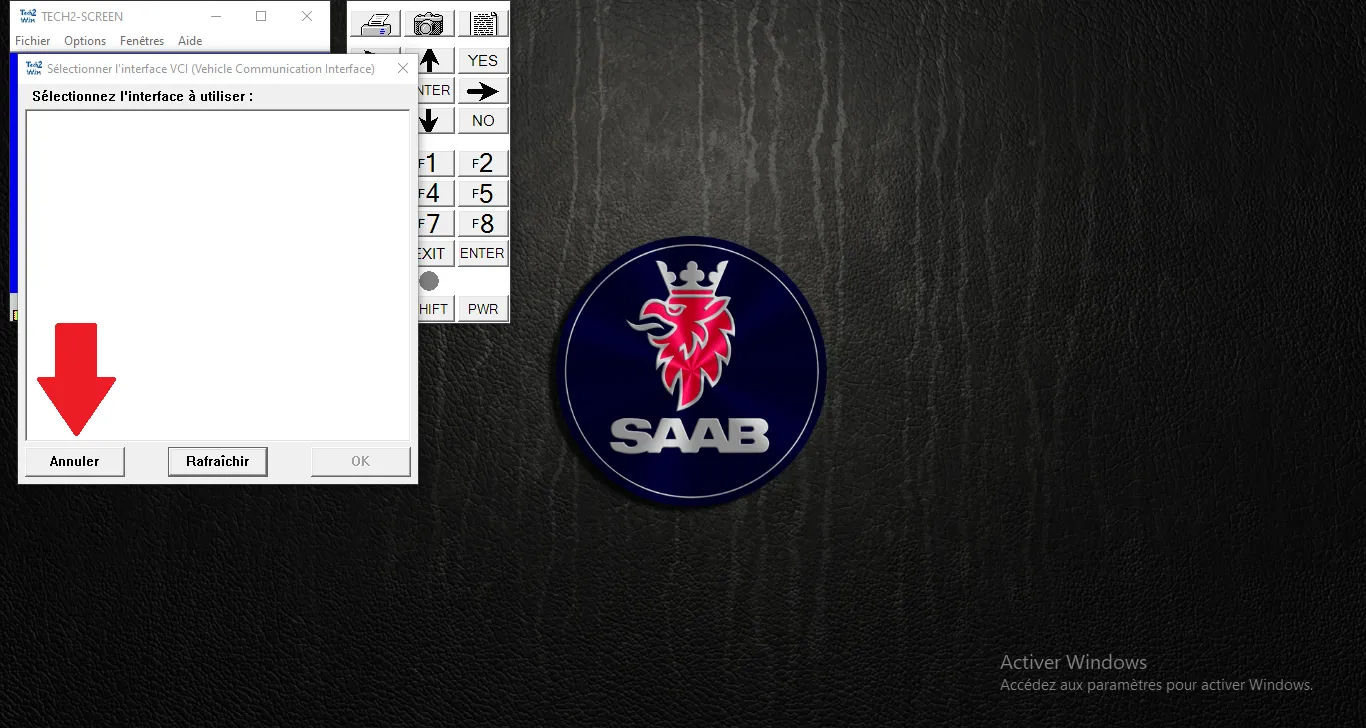
    VCI selection

    If no interface is connected, simply click Cancel.
    Step Visual Reference
    VCI selection
    15

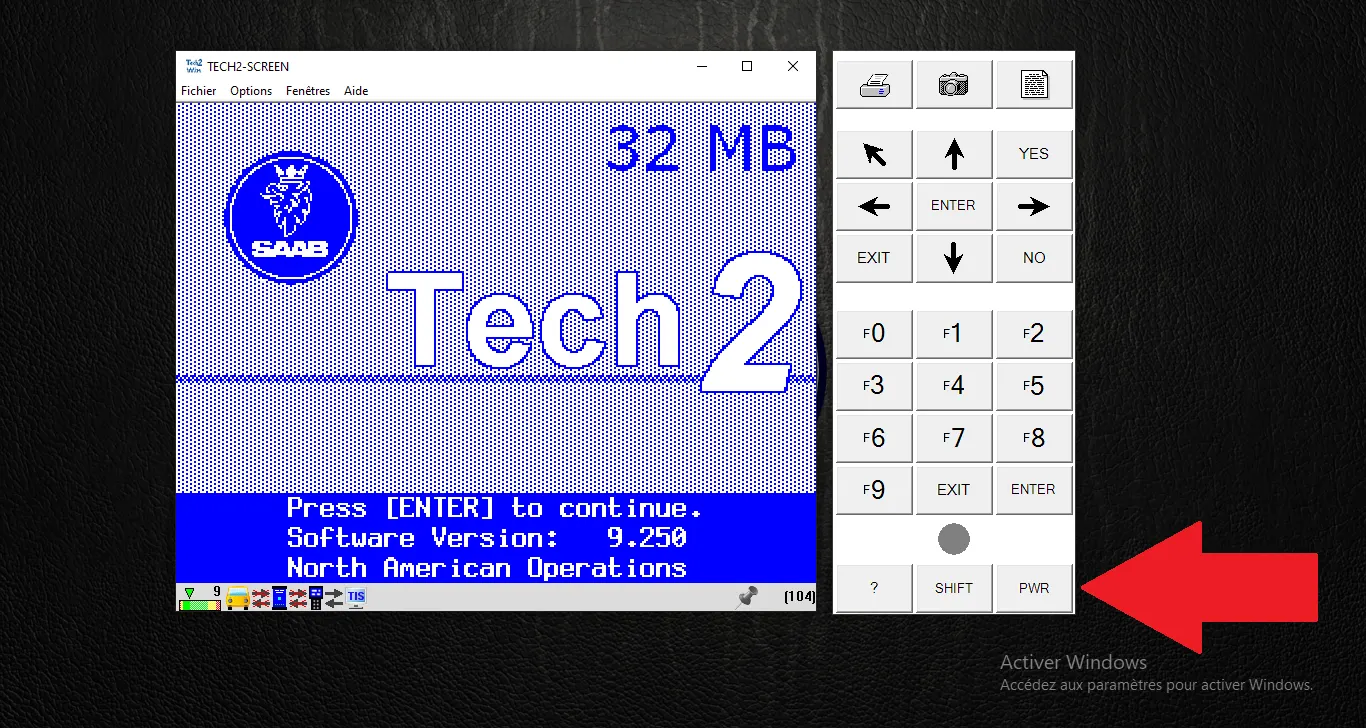
    Tech2 menu validation

    Saab Tech2 menu appears after beep: successful installation.
    Step Visual Reference
    Tech2 menu validation
    16

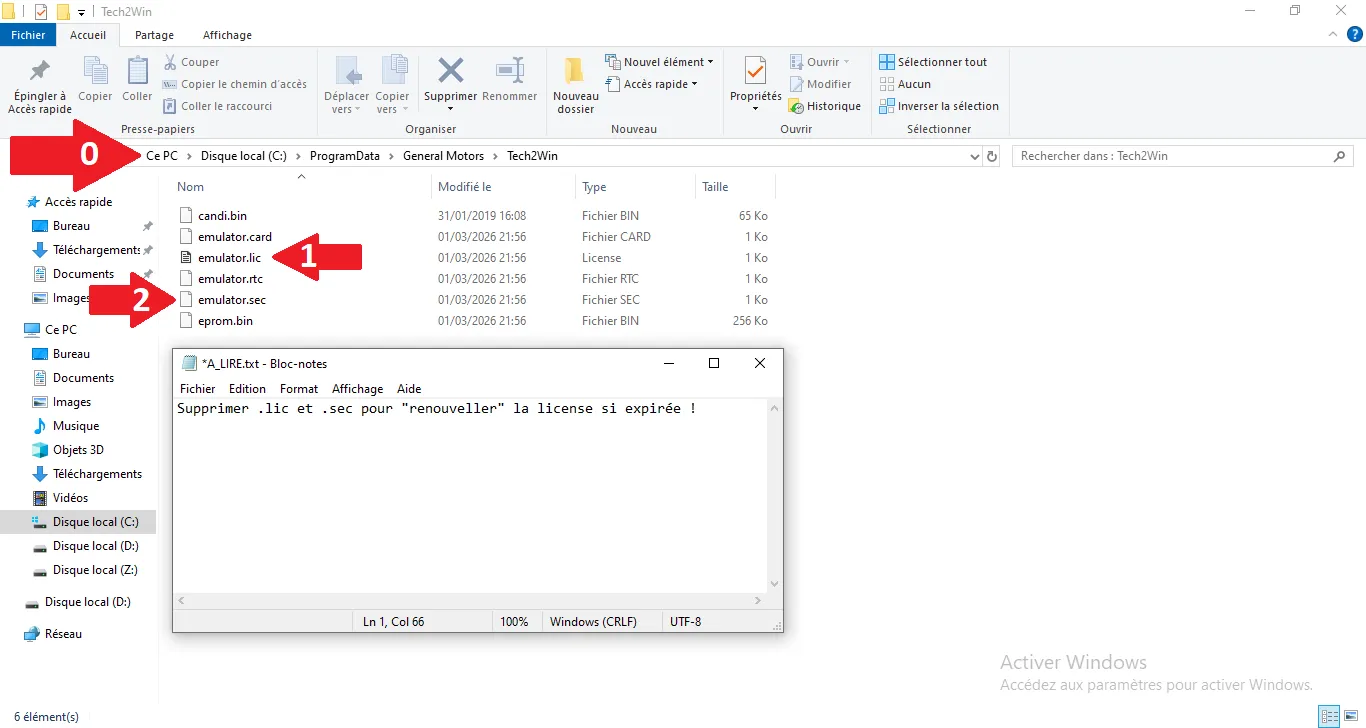
    License Expired Fix

    If a license error occurs, delete .lic and .sec files in the app folder and restart.
    Step Visual Reference
    License Expired Fix
    Other tools

    Binary Explorer

    EEPROM, SPS, Firmware Builder, ECU Files

    Tech2 Management

    Security Access & 32MB PCMCIA cards

    PIN & Keys

    VIN → factory PIN decoding and Seed/Key

    Proposed bySaabiste
    Views58

    Télécharger la ressource

    Connectez-vous pour accéder aux fichiers.

    Comments

    Be the first to comment.

    Community

    Categories