With your Windows XP virtual machine running and connected to your host PC, it is time to install the basic utilities. For a technical Saab workshop, two tools are non-negotiable: 7-Zip for extracting software packages and Sumatra PDF for reading technical manuals.
1. Accessing the Installers
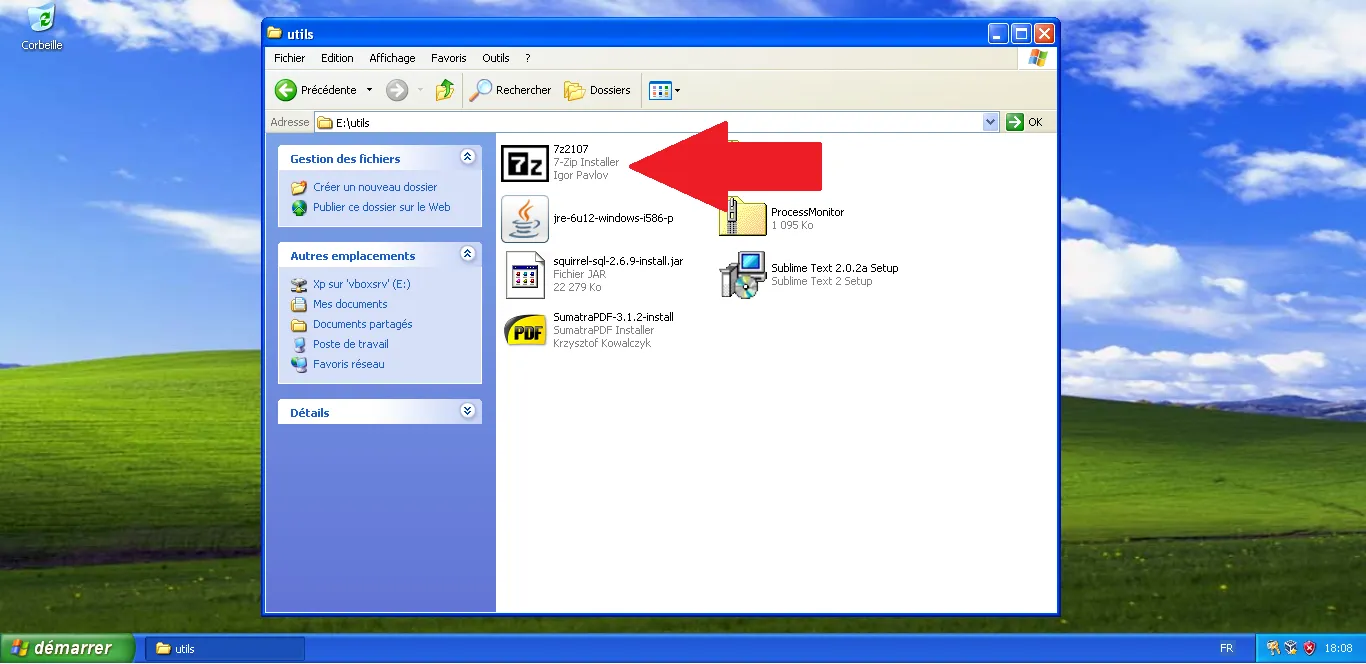
Using the shared folder we configured in the previous article, we will access the installers stored on your main computer. Open "My Computer", go to your network drive (vboxsrv), and open the "utils" folder where you placed your installers.
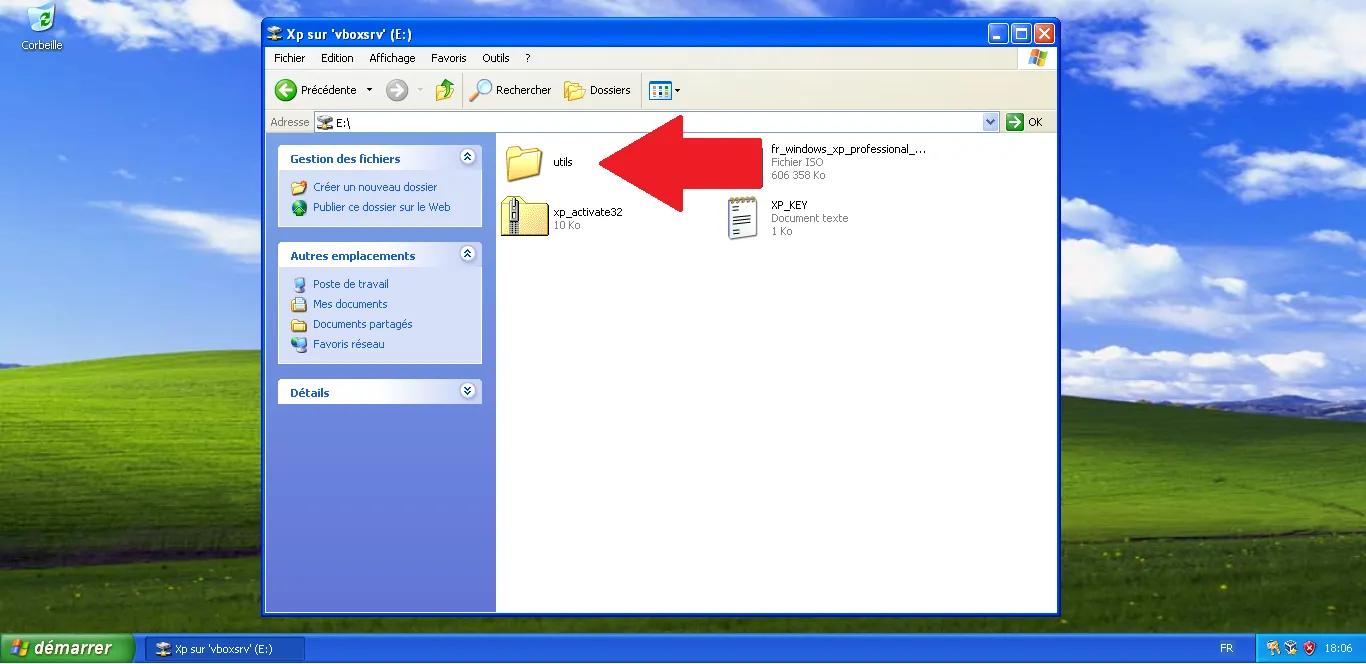
In the folder, locate the 7-Zip installer and double-click it.
2. Installing 7-Zip
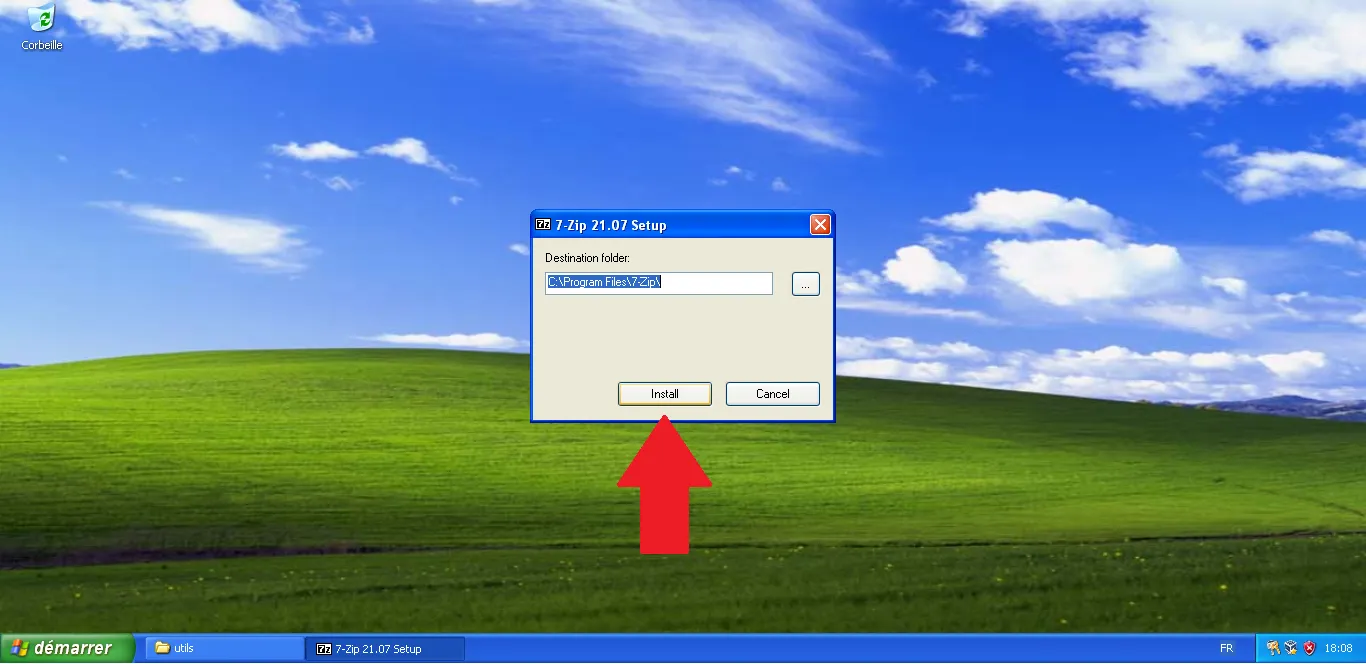
On the setup window, click "Install".
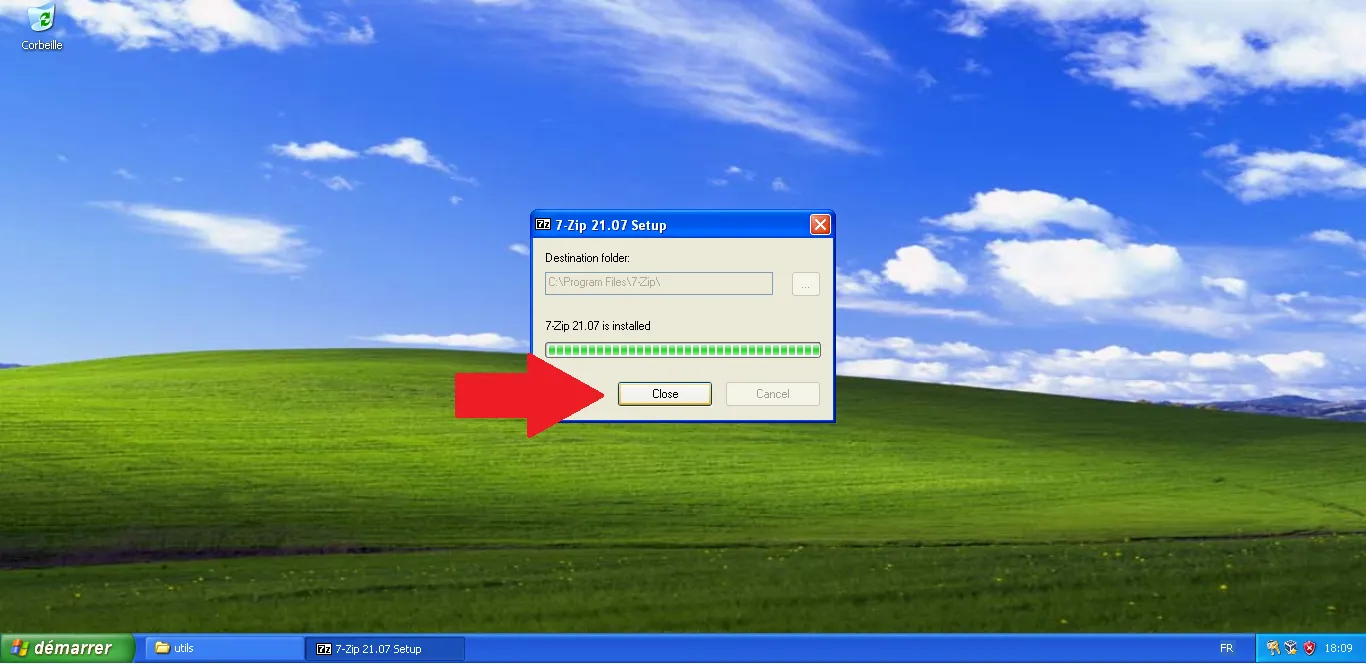
The installation is extremely fast. Once done, click "Close". You can now extract .zip, .7z, and .rar files by right-clicking them.
3. Installing Sumatra PDF
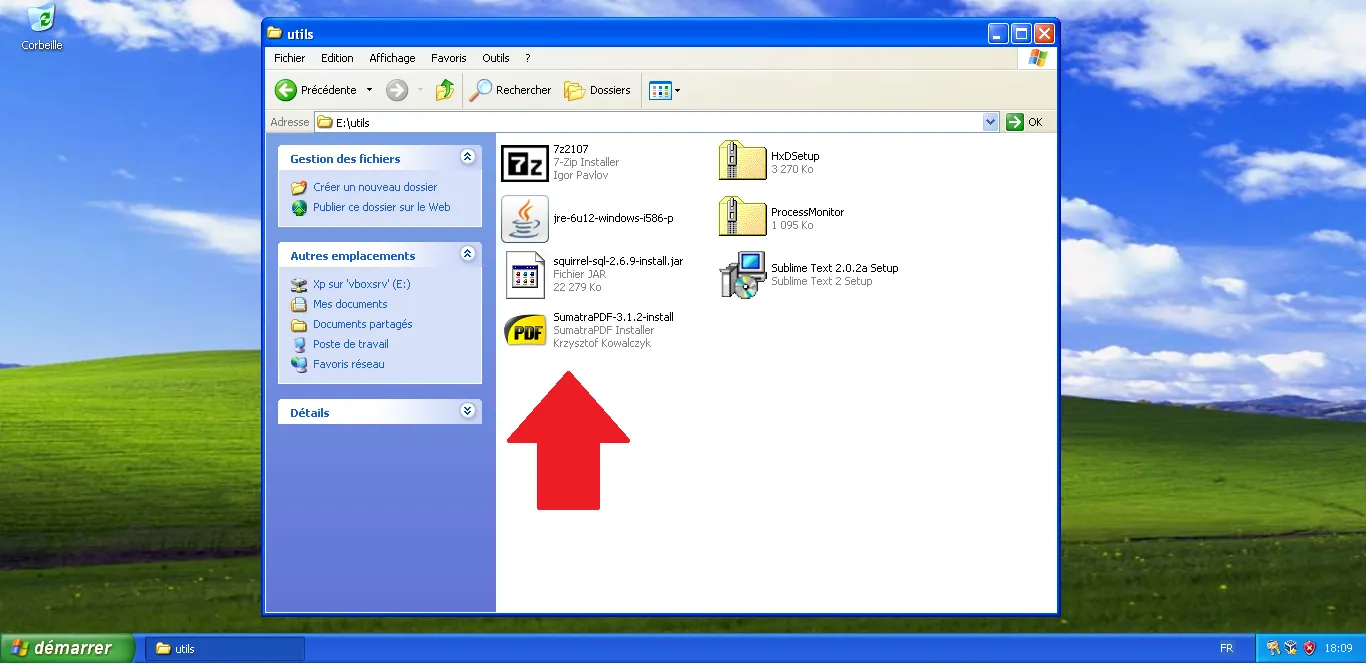
Sumatra PDF is chosen because it is very lightweight and doesn't require the heavy resources of Adobe Reader, which is perfect for a virtual machine. Back in the "utils" folder, double-click the SumatraPDF installer.
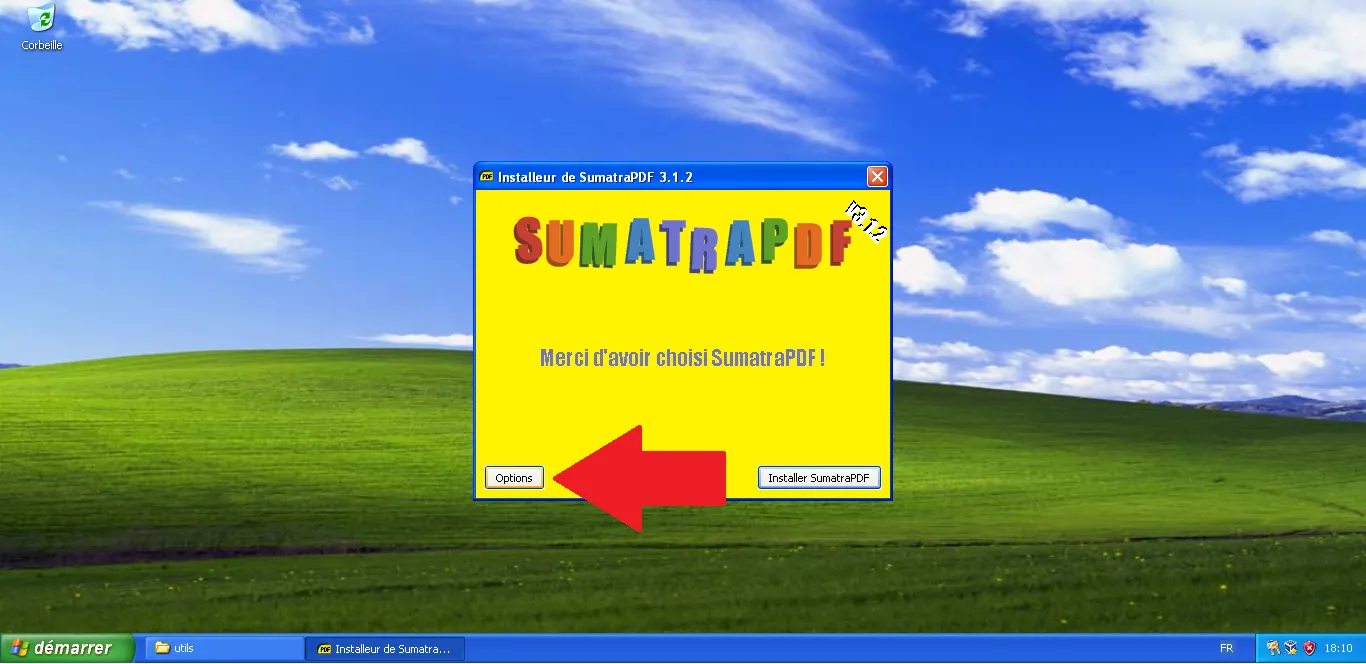
On the welcome screen, click "Options" to customize the installation.
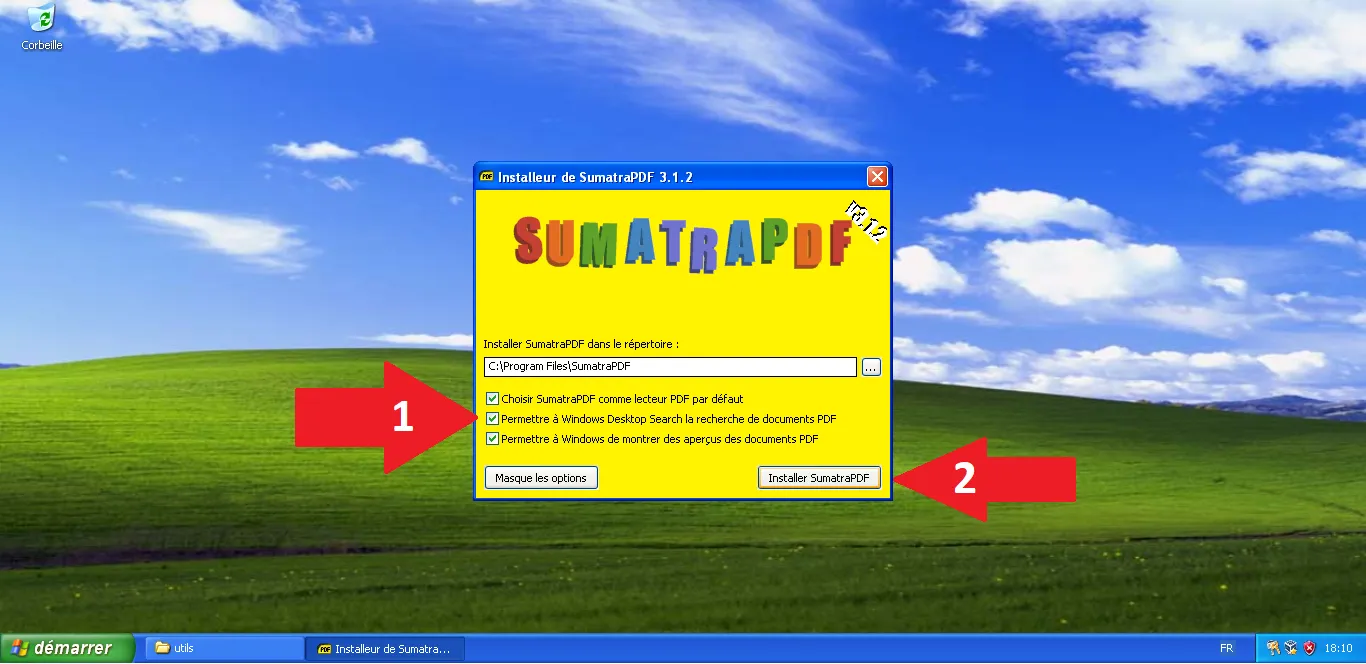
Ensure the options to make it the default PDF viewer are checked, then click "Install SumatraPDF".
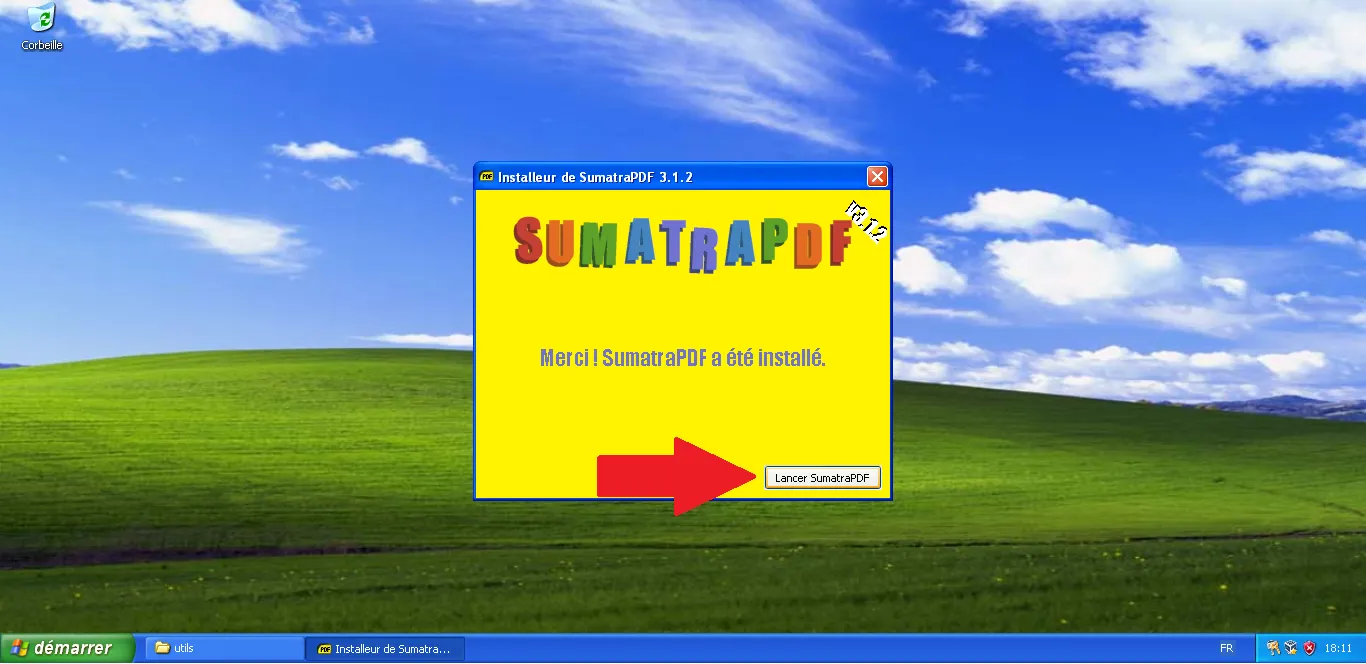
Once installation is complete, a success message appears. Click "Start SumatraPDF".
4. Bypassing XP Security Warnings
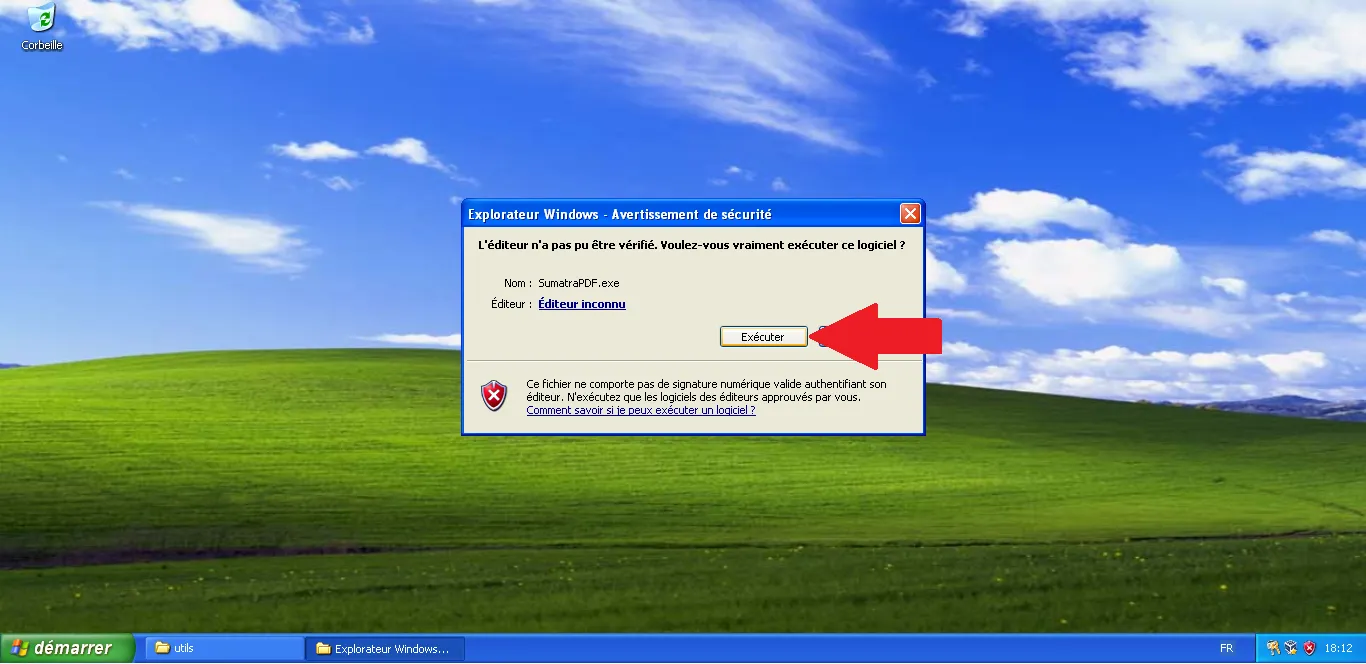
Since Windows XP is an older system, it will often warn you about "Unknown Publishers" or "Security Risks" when running modern or unsigned executables. If a File Download security warning appears, click "Run".
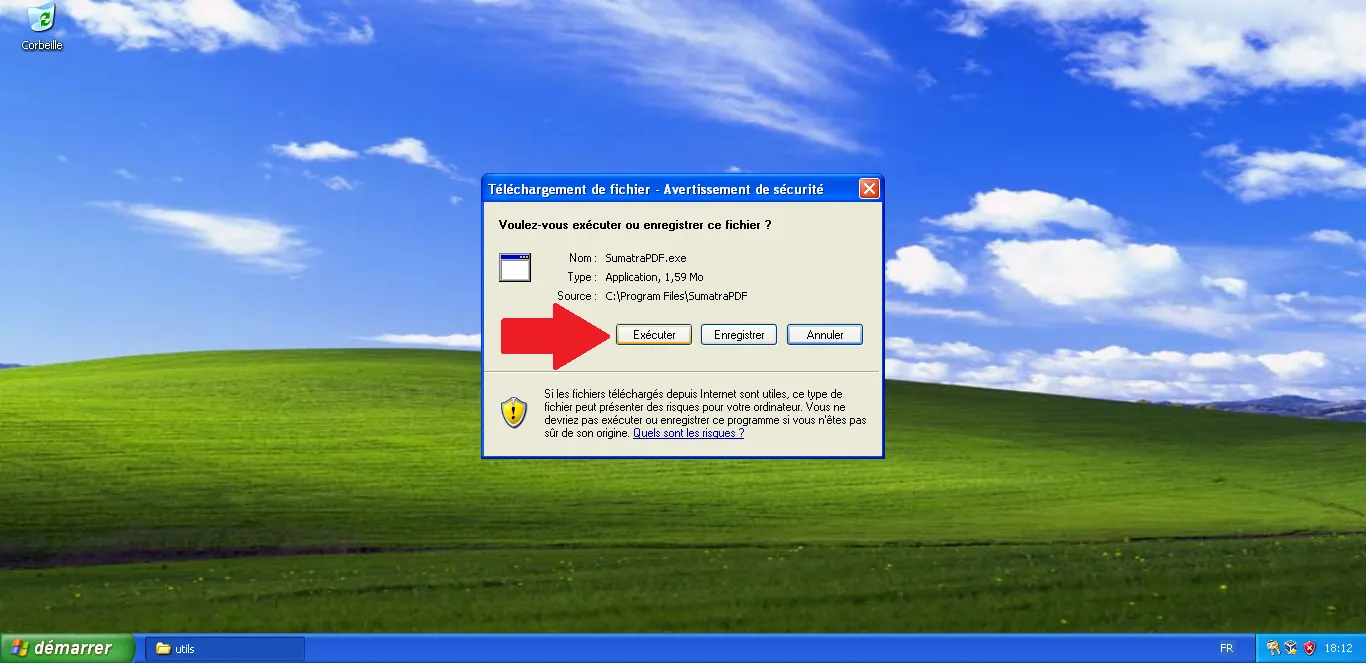
If Windows warns that the publisher could not be verified, click "Run" again.
5. Ready for Work
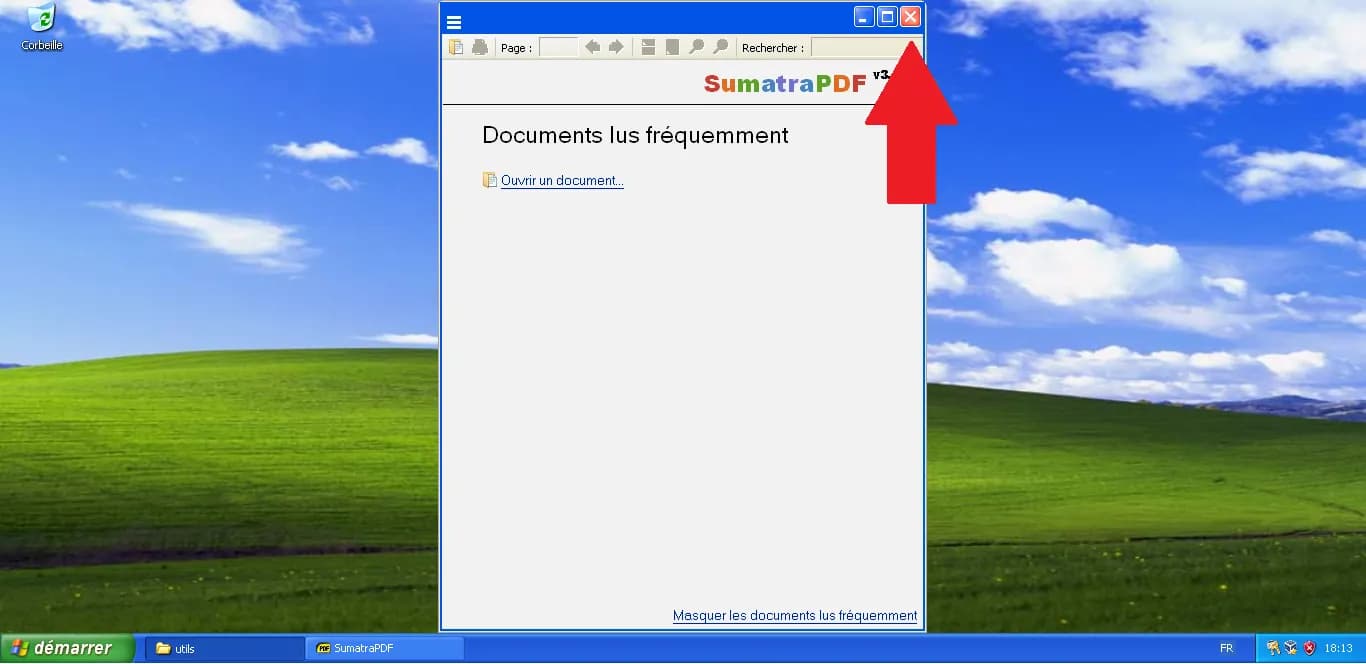
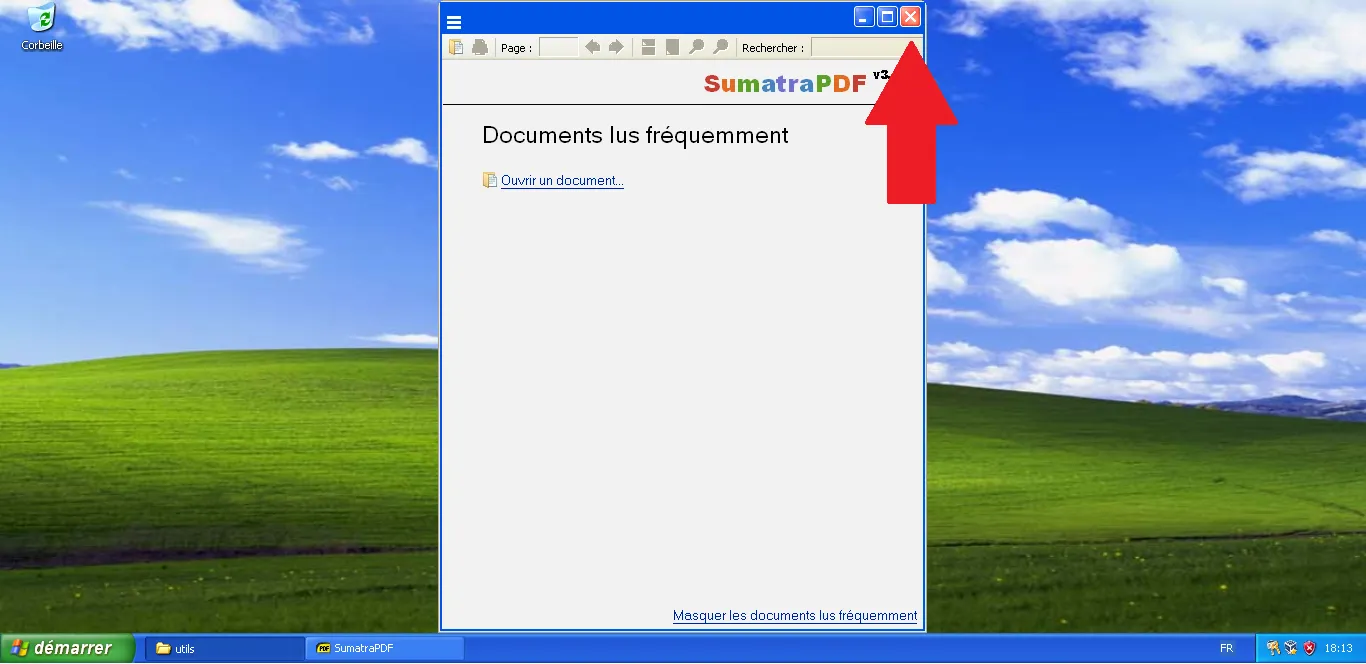
Sumatra PDF is now installed and open. You can close it and proceed.
Conclusion: Your Windows XP Virtual Machine is now fully equipped! It has a stable OS, optimized drivers, shared folders, and the necessary tools to handle technical documents and archives. You are now ready to install the real Saab workshop software.
Technical validation:
- 7-Zip: Version 21.07 (last version with official XP support).
- Sumatra PDF: Version 3.1.2 (optimized for low-resource environments).
- Security: Manual override of security prompts is standard for legacy OS setups.