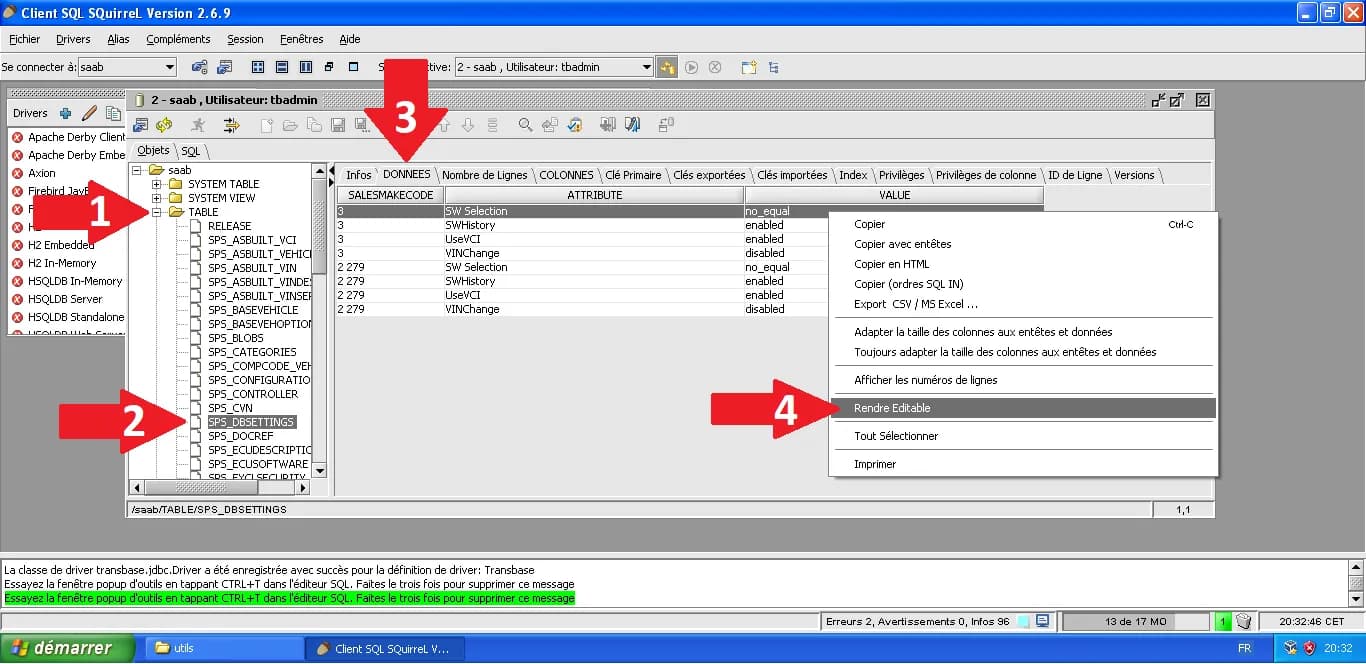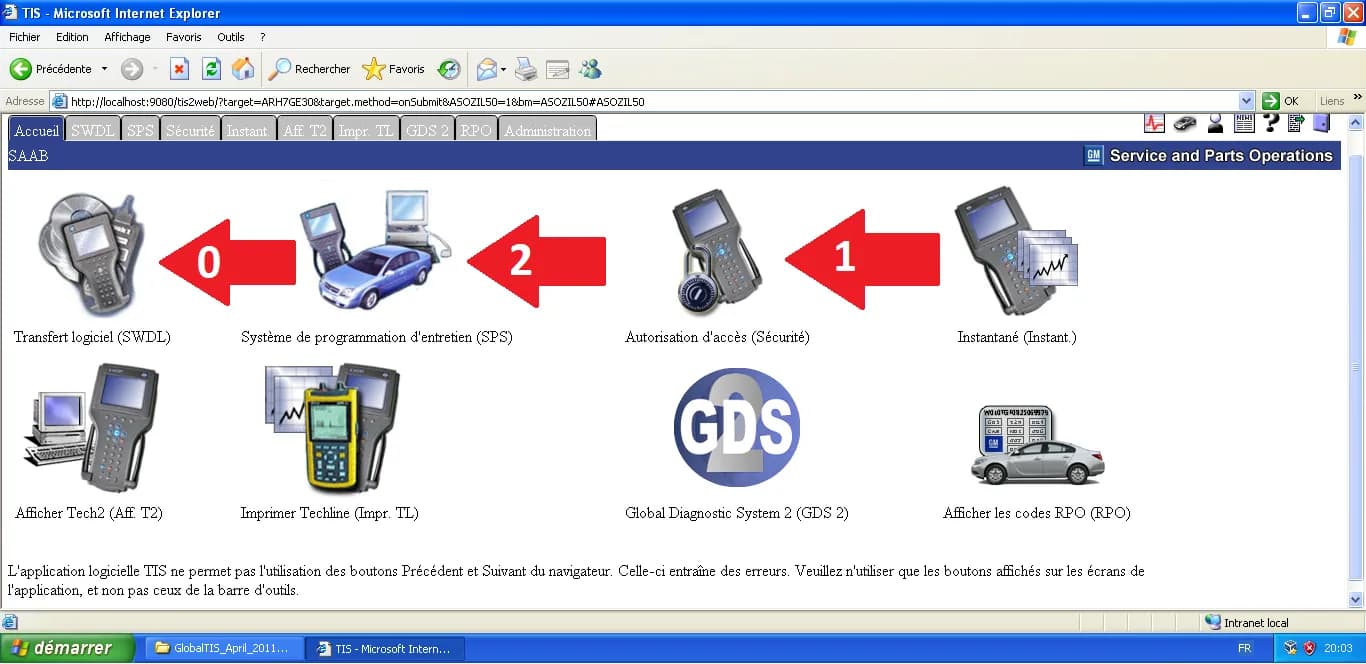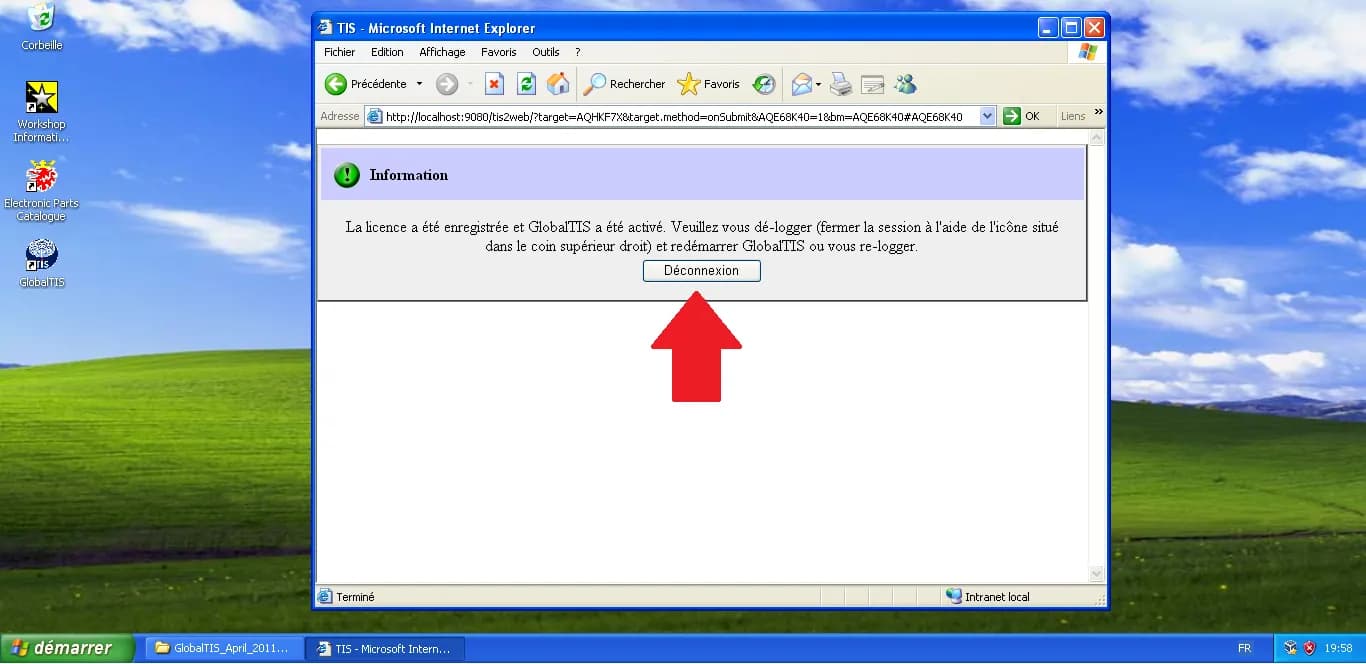
After installing GlobalTIS, the software is in a restricted state. To unlock features like Security Access and SPS (Service Programming System), you must follow a specific activation procedure. This guide walks you through generating the registration file and applying the license key.
1. Setting Up Dealership Data
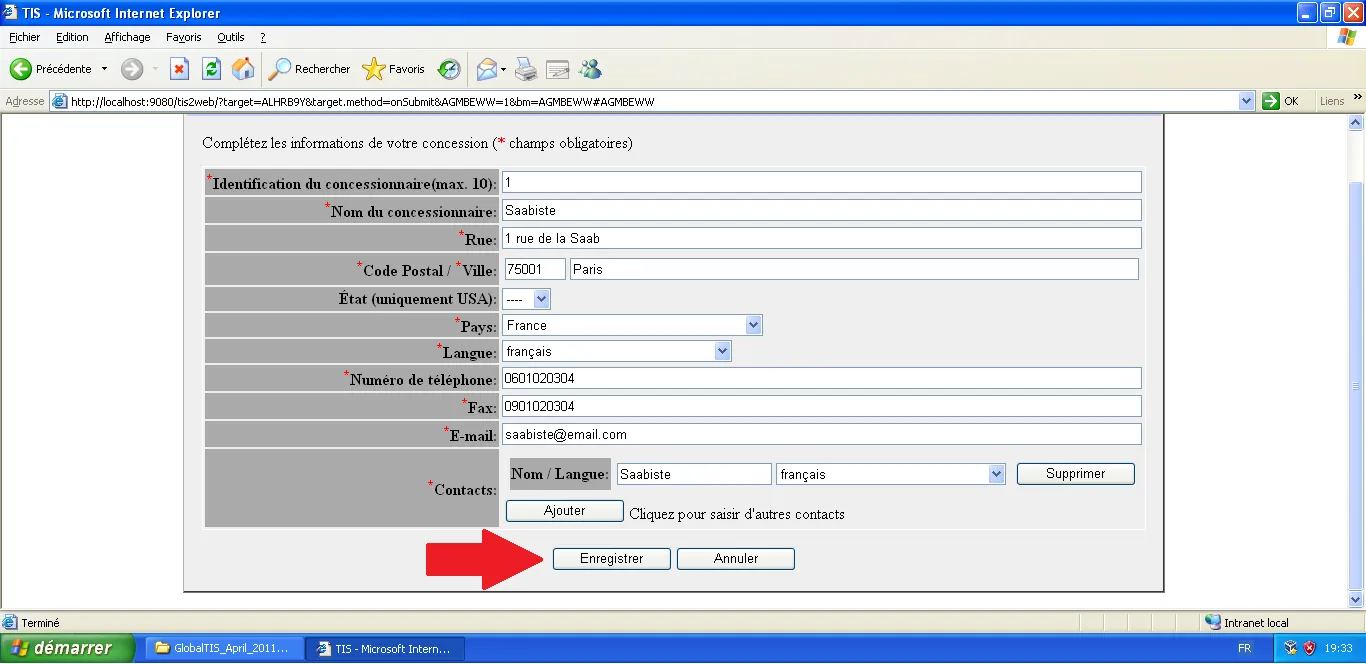
Before generating a request, GlobalTIS needs to know "who" is asking. Open GlobalTIS in Internet Explorer. On the admin home page, click "Edit Dealership Data".
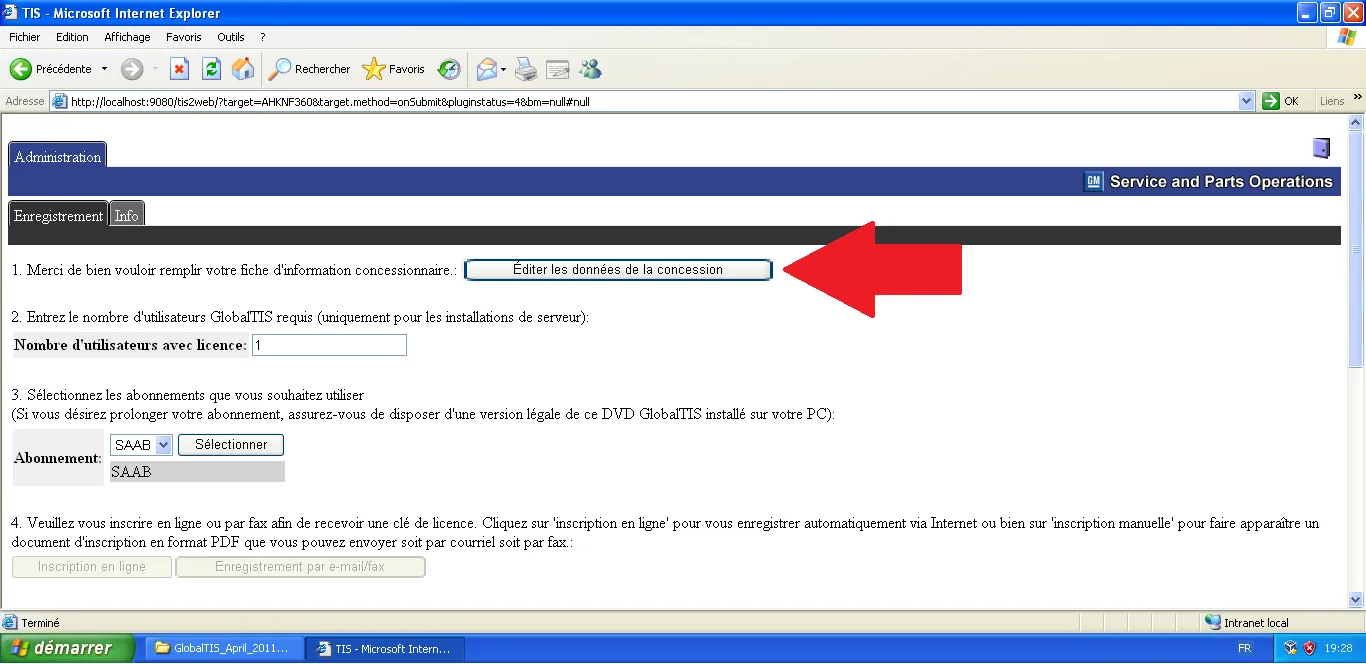
Fill out the form with generic information (Name, Address, Country). You don't need real data, but the fields must be filled. Click "Save".
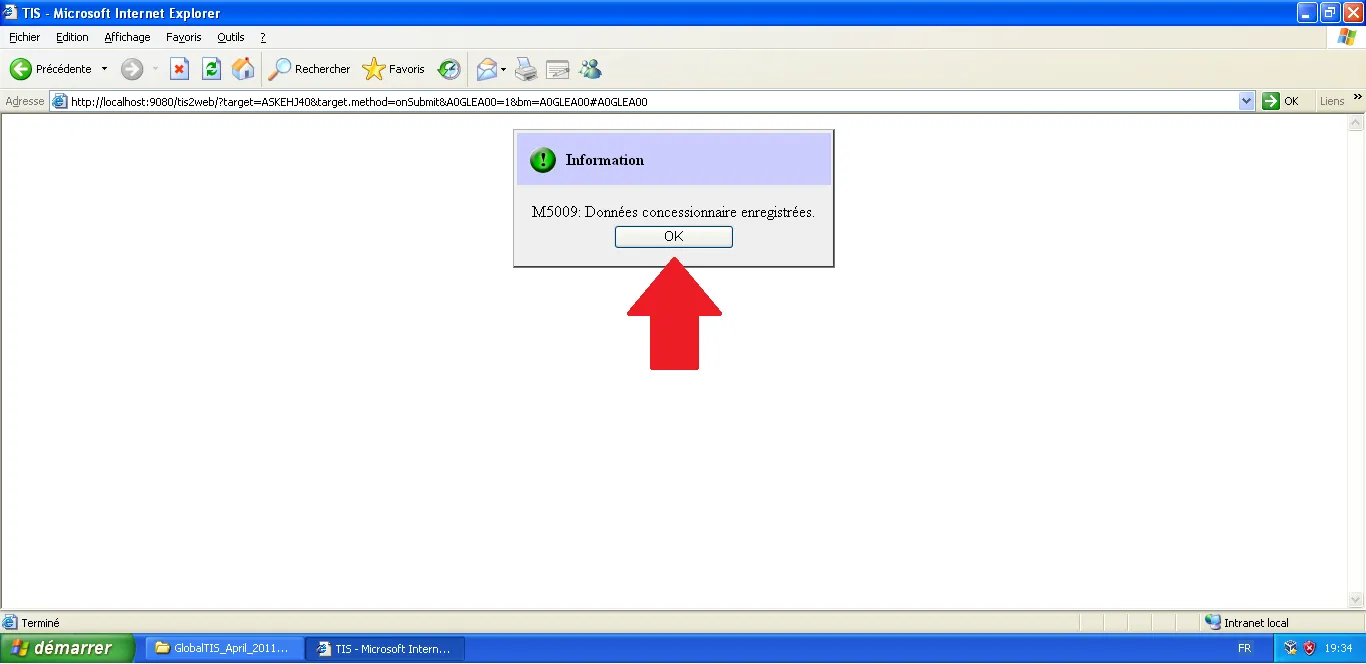
A message confirms the data has been saved. Click OK.
2. Generating the Registration PDF
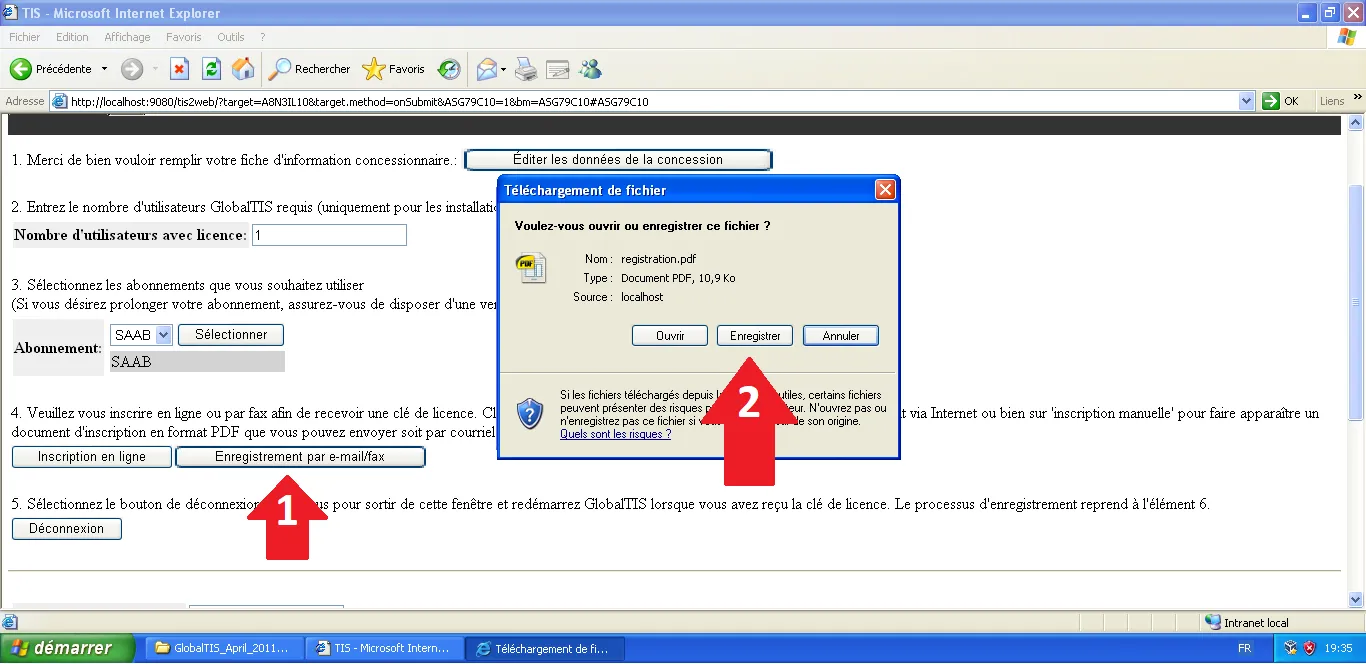
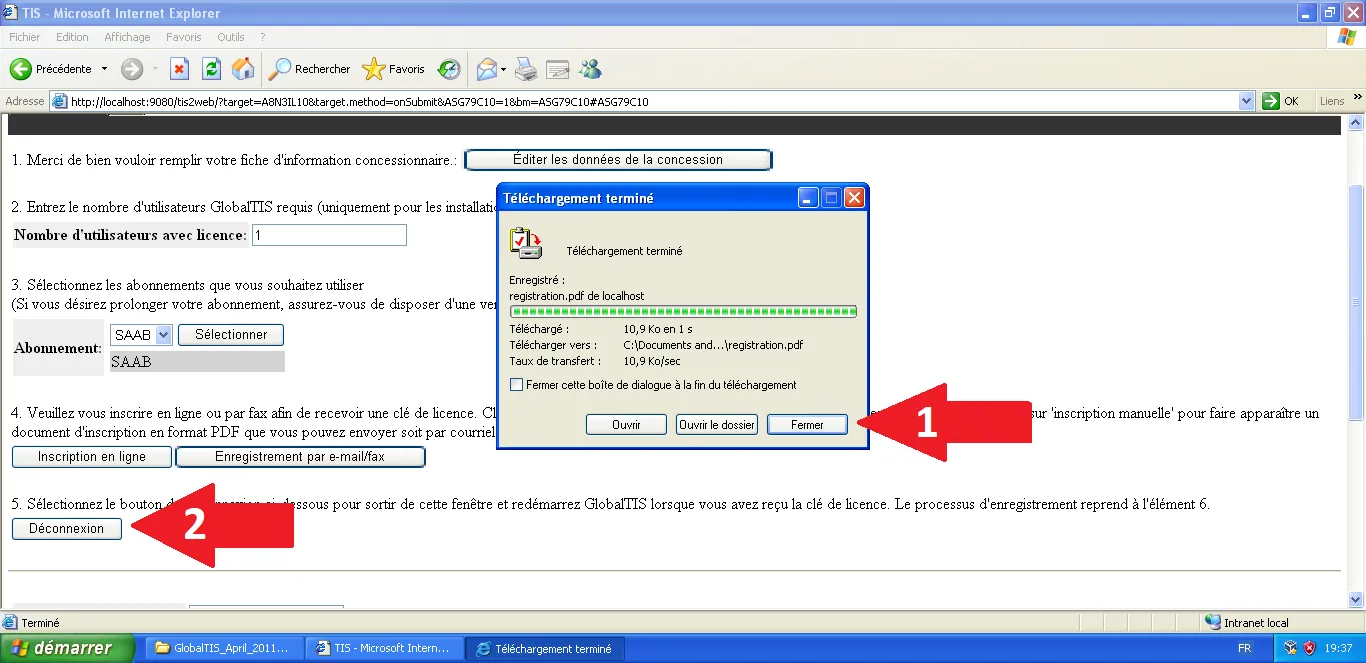
Back on the registration page, click "Email/Fax Registration". A download prompt for registration.pdf will appear. Click "Save".
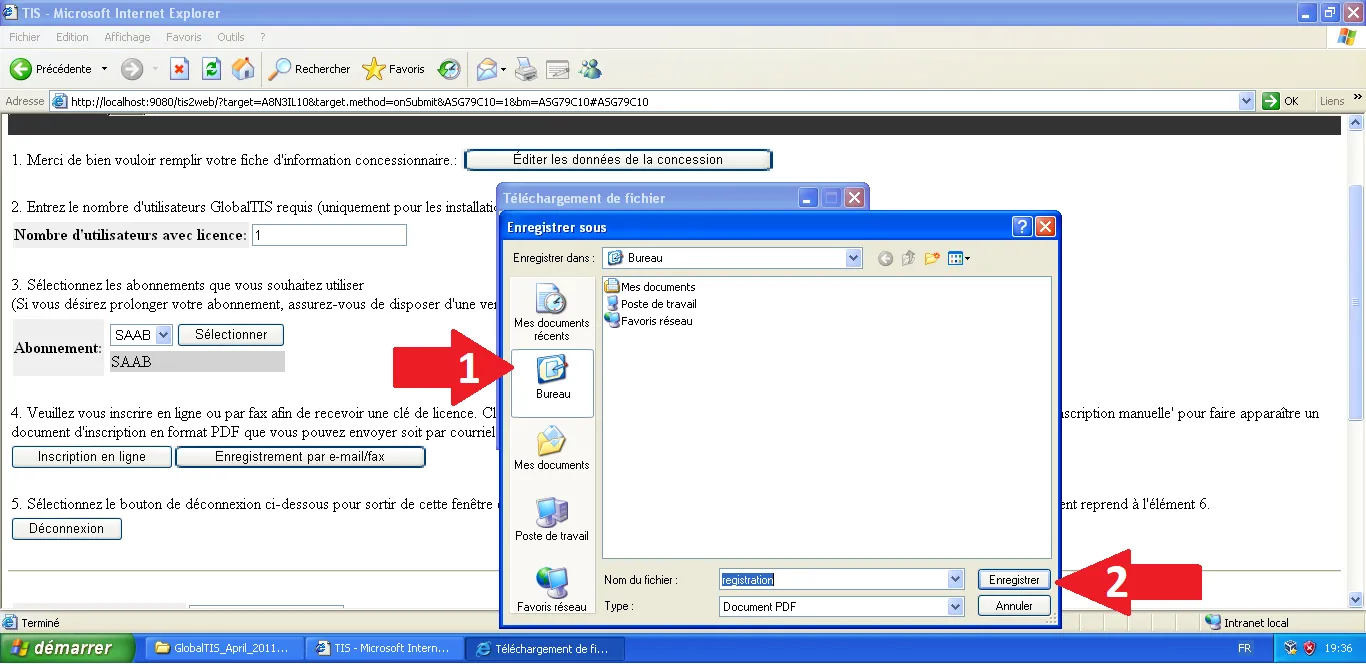
Select the Desktop as the destination and click "Save".
Once finished, close the download window and click "Logout" in the GlobalTIS interface.
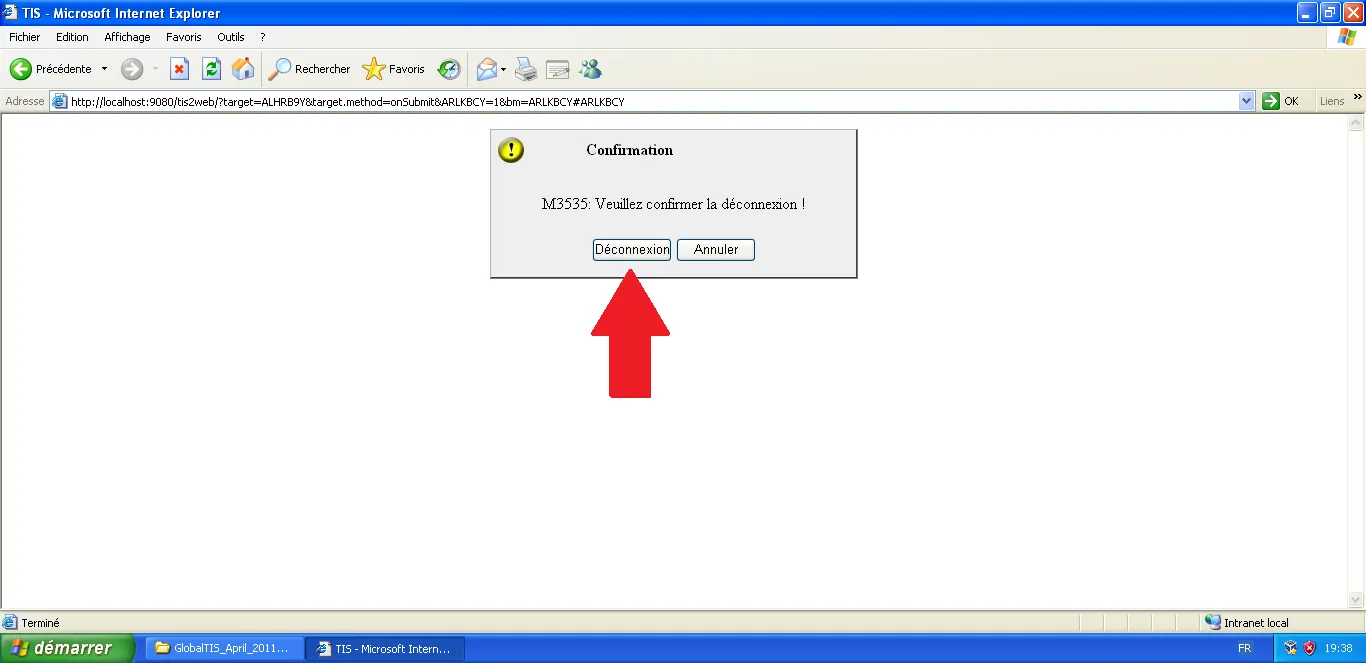
Confirm the logout by clicking "Logout" again in the dialog box.
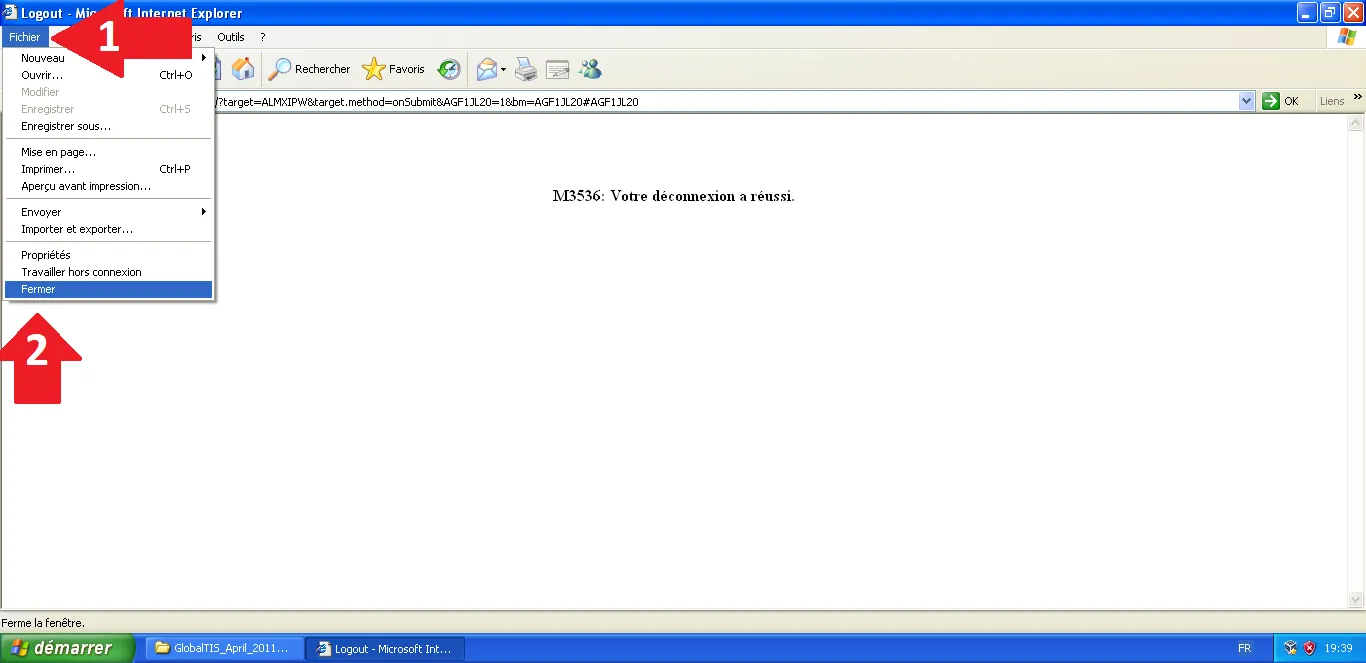
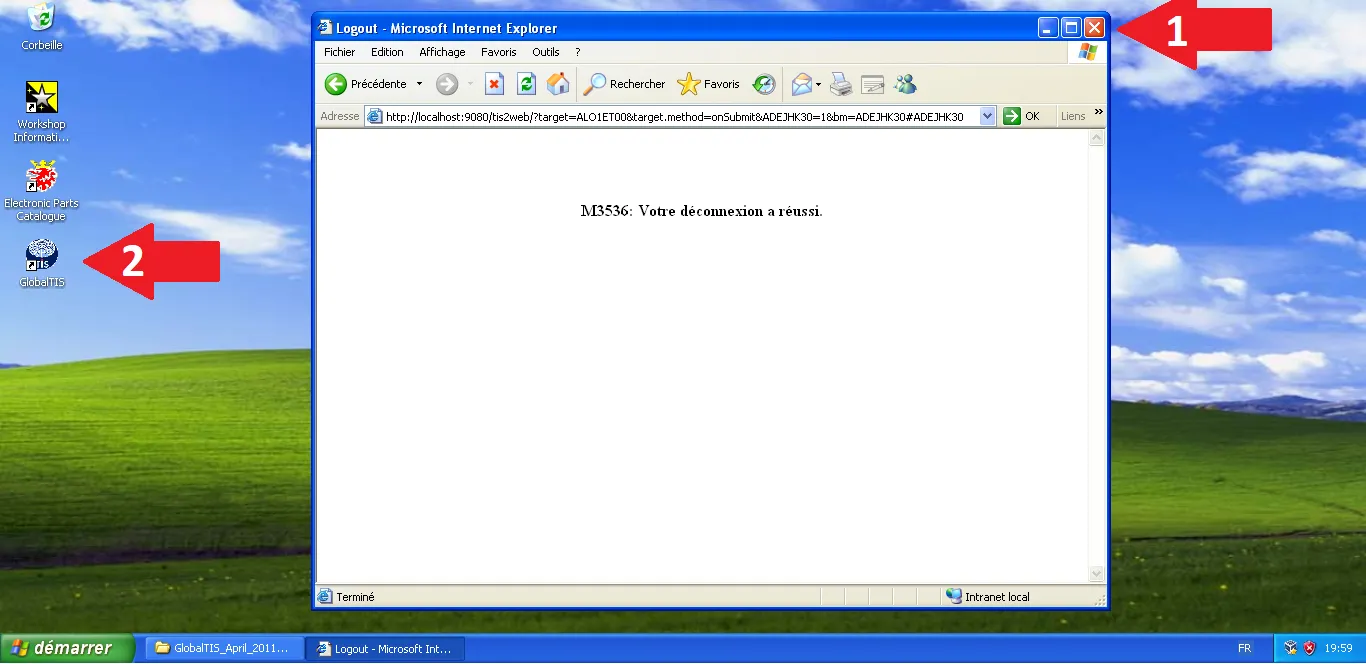
The logout is successful. Go to File > Close to exit Internet Explorer.
3. Retrieving the Software Key
Open the registration.pdf on your desktop. Locate the Software Key. Copy this key into a text file or keep it ready for the next step.
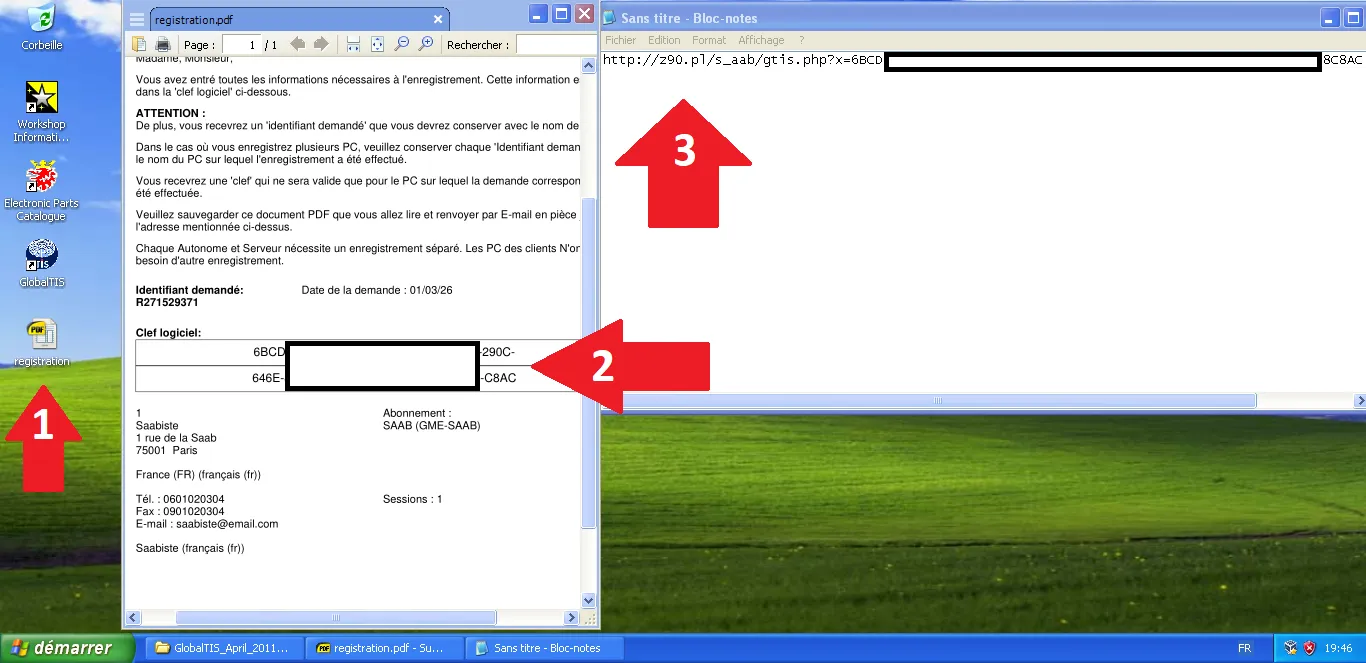
Using a key generator tool (or online service), provide your Software Key to receive a Subscriber ID and a License Key.
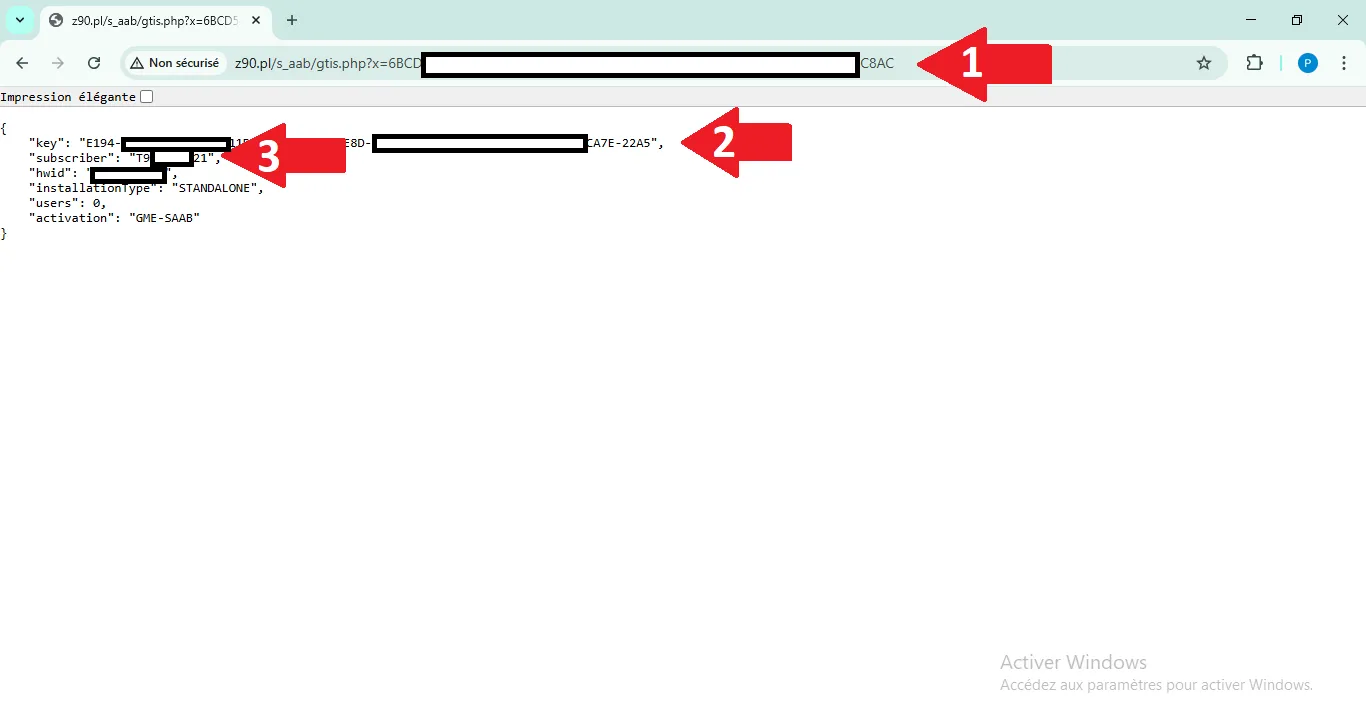
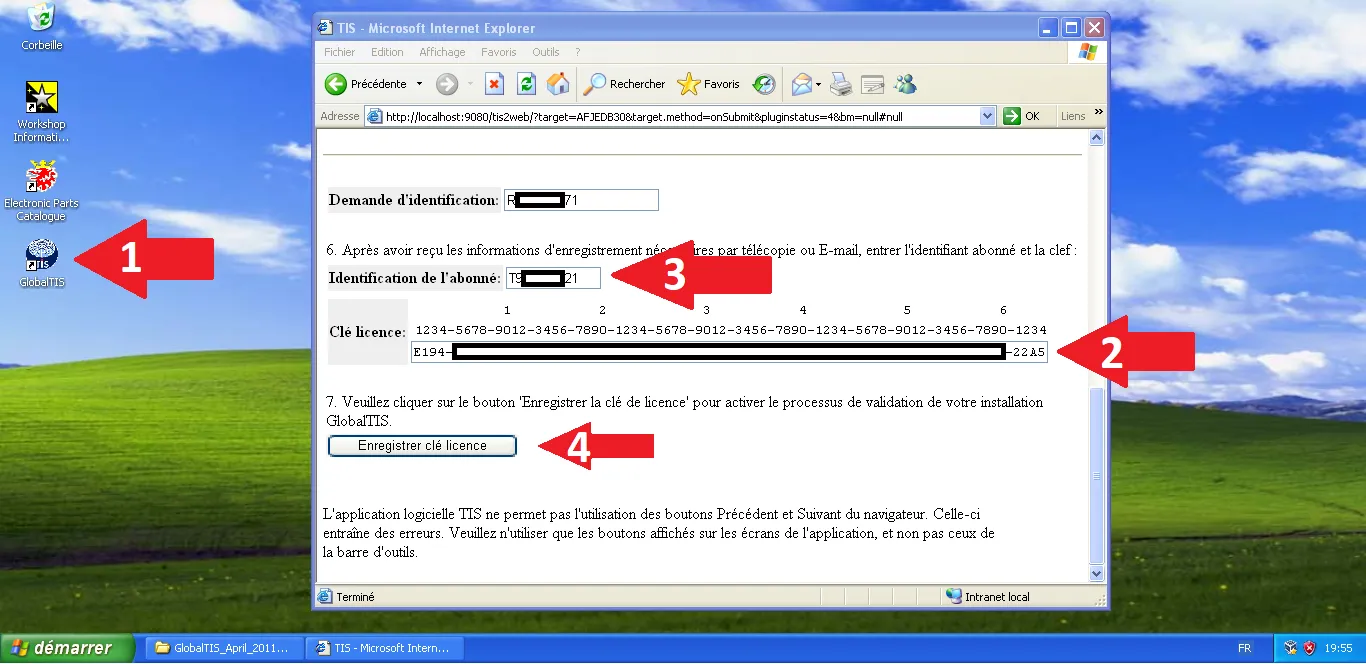
4. Applying the License
Re-open GlobalTIS and return to the registration area. Enter your Subscriber ID and the License Key, then click "Register License Key".
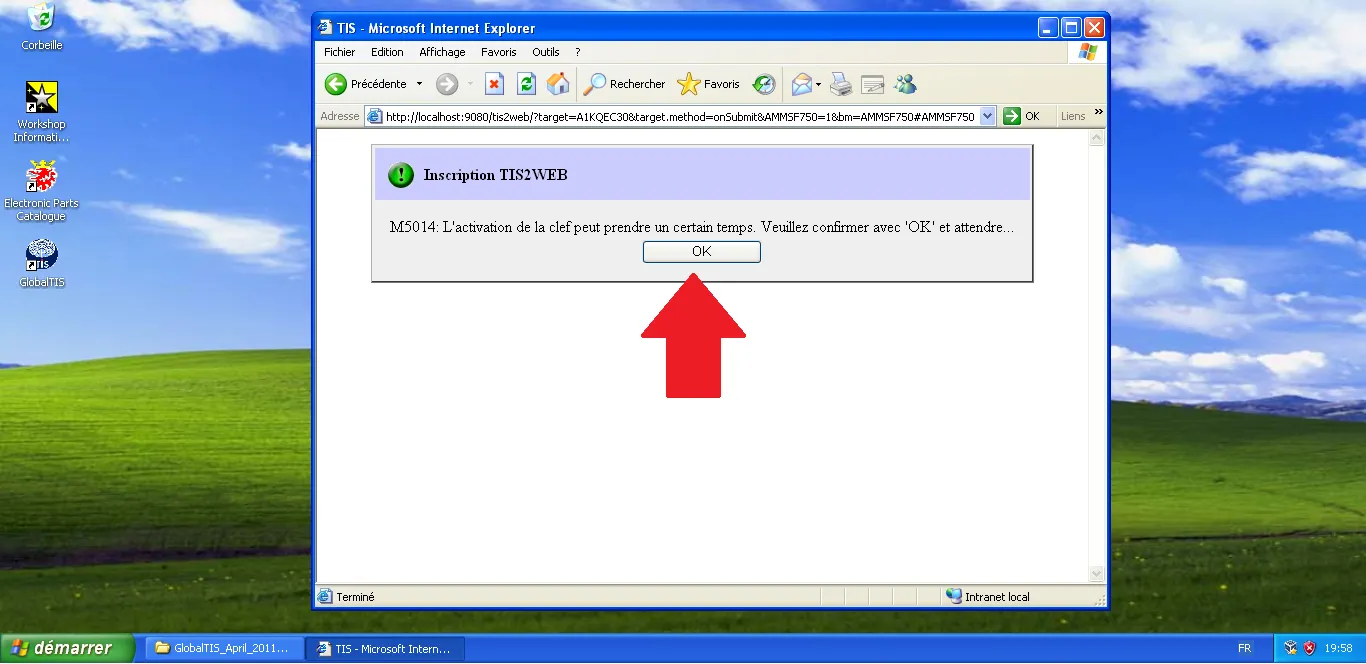
A message warns that activation may take some time. Click OK.
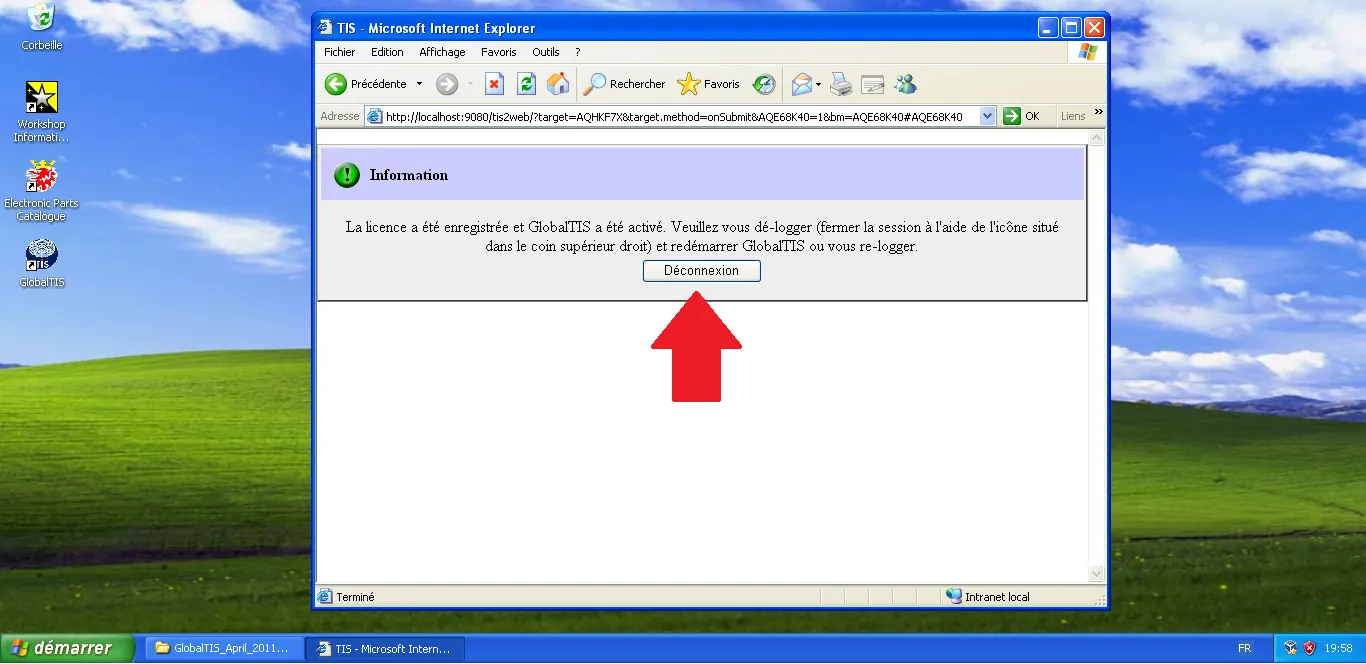
Success! A message confirms that GlobalTIS is activated. Click "Logout".
Close the browser. Your GlobalTIS server is now fully operational and ready for Tech2 security access or module programming.
Note: This procedure is local and offline. In the next article, we will see how to bypass common SPS blocks like "NIV change not supported" or "software already installed".
Technical validation & Sources:
- Software Key: Unique identifier tied to your Virtual Machine's hardware ID.
- License Type: Standalone/Unlimited.
- Requirements: PDF reader (SumatraPDF) must be installed to view the registration file.
- Reference: Tech2Wiki - Installing GlobalTIS