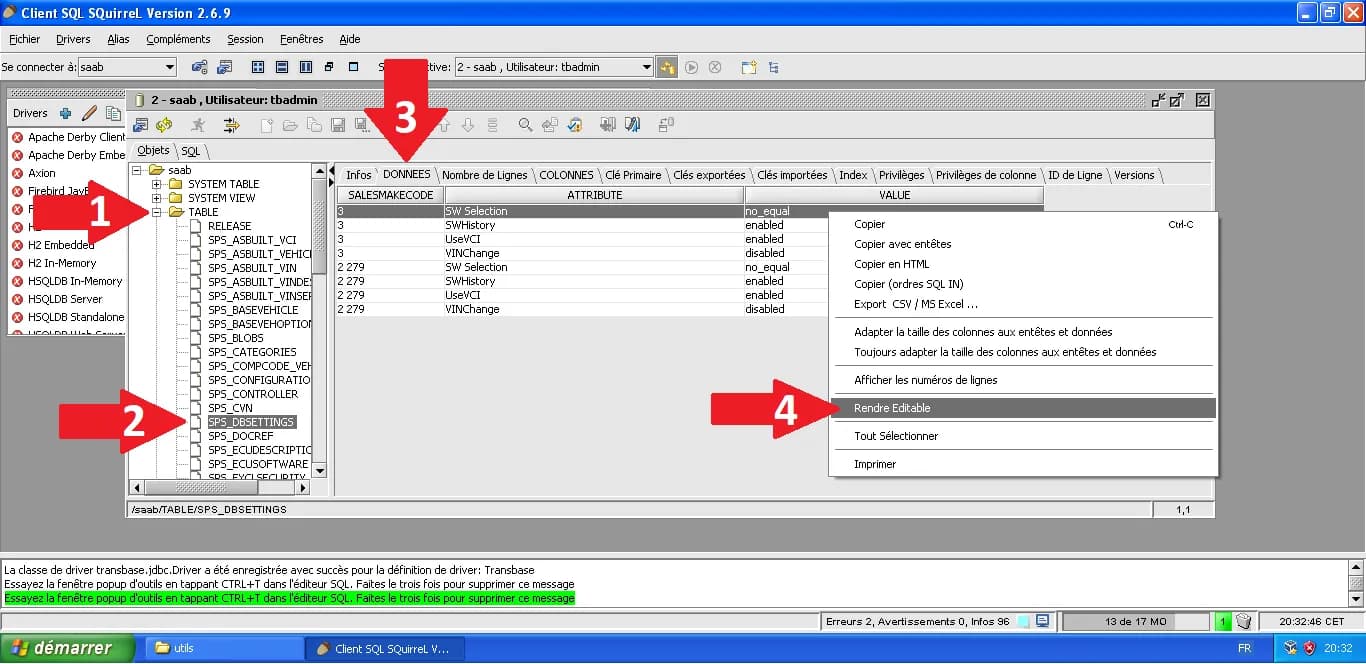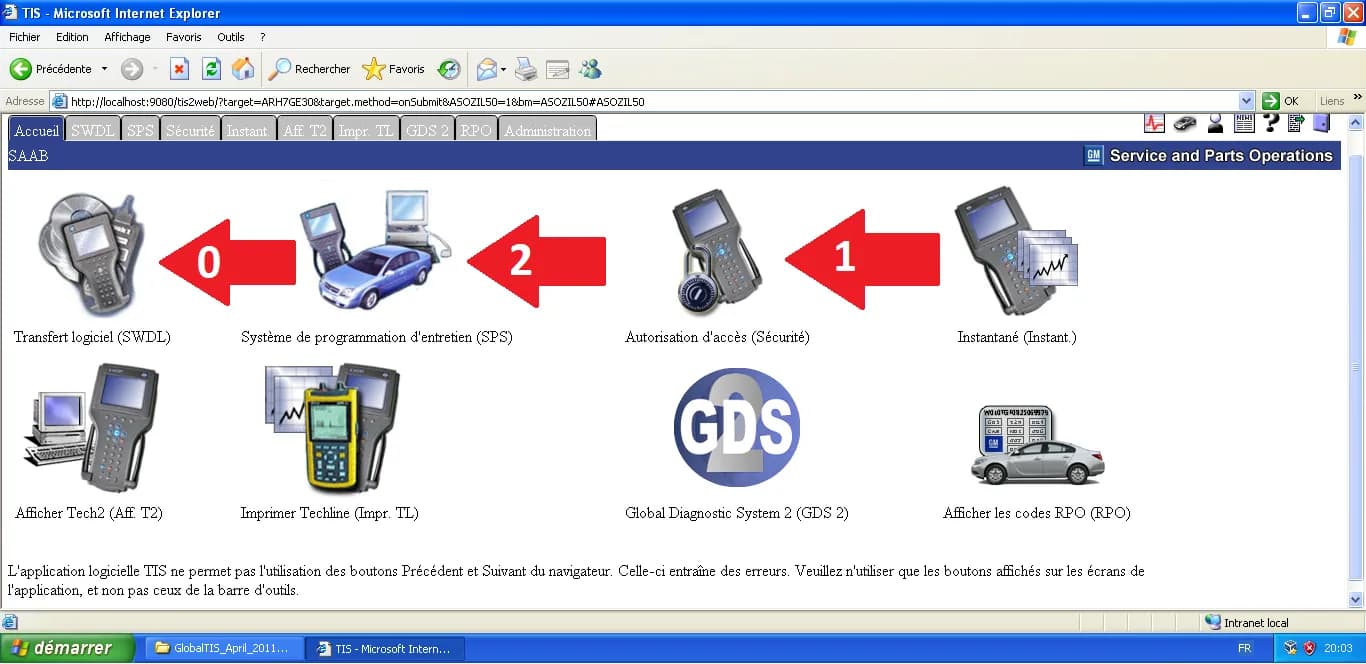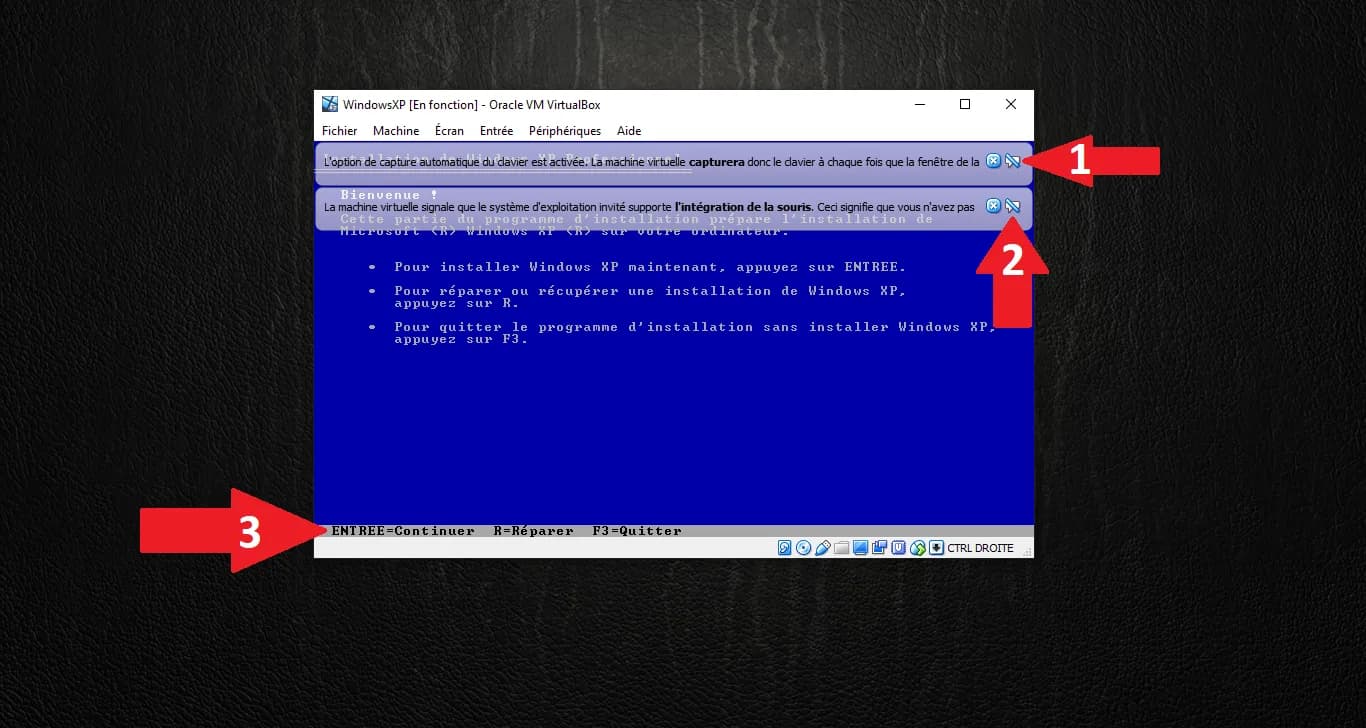
Once your Virtual Machine is created and the ISO is inserted into the virtual drive, it's time to proceed with the operating system installation. This step transforms your virtual drive into a functional workstation.
1. Text-Mode Setup (Initial Phase)
Start the VM. When the blue setup screen appears, press Enter to start the installation process.
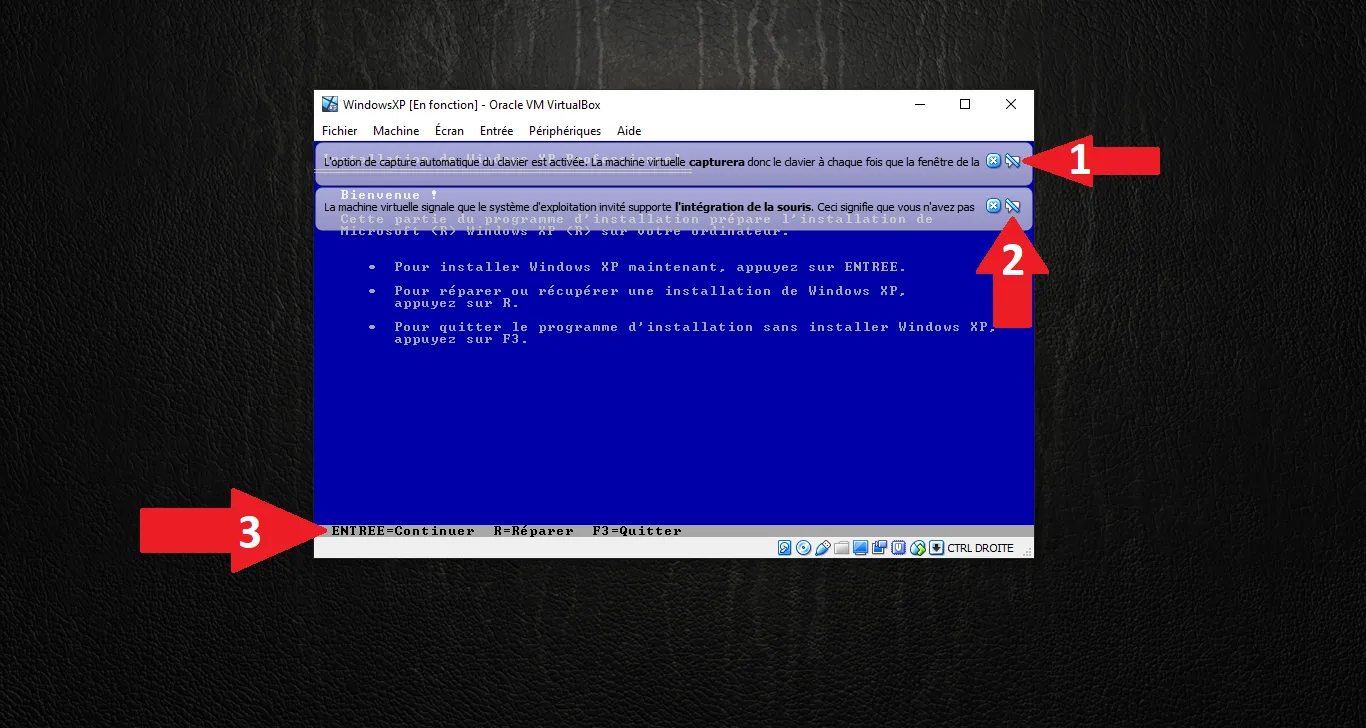
Read the Licensing Agreement and press F8 to accept the terms.
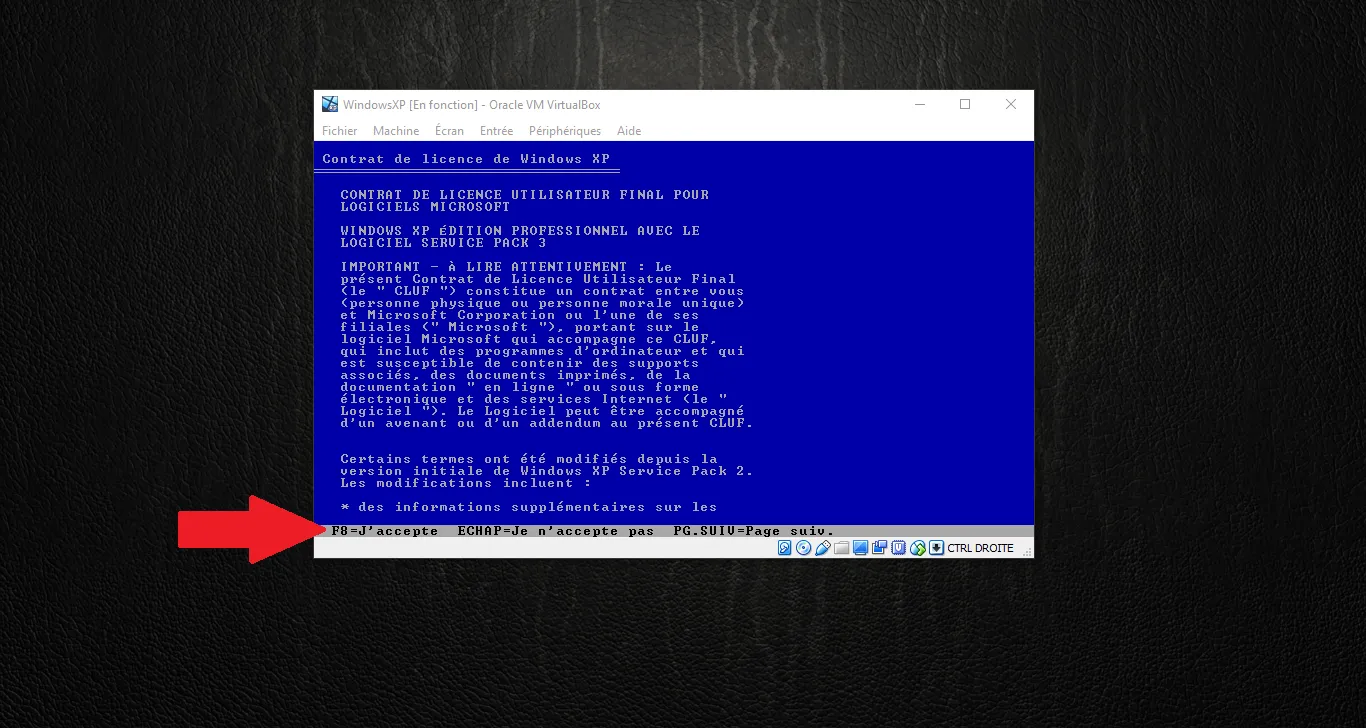
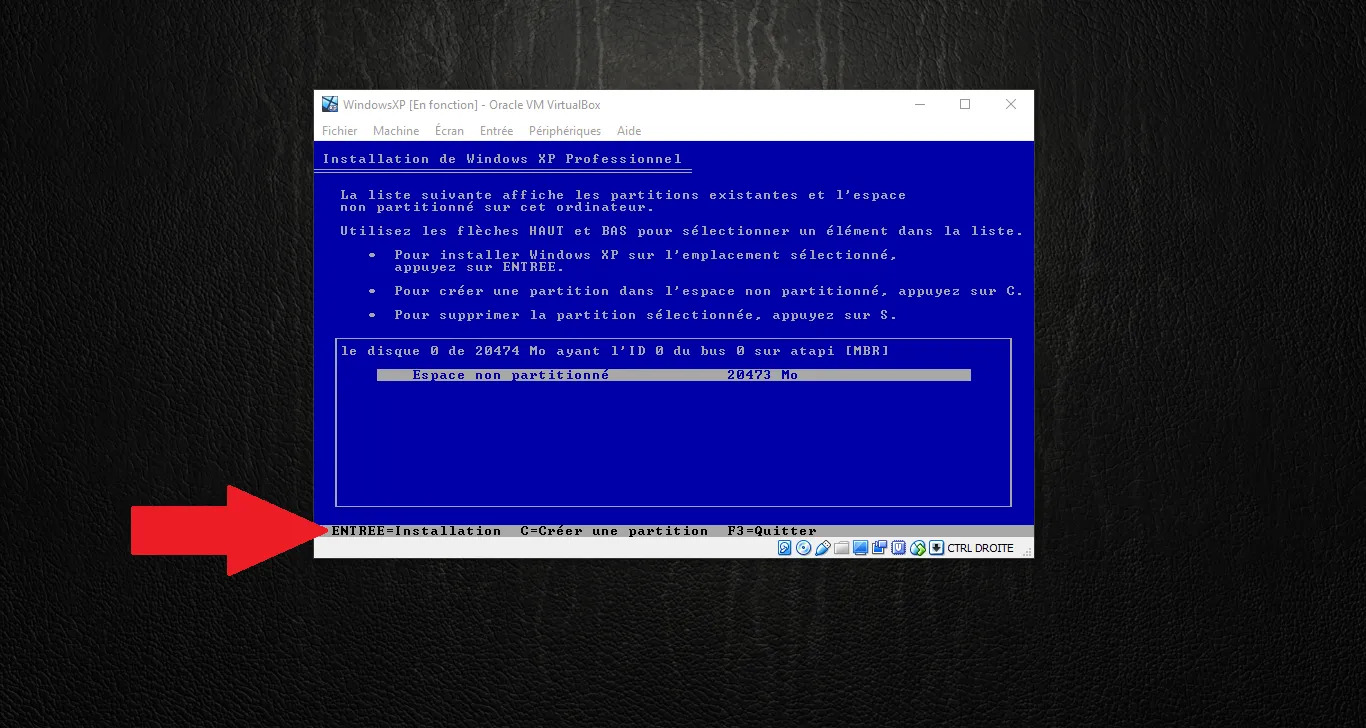
Select the "Unpartitioned space" (our 20GB virtual disk) and press Enter to install Windows on it.
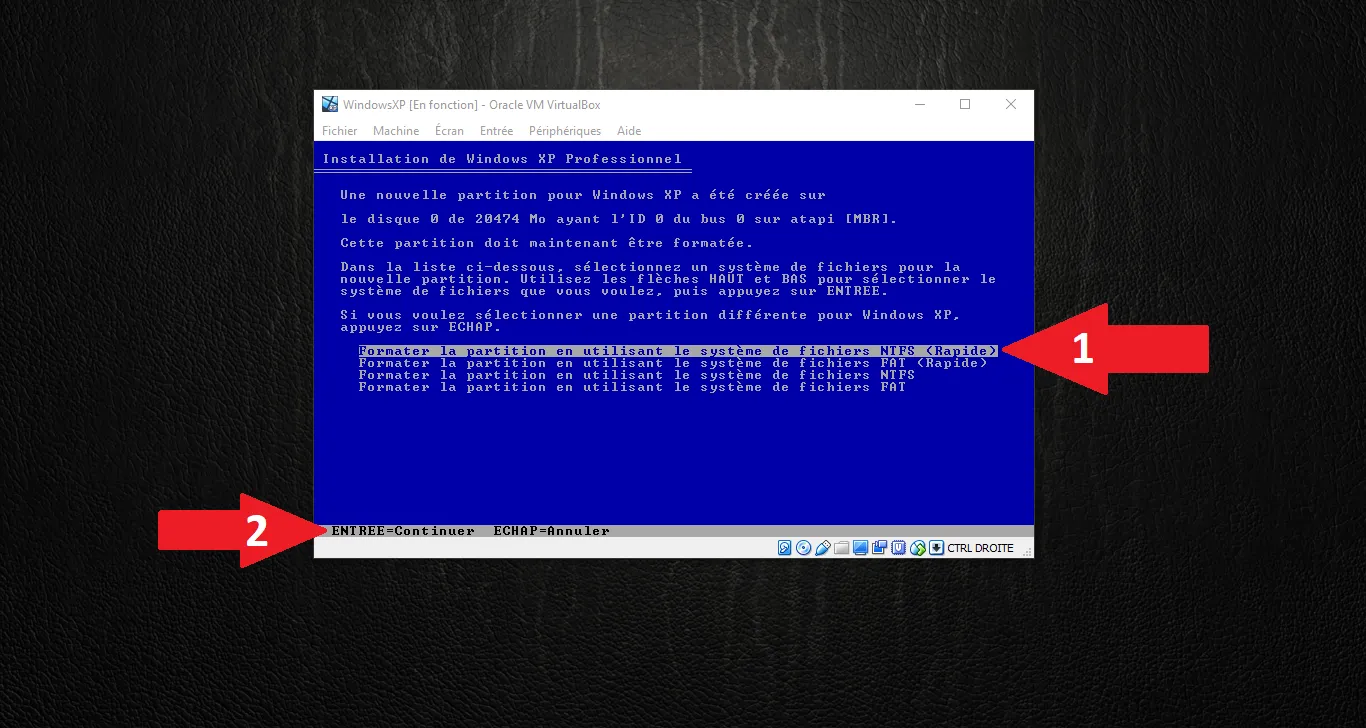
Choose "Format the partition using the NTFS file system (Quick)" and press Enter.
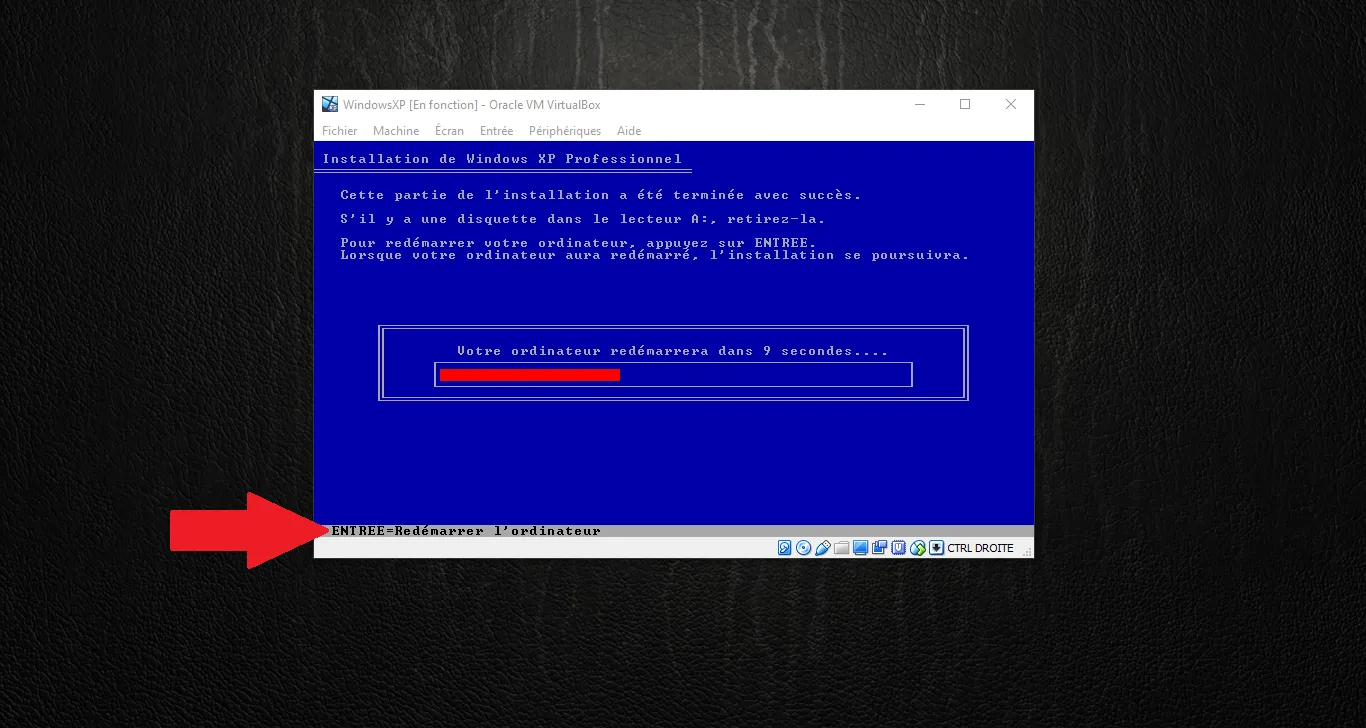
After copying the initial files, the system will restart. Press Enter to restart immediately or wait for the countdown.
2. Graphical Installation Phase
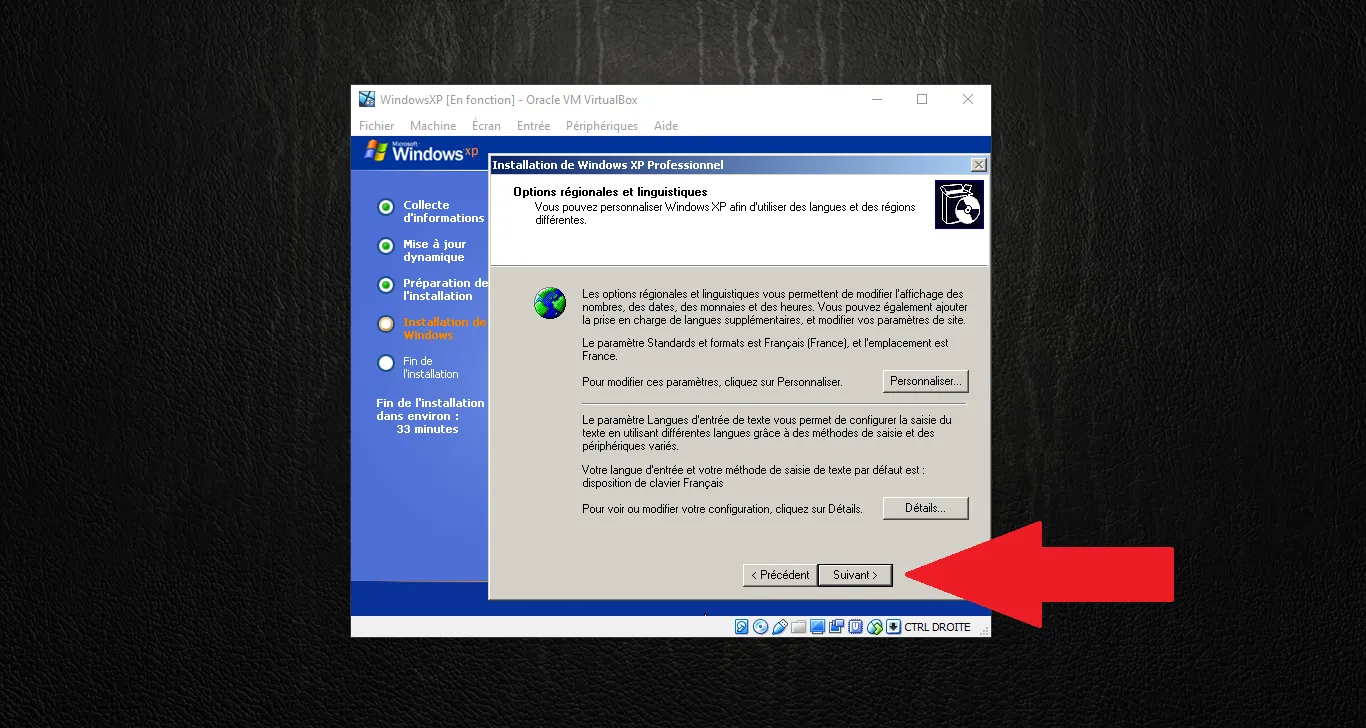
The setup continues in graphical mode. On the Regional and Language Options screen, click Next.
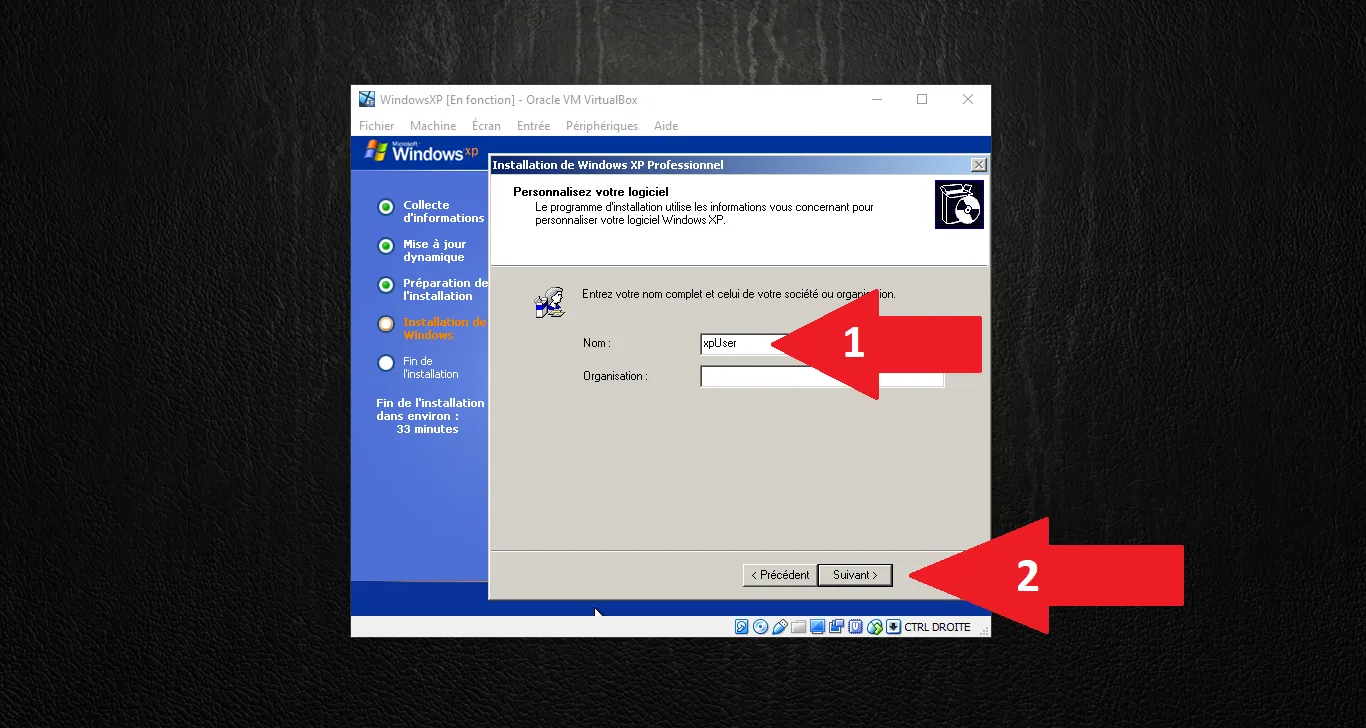
Enter your Name (e.g., xpUser) and Organization (optional), then click Next.
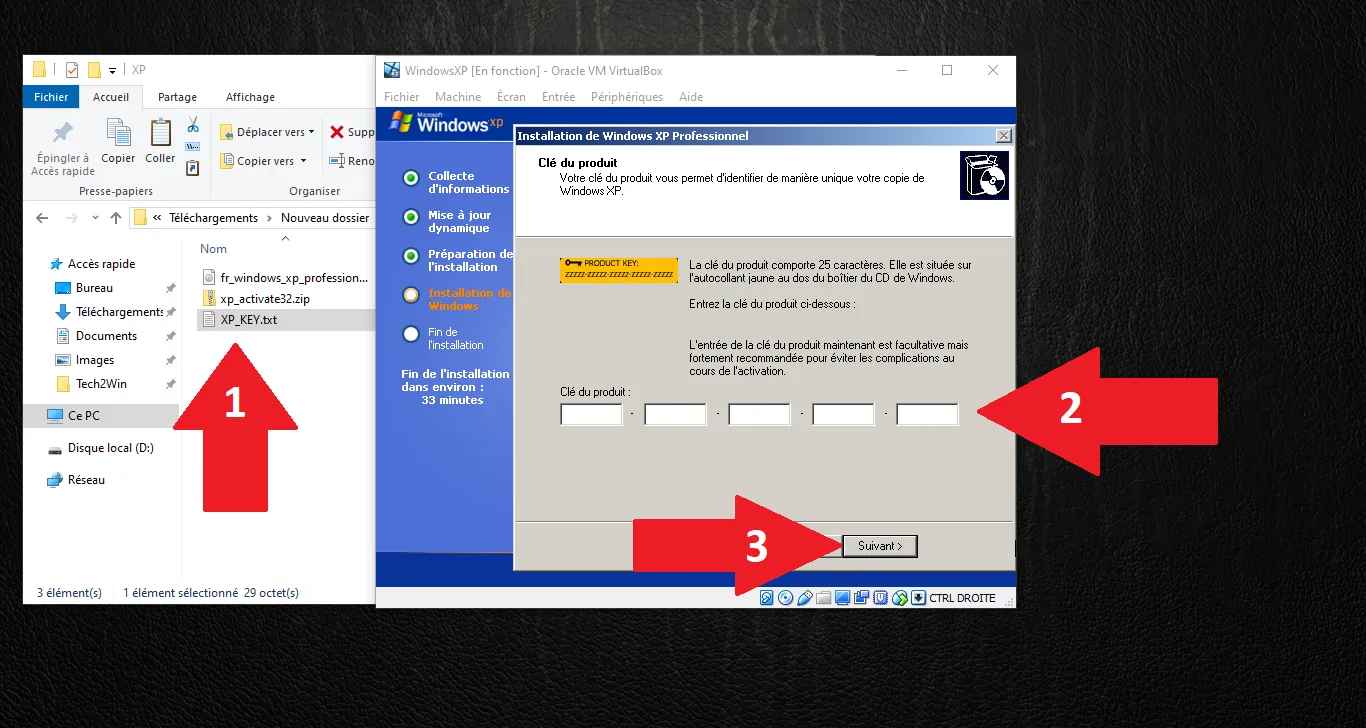
Enter your 25-character product key. If you have your key in a text file on your host machine, you'll need to type it manually at this stage. Click Next.
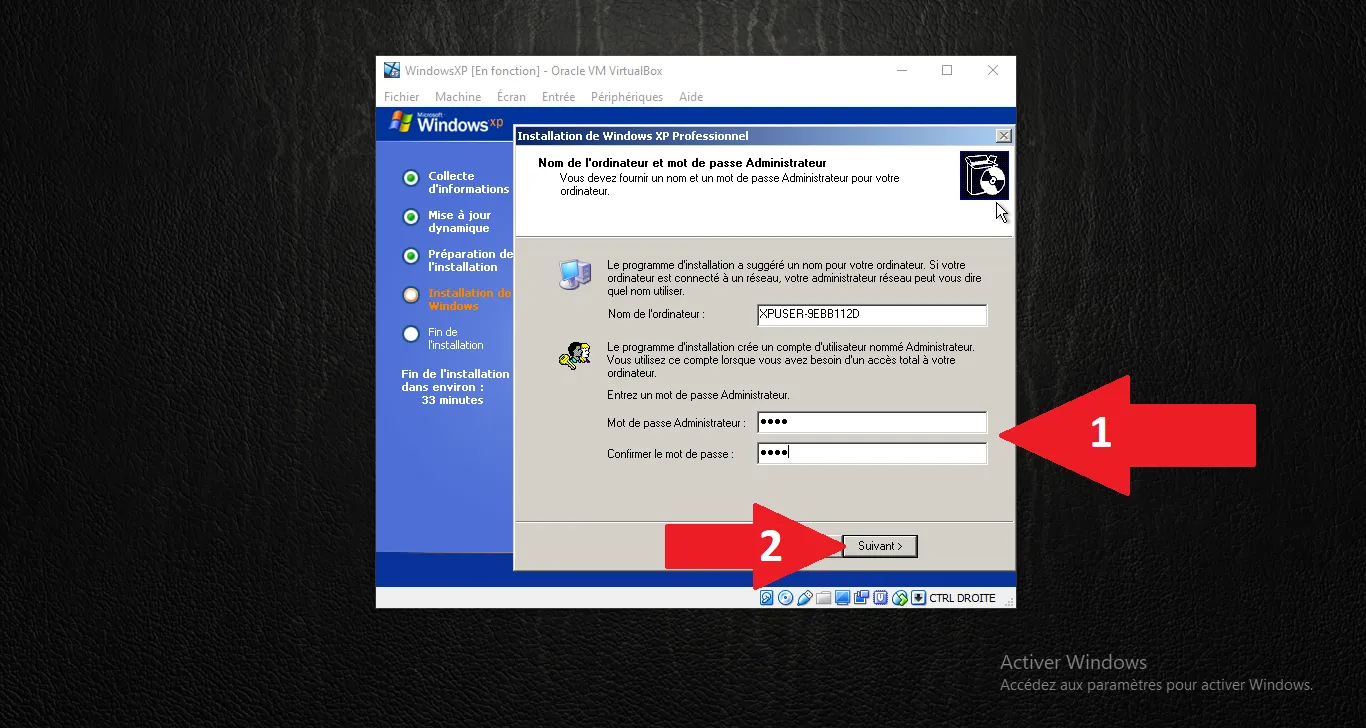
Enter a Computer Name and an optional Administrator password. Click Next.
Adjust the date, time, and time zone. Click Next.
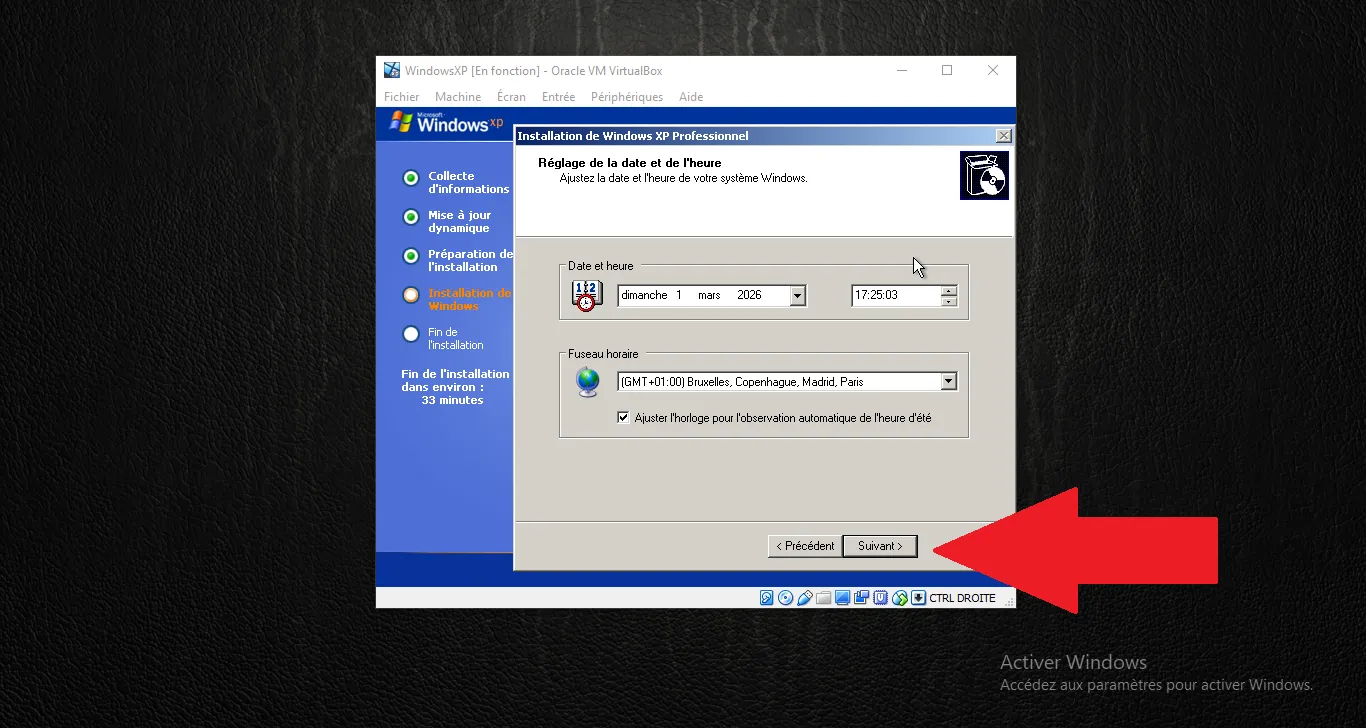
3. Final Configuration and First Boot
Windows will adjust your screen resolution automatically. Click OK.
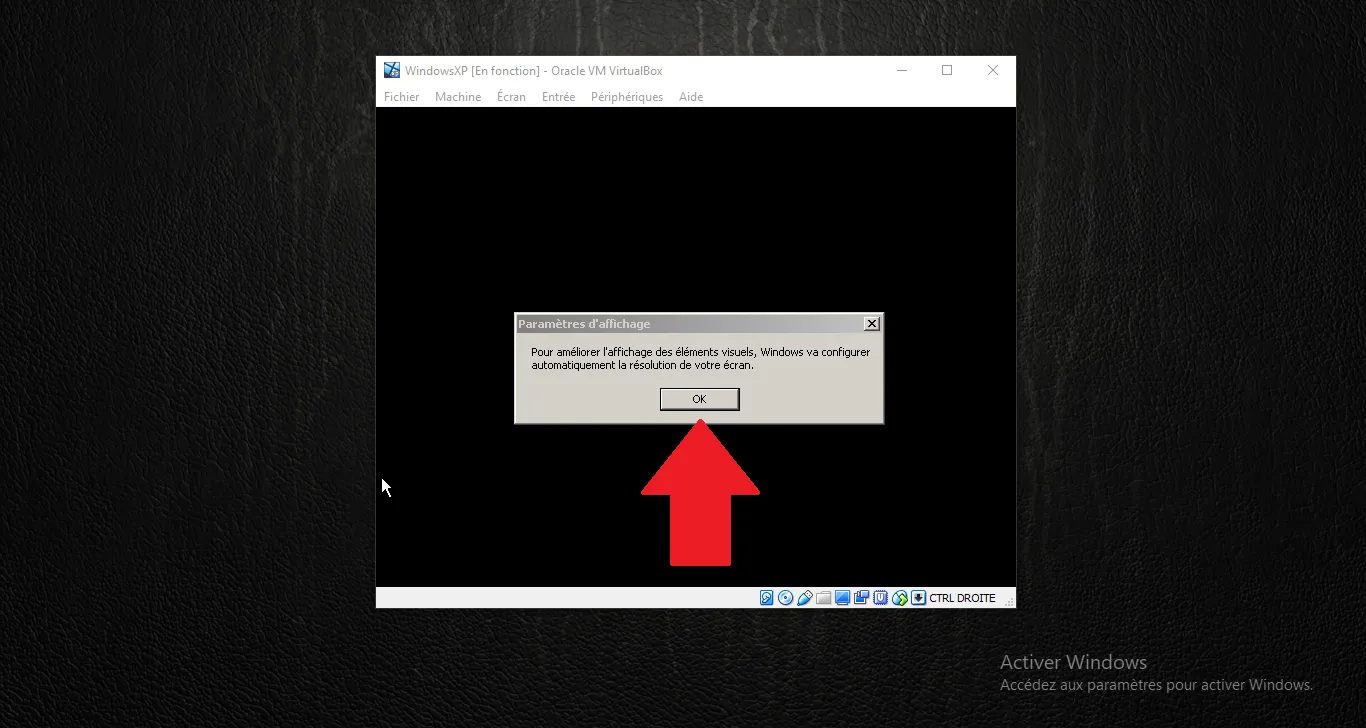
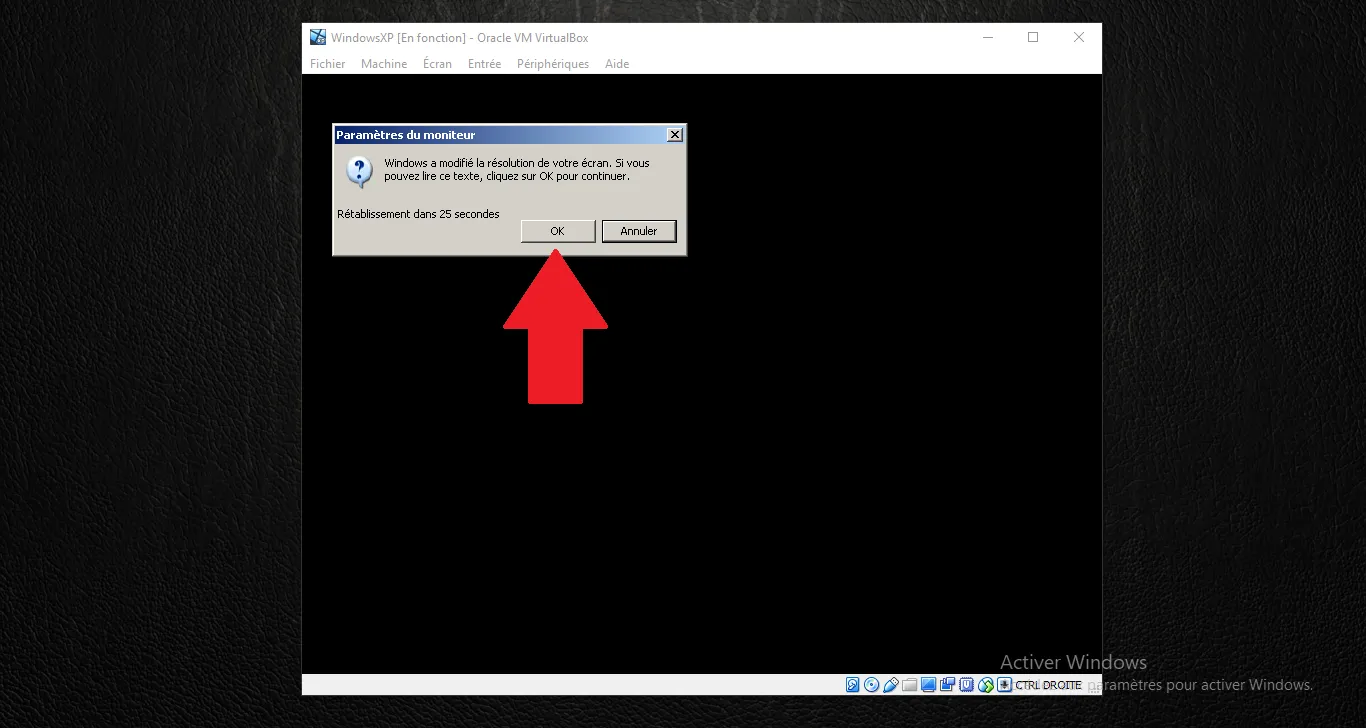
Confirm the resolution change by clicking OK again.
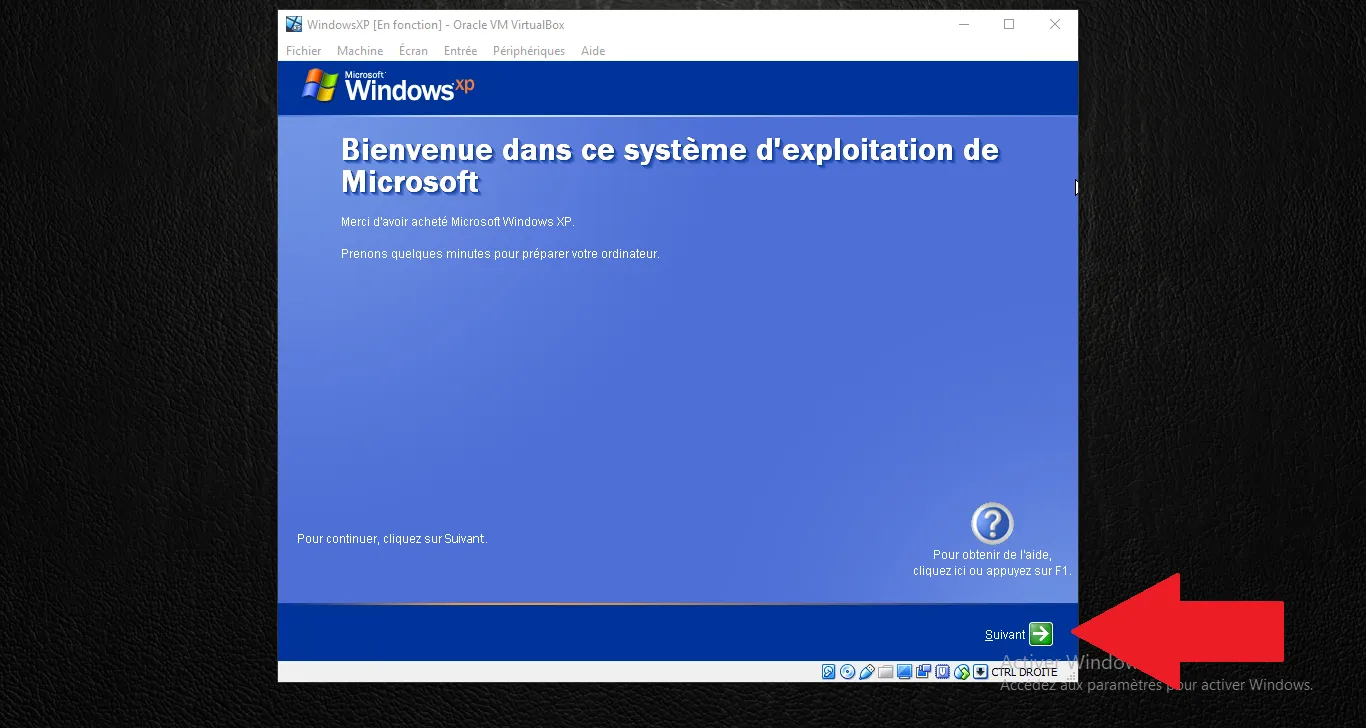
The Windows XP welcome wizard appears. Click the green Next arrow.
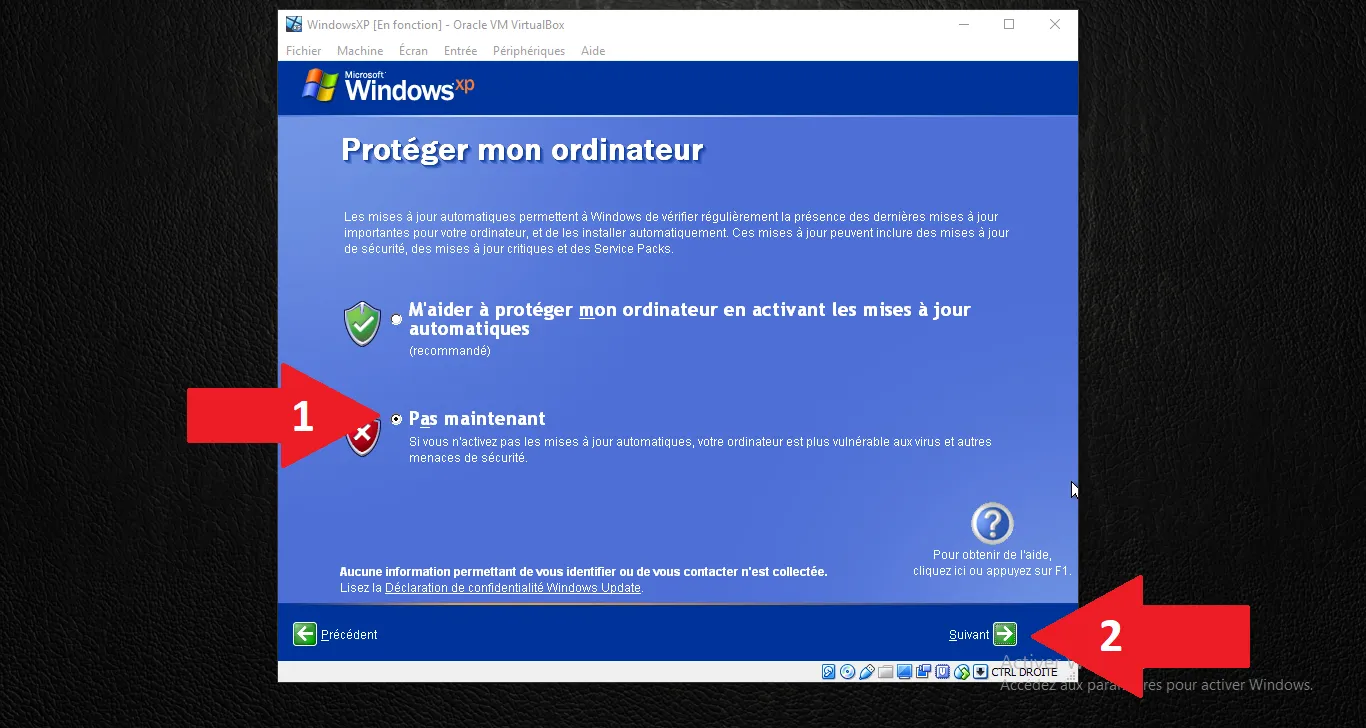
Choose "Not right now" for automatic updates (as XP is no longer supported) and click Next.
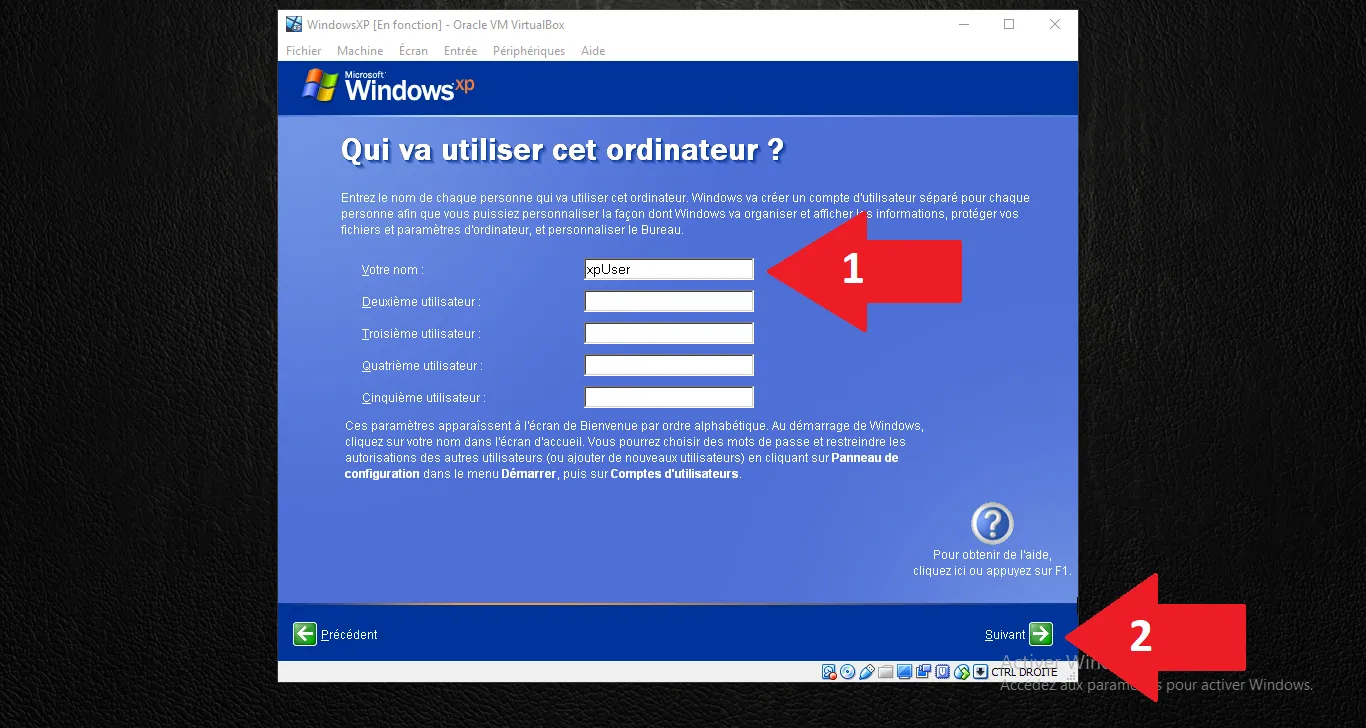
Enter the primary username (e.g., xpUser) and click Next.
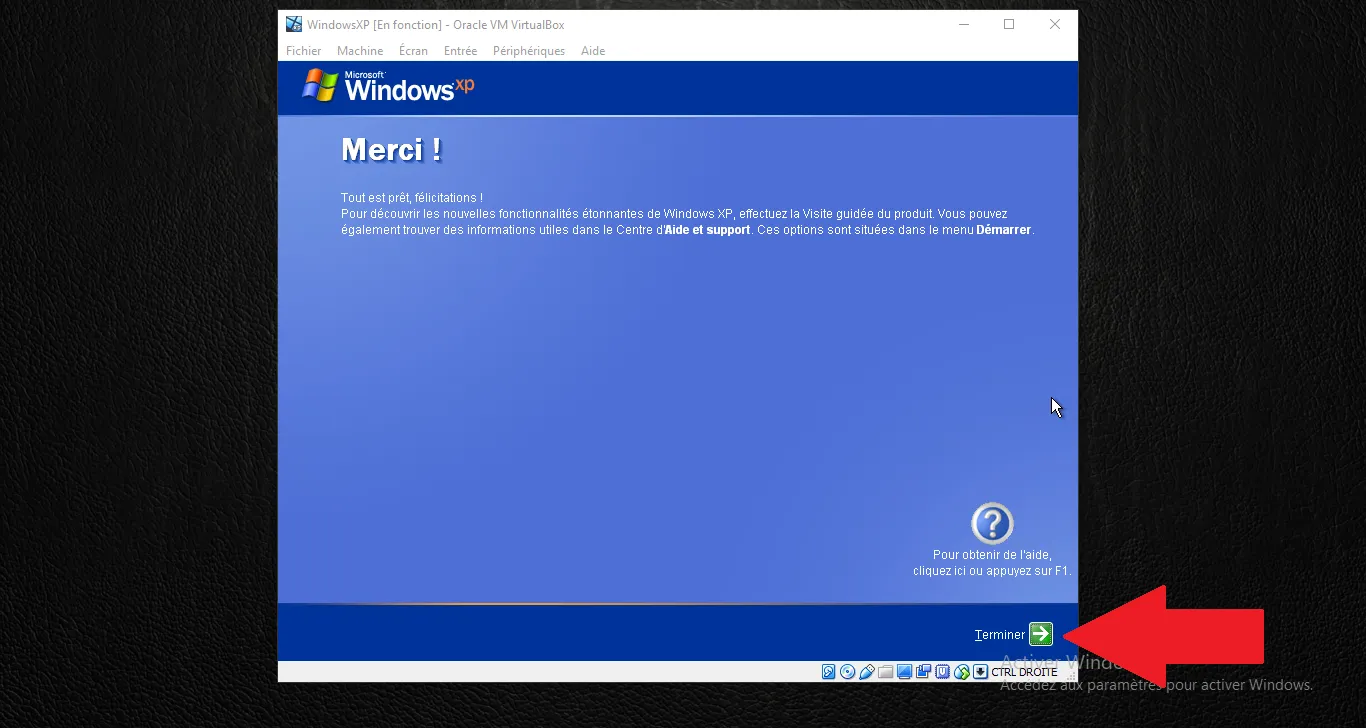
The installation is complete! Click Finish to access your new Windows XP desktop.
Note: Now that Windows is installed, the next step is to install the Guest Additions to enable essential features like shared folders and the bidirectional clipboard.
Technical validation:
- File System: NTFS (Quick) recommended for modern VDI performance.
- User Profile: Single user 'xpUser' for easier workshop management.
- Updates: Disabled as official servers are no longer reachable.